09 · Record & detail pages
Lists get you to a record; the record page is where the work happens. Proposals, vendors, agreements, and reports all open into a detail page built from the same parts, so once you know the pattern you can read any of them. This chapter covers that shared anatomy and then the three detail pages you open most.
The record page pattern
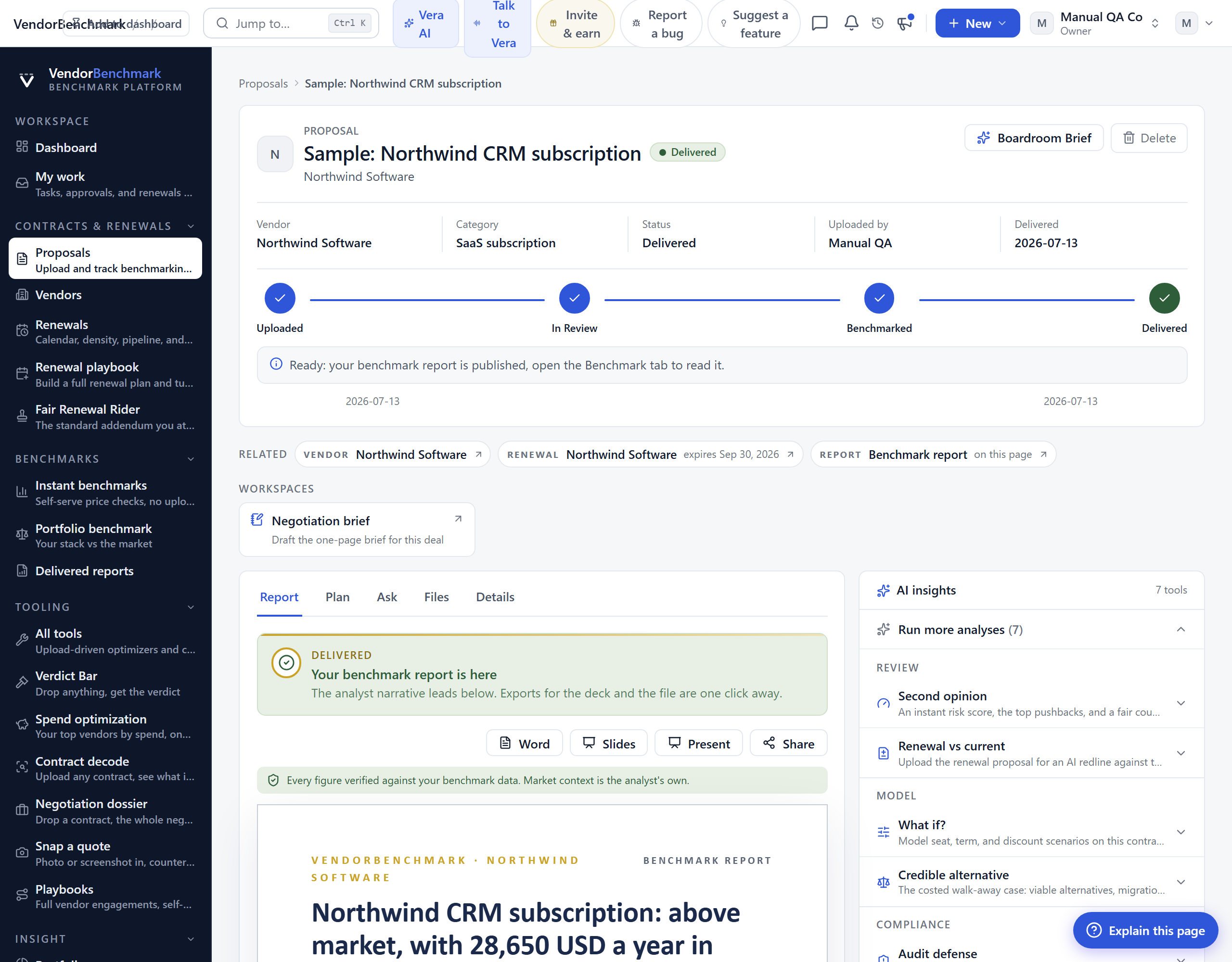
Every detail page in the platform is laid out the same way, top to bottom:
- Breadcrumb — where you are, and one click back to the list.
- Highlights header — a vendor logo, the record title and status, and a row of the key facts (the numbers you would read out on a call). Actions for the record sit here on the right.
- Related records strip — one hop to everything connected: the vendor, the matching renewal, the delivered report, the contract this one renews.
- Tabs — the main content, as underline tabs (the active one carries a blue border). The same tab pattern is used everywhere, never boxed or segmented.
- Right rail — supporting tools and context beside the tabs: AI analyses, access controls, and comments.
Because the pattern is fixed, the tab names change but the way you move around does not.
The proposal record
Where: open any row under Proposals · /contracts/<id>
Everything about one uploaded proposal, from the moment you submit it to the delivered report.
On the screen
- Status path — the four-step path Uploaded, In review, Benchmarked, Delivered, with the date each step was reached and, while it is with our team, who is working on it and how long it has been in the current step.
- Highlights — vendor, category, status, who uploaded it, and the delivered date. If the AI redline found the quote below the vendor's usual discount band, a "below band" badge appears here.
- First read — when you have an instant AI read on the document, it leads the page so you get a number before the analyst report lands.
- Workspaces strip — the deeper analyses that already have a result: the redline review, the SOW rate review, the walk-away alternative, and the negotiation brief.
The tabs
- Report — once delivered, this opens first: the white-paper narrative, the negotiation playbook, and the metrics table with percentile bars (see The benchmark report below). Before delivery it shows the request-a-benchmark card with the estimated delivery date.
- Plan — the step-by-step engagement plan for this vendor, with AI guidance on each activity.
- Ask — ask questions about this specific document and get answers grounded in its text.
- Files — the PDF or DOCX files you uploaded, opened with a short-lived signed link.
- Details — the extracted fields (seats, annual value, uplift cap, term dates, source language), your notes, and what you asked us. You can re-extract or export a redline from here.
The right rail
- AI analyses — grouped as Review (proposal review, SOW review, second opinion, renewal vs current), Model (what-if scenarios, entitlements, credible alternative), and Compliance (audit defense, audit workbench, security & DPA check). Rows with a stored result open first; the rest sit behind one entry.
- Access — whether the proposal is visible to the whole organization or restricted to named people, managed by the owner, the uploader, or an admin.
- Comments — a thread on the record, and you can comment on a specific metric or clause.
See also: Proposals · Delivered reports · Contract decode
The vendor record
Where: open any row under Vendors · /vendors/<vendor>
Your whole relationship with one vendor on a single page.
On the screen
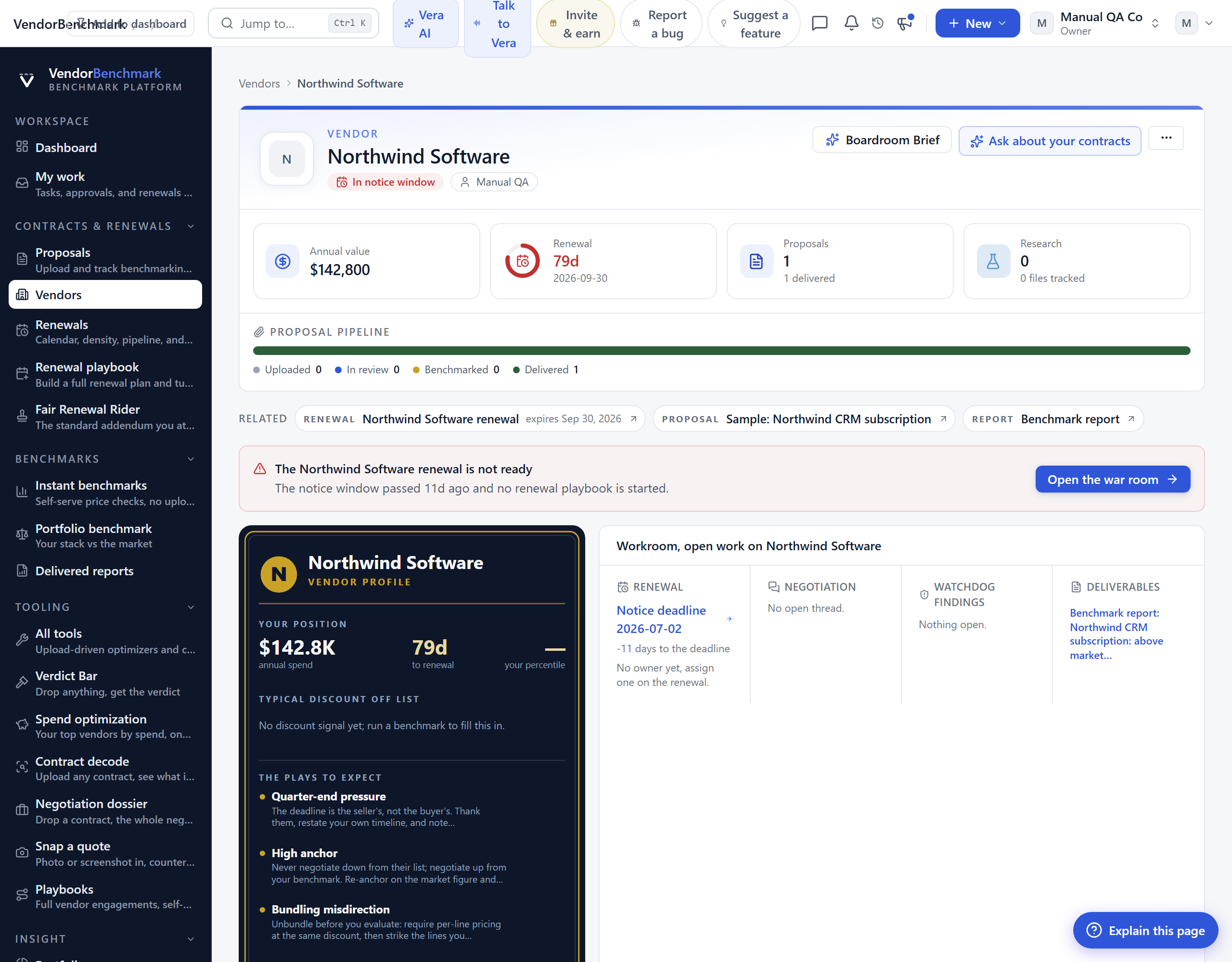
- Highlights — annual value, the renewal countdown and date, proposals (and how many delivered), and tracked research, with an "in notice window" badge when a deadline is close.
- Proposal pipeline — this vendor's proposals across the status path.
- Vendor profile — your position and percentile, the typical discount off list once a benchmark exists, and the plays to expect from this vendor (quarter-end pressure, high anchor, bundling misdirection, and more).
- Workroom — the renewal, any live negotiation, watchdog findings, and the deliverables on this vendor, each one click away.
- Deeper tabs — Position, Risk, Intelligence, and Activity break the relationship down further.
How to use it
- Read the highlights and the vendor profile to see whether this vendor looks above or below market and what plays to expect.
- Check Intelligence before a renewal for the latest pricing and licensing moves.
- Use the related records strip to jump to the vendor's agreements, proposals, and delivered reports, or open the war room straight from the renewal alert.
See also: Vendors · Vendor scorecards · Terms watch
The benchmark report
Where: the Report tab on a delivered proposal, or open it from Delivered reports
The deliverable itself: a senior-analyst read of your deal against the market, not a bare table of numbers.
On the screen
- The narrative — the white-paper report leads: an executive summary, your market position, section-by-section analysis, prioritized recommendations, and a bottom line. Every figure is grounded in stored data and citation-tagged.
- Negotiation playbook — the metrics turned into specific asks you can take into the room.
- Metrics table — each metric with your value, the market low, median, and high, a percentile, and notes. Percentile bars show at a glance where each one sits, and you can pick the peer cohort the comparison uses.
- Overall score — one number summarizing how the deal stacks up.
- Delta and trend — how the report changed against earlier snapshots, when there is a history.
- Downloads and sharing — export the report as PDF or Word (the export matches the on-screen brief), hand it to a teammate, or create a share link.
How to use it
- Read the narrative first; it interprets the numbers rather than restating them.
- Drop to the metrics table to see the exact gaps, and switch the cohort if a tighter peer set applies to you.
- Take the negotiation playbook and the recommendations into your negotiation, and export or share the report with your budget owner.
See also: Delivered reports · Benchmark a proposal end to end
This is the last chapter. Back to the manual index.