02 · Benchmarks & research
This chapter covers the benchmarking half of the platform: instant self-serve price checks for hundreds of vendors, your whole portfolio scored against the market in one view, the analyst-delivered reports you get when you upload a proposal, the vendor grade book, and the research library. Reach for it whenever you need to know whether a price is fair, where the money is across your stack, or what a vendor is doing in the market.
Instant benchmarks
Where: Benchmarks › Instant benchmarks · /benchmarking
Who: everyone
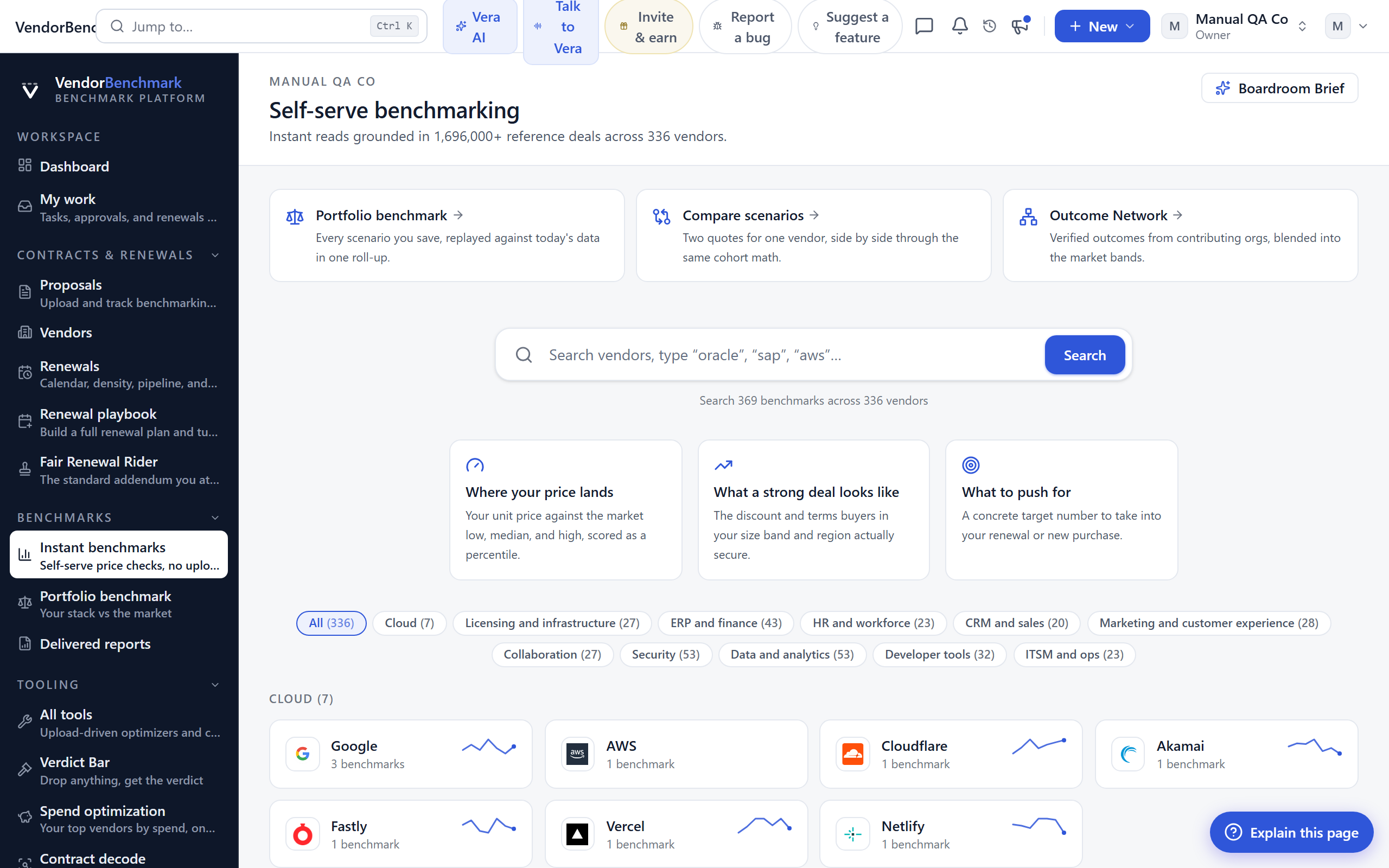
Self-serve price checks for more than forty vendors, no upload needed. Answer a few questions about your deal and get a market comparison in about two minutes.
On the screen
- Tool cards — one tool per vendor or topic: Microsoft, Oracle, Salesforce, SAP, AWS, and more, grouped by category.
- Peer comparison — results show where your deal sits against a cohort of similar companies, with percentile bars.
- Saved scenarios — your past runs are saved so you can revisit or share them.
How to use it
- Pick a vendor tool and run a check.
- To score your whole stack at once instead of one vendor, open the Portfolio benchmark.
- For a deeper expert review, upload the proposal for analyst benchmarking.
Tips
- The full set of vendor tools is the benchmark library below. The hub groups them by category so you can find yours fast, or press Ctrl/⌘ K and type the vendor name.
Related: The benchmark library · Portfolio benchmark
Portfolio benchmark
Where: Benchmarks › Portfolio benchmark · /benchmarking/portfolio
Who: everyone
Your whole software stack compared with the market in one view: which vendors look expensive, which look fair, and where the money is.
On the screen
- Standing per vendor — each vendor's position against market pricing, built from your proposals and agreements.
- Savings prize — the estimated annual amount on the table if above-market deals moved to the median.
How to use it
- Open a vendor that looks above market to see the detail behind its standing.
- See ranked savings opportunities in Opportunities.
Related: Opportunities · Benchmark all my vendors
Benchmark all my vendors
Where: Benchmarks › Delivered reports › Benchmark all my vendors · /reports/vendor-benchmark
Who: everyone · requires an AI plan
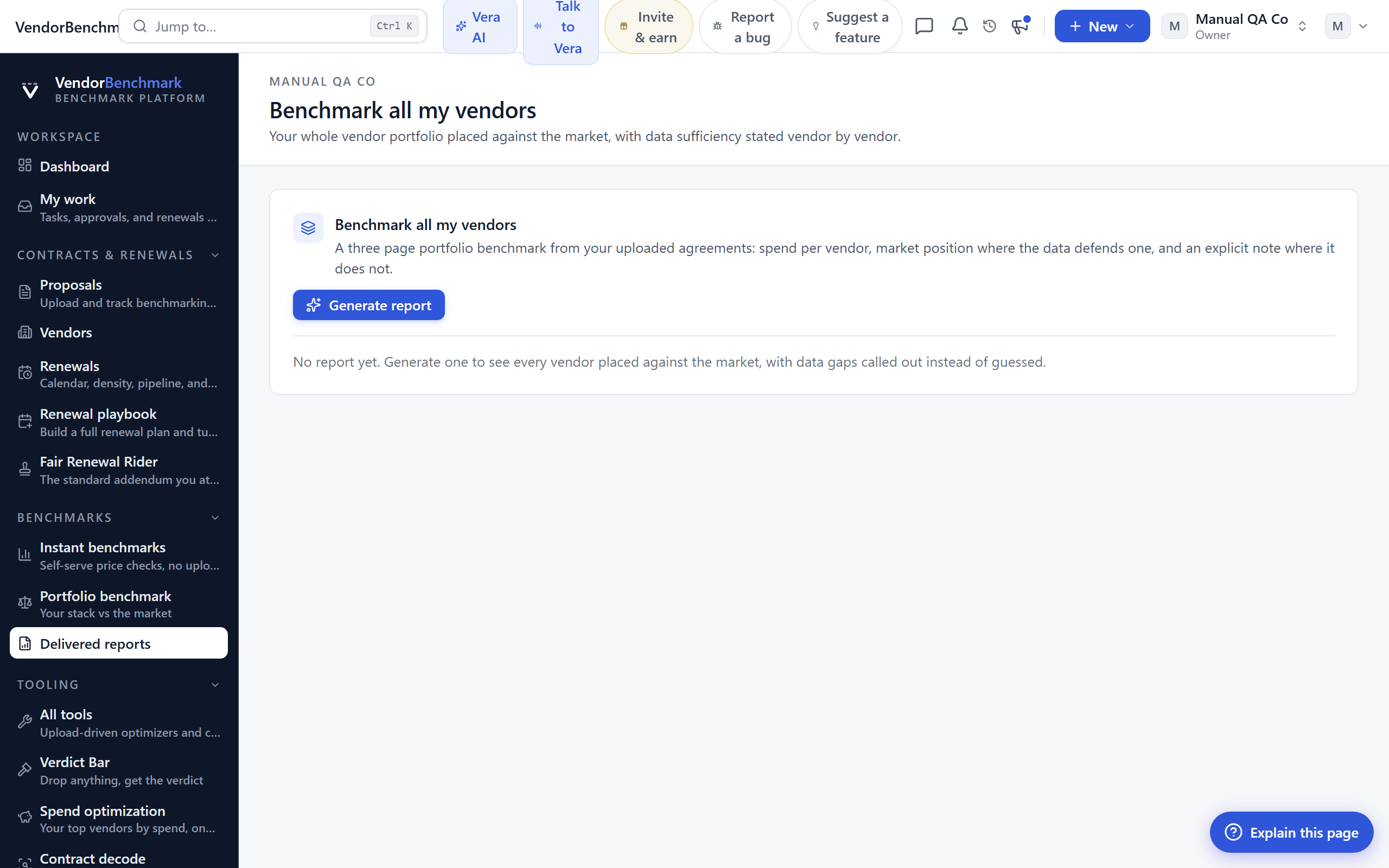
A three page portfolio benchmark generated from every agreement you have uploaded: spend per vendor, market position where our reference data defends one, and an explicit insufficient-data note where it does not.
On the screen
- Generate button — scans your agreements, places each vendor in its peer cohort, writes the report, and checks every figure against your stored data. Takes 1 to 3 minutes.
- Spend per vendor — page one: portfolio vitals and an overview of annual spend by vendor, largest first.
- Market position table — page two: each vendor's position and the basis for it, a delivered analyst score, a cohort percentile with a ± range, market reference data, or insufficient data.
- Data coverage — page three names the vendors we cannot benchmark yet and the one step that closes each gap. We never estimate a position without data.
How to use it
- Generate or regenerate the report.
- Download as Word; the export matches the on-screen brief.
- Close a data gap by adding a list price or seat count in the vendor's benchmark tool, which moves it from reference to ranked.
Tips
- This report reads from agreements, not one-off instant checks. The more complete your Agreements list, the more of your stack it can place.
Related: Portfolio benchmark · Delivered reports
Delivered reports
Where: Benchmarks › Delivered reports · /reports
Who: everyone
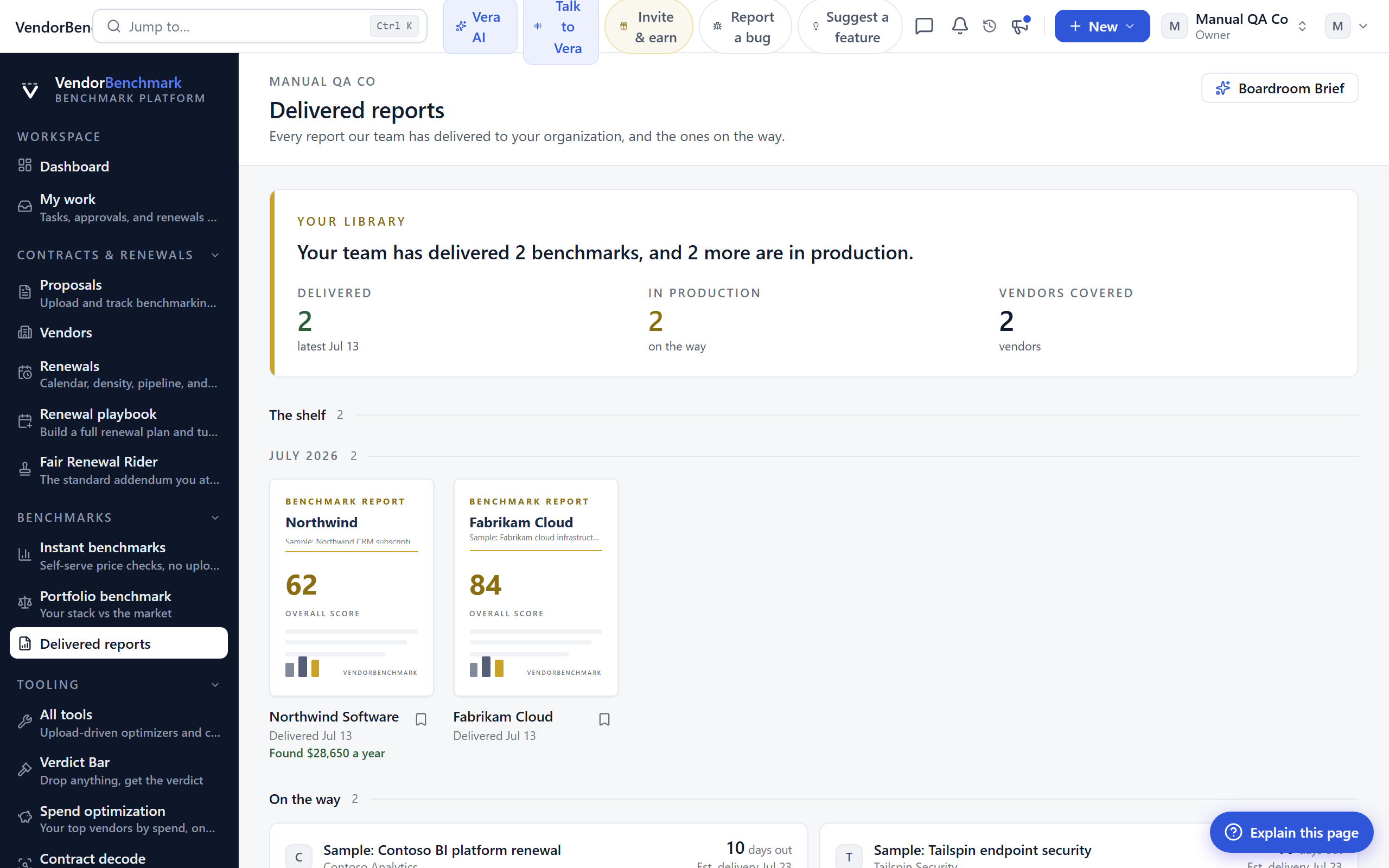
Benchmark reports our analysts delivered for your proposals, plus anything still in flight with its estimated delivery date.
On the screen
- Report page — a metrics table with percentile bars, market low, median and high, an overall score, and the analyst summary.
- In-flight benchmarks — proposals still in review, with an estimated delivery date.
How to use it
- Open a report and walk the metrics.
- Download the report as a PDF.
- Bookmark a report for later, and find it again in Saved.
Tips
- A delivered report comes from uploading a proposal for expert review, not from an instant check. Start one on the Proposals screen.
Vendor scorecards
Where: Benchmarks › Vendor scorecards · /scorecards
Who: everyone
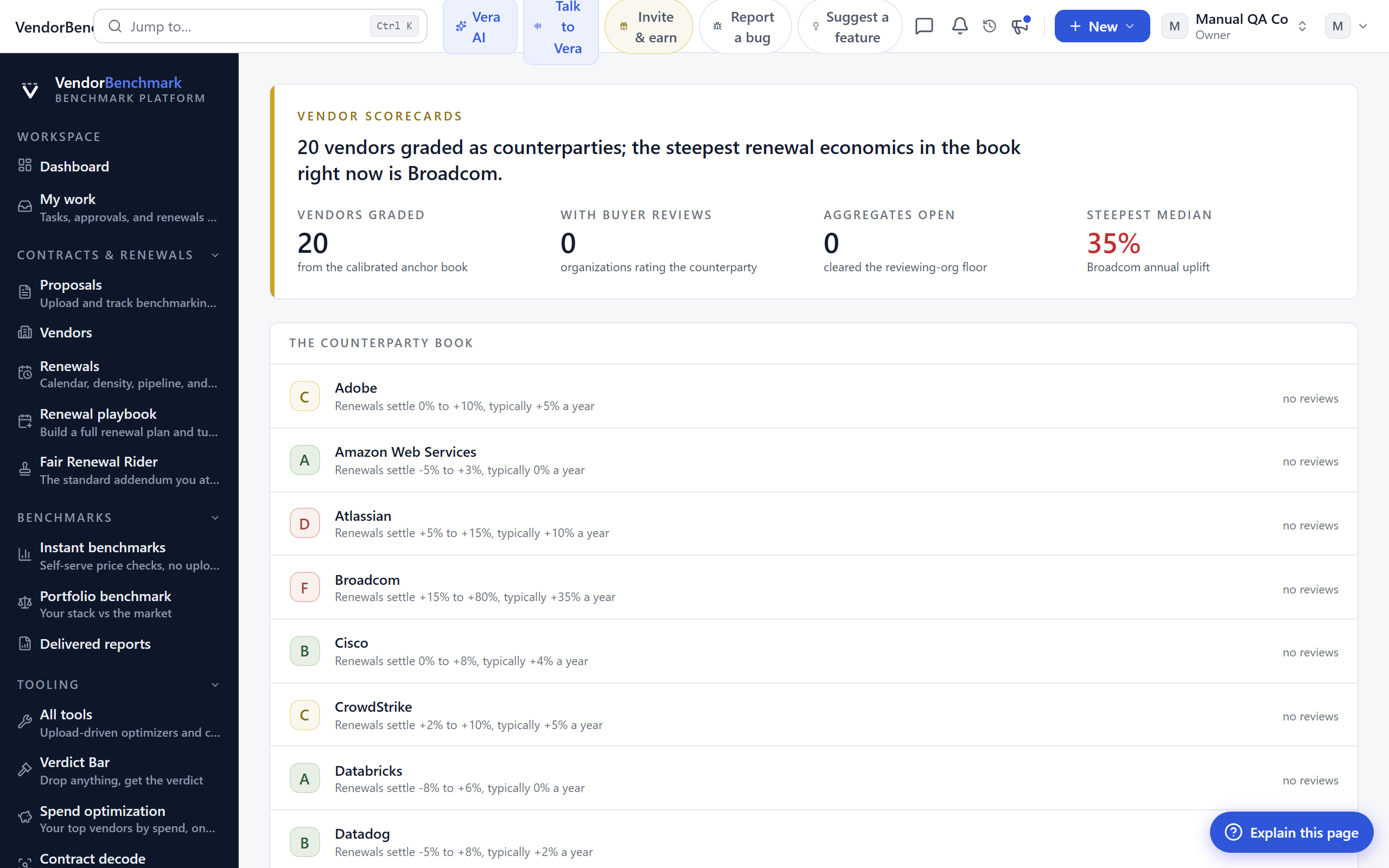
Every calibrated vendor graded as a counterparty: the renewal corridor behind our benchmarks turned into an A-to-F grade, plus how verified buyers rate the vendor's renewal fairness, audit conduct, and flexibility.
On the screen
- The grade — renewal economics from the calibrated corridor, not a popularity score.
- Buyer ratings — one review per organization, shown only as floored aggregates.
- Public page — each vendor has a public scorecard the whole market can cite.
How to use it
- Rate a vendor you hold paper with.
- Open the public page for a vendor you are renewing.
Research
Where: Benchmarks › Research · /research
Who: everyone
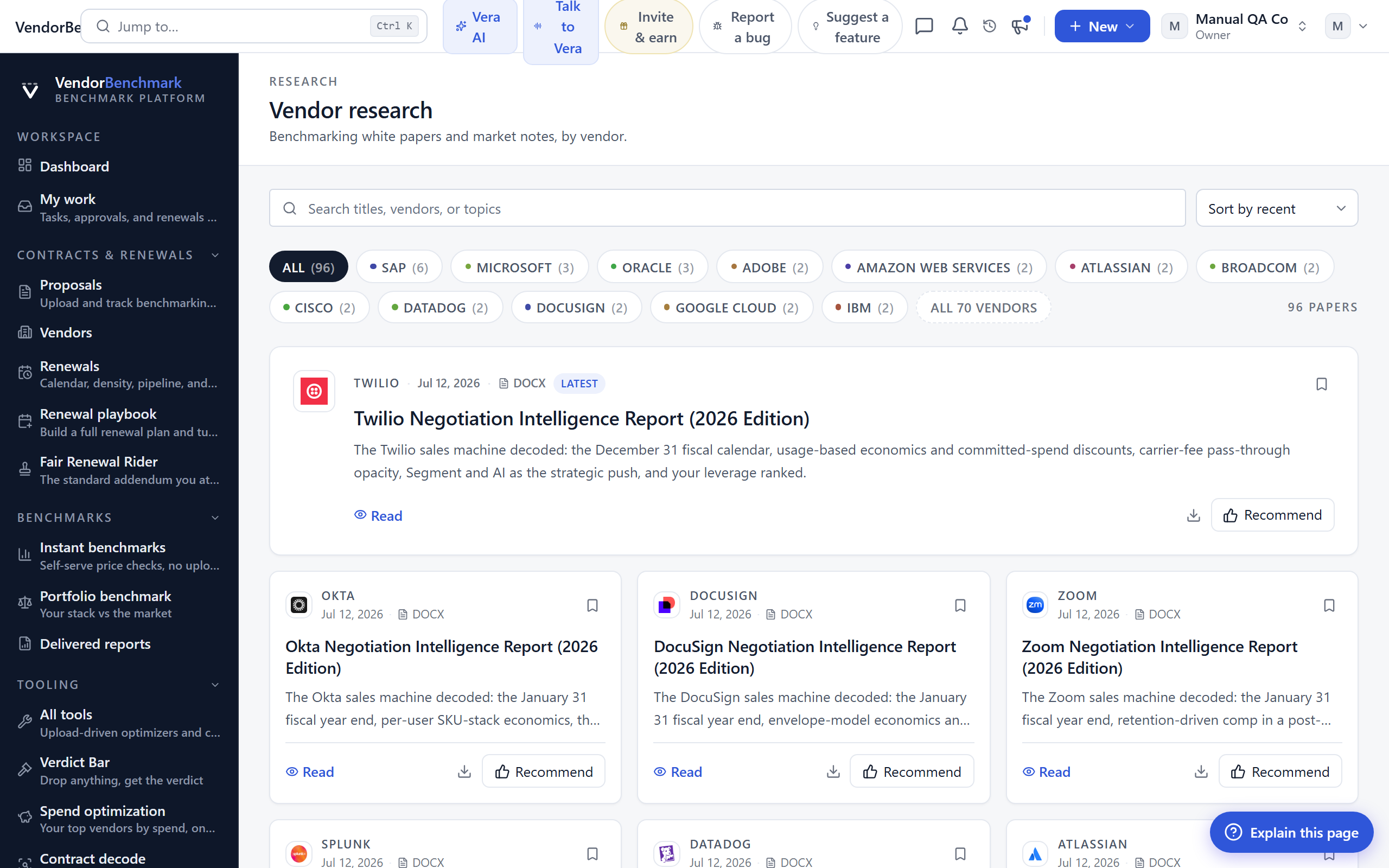
Our latest white papers and market notes: vendor pricing moves, licensing changes, and negotiation guidance.
On the screen
- Filters — narrow by vendor or search by title and topic.
- Bookmark icon — save any paper to your Saved list.
How to use it
- Read or download a paper.
- Share a paper with a colleague by recommending it by email or creating a share link.
Related: Saved · Vendor scorecards
The benchmark library
Where: Benchmarks › Instant benchmarks › any vendor · /benchmarking/[vendor]
Who: everyone
The instant benchmarks hub is a front door to roughly 457 individual vendor tools, one page per vendor and product line, from Microsoft EA and RISE with SAP to Snowflake, CrowdStrike, and Autodesk, including the AI tool stack (AI coding assistants, model and inference APIs, GPU cloud, data labeling, voice, and video). Each page is a self-serve price check: you enter your own numbers and see where your deal lands against a cohort of comparable transactions, with no upload and no wait.
The library also covers professional services under its own category. The ten largest services providers (Accenture, Deloitte, PwC, EY, KPMG, IBM Consulting, Capgemini, Cognizant, Infosys, and TCS) are benchmarked on blended hourly rate per consultant rather than discount off list: enter your total fees and hours and see where your effective rate lands for that firm and engagement size, with your onshore/offshore delivery mix and commercial leverage as the levers.
The largest publishers are covered by product line rather than as one tool, because they do not price as one vendor. Oracle has its own deep set: the Fusion cloud applications (SCM, EPM, and the CX suite of Sales, Service, Marketing, CPQ, and Commerce), Analytics Cloud, the industry clouds (Health, Retail, Hospitality, Financial Services, Utilities, Communications, Transportation Management, Field Service, Primavera Cloud), and the on-prem license and ULA-family estates (E-Business Suite, Siebel, JD Edwards, Primavera P6, Pool of Funds, and Perpetual ULA). Salesforce is broken out into Sales, Service, Commerce, Experience, Revenue (CPQ), Field Service, Platform, Agentforce, CRM Analytics, and the Health, Financial Services, and Nonprofit clouds. ServiceNow covers ITSM, ITOM, CSM, HRSD, SPM, Security Operations, IRM, App Engine, Field Service Management, and the Now Assist AI add-on. SAP covers S/4HANA (on-prem and RISE), GROW, Analytics Cloud, Datasphere, Integrated Business Planning, Fieldglass, Commerce Cloud, Sales & Service Cloud, Signavio, LeanIX, SuccessFactors, Ariba, Concur, and BTP. Pick the exact product line you are negotiating.
On the screen
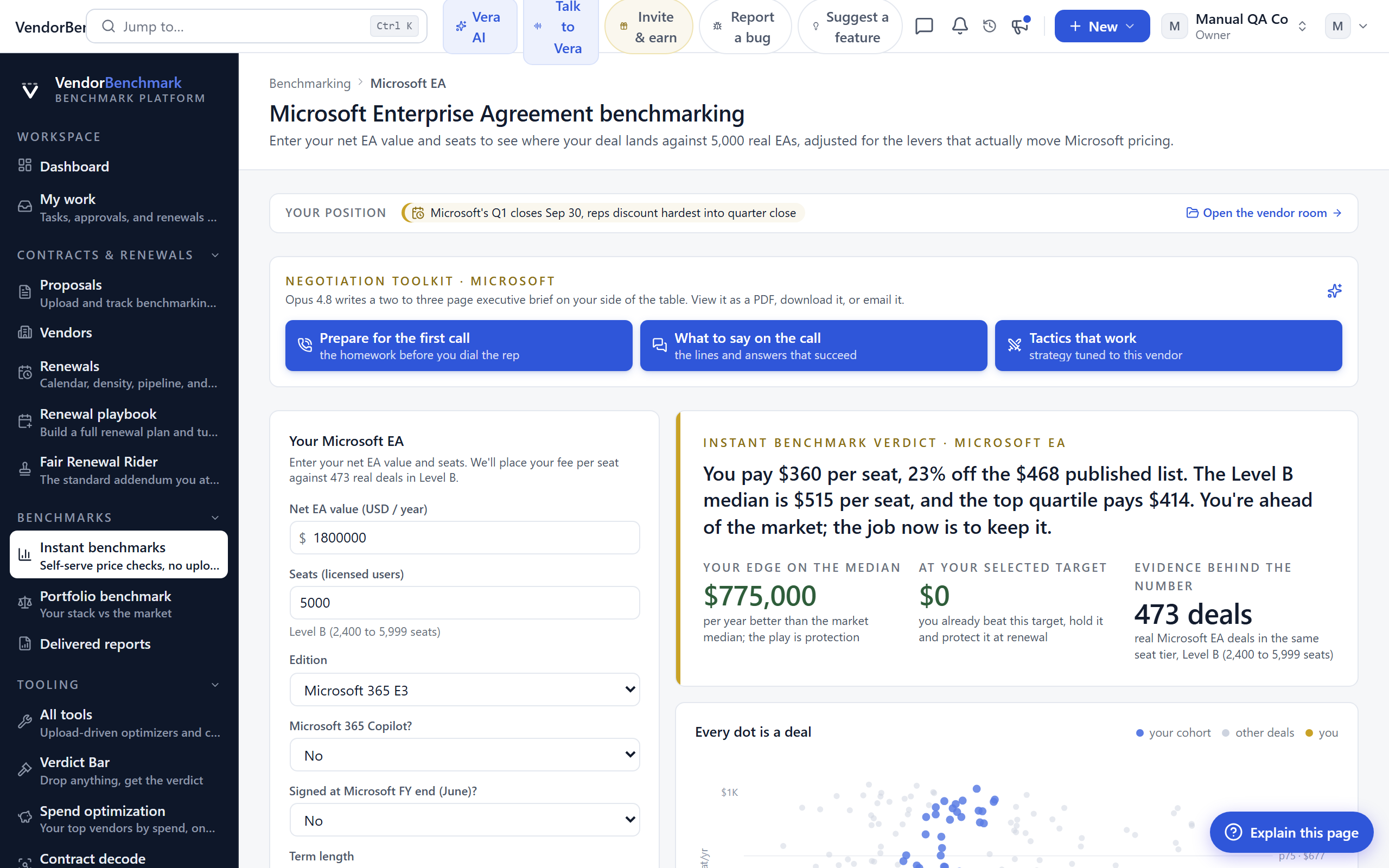
- Your deal panel — the inputs on the left: currency, your net fee, unit count, an optional list value for the discount reading, region, industry, and any deal-structure levers such as term length or competitive presence. The verdict updates live as you type.
- Where this lands — a percentile band pinned under the inputs showing the middle 50% of your peer set with your deal marked, and the verdict pill (favorable, mid, or above market).
- The verdict, the evidence, the play — the results read as three chapters: the headline verdict and the annual gap to the market median, the cohort of comparable deals behind the number, then targets to ask for (a defensible floor at the median, a strong close, and a stretch anchor), the strike-window timing, your leverage, and ready counters to common vendor pushback.
- Saved scenarios — save a position to track it over time, feed the portfolio view, and get alerted when that vendor's market moves.
- Action bar — download the placement as a PDF, or create a share link (valid 30 days, optionally kept live so it recomputes against current data each time it is opened).
How to use it
- Find your vendor from the hub cards, the search box, or the Ctrl/⌘ K palette, and open its page.
- Enter your deal on the left. The verdict, targets, and play light up as soon as your deal is placed against a deep enough cohort.
- Read the play and take the target and counters into the negotiation. Save the scenario or share the result with your team.
Tips
- When too few comparable deals match your position to rank it honestly, the page says so instead of showing a noisy percentile. Widen the region to all regions, or check the deal size.
- Amounts entered in another currency are converted to USD at a fixed, disclosed rate before the placement math.
- For vendors whose discount scales with deal size, such as Oracle cloud, your deal is ranked inside its own value tier, so a small deal is not judged against whale discounts and a large deal is held to the deeper discount its size should command.
- An instant check is a fast read you run yourself. For a full, hand-verified analysis of a specific quote or contract, upload it for analyst benchmarking; the vendor page links straight into the upload wizard with your vendor and deal value prefilled.
Related: Instant benchmarks · Proposals · Portfolio benchmark