05 · Team, AI & assistant
This chapter covers the shared-work queues where your team hands work back and forth (tasks, approvals, and team coverage), Vera the AI analyst grounded in your own portfolio and documents, the automations and deliverables built on top of her, and the ways your team talks to each other and to our analysts. Everything here is about getting work assigned, answered, and moving.
Tasks
Where: Team & AI › Tasks · /tasks
Who: everyone
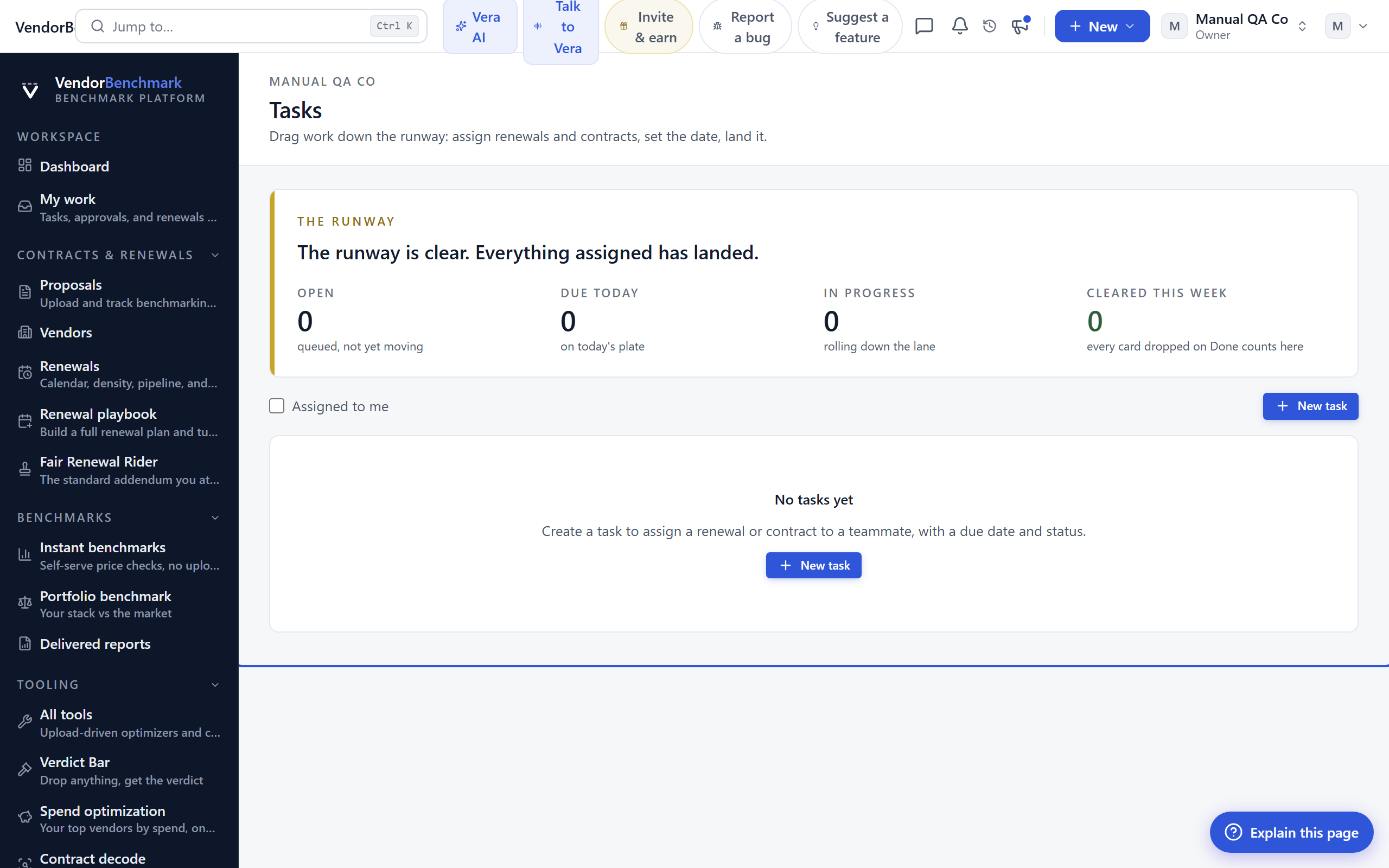
Shared to-dos for your team: follow-ups on renewals, negotiation actions, and anything else worth not forgetting.
On the screen
- Assignees and due dates — tasks can be assigned to teammates and linked to vendors or renewals.
How to use it
- Create a task and assign it to the teammate who owns it.
- Link it to the vendor or renewal it belongs to, and set a due date.
- To see just the items assigned to you rather than the whole team, open My work.
Approvals
Where: Team & AI › Approvals · /approvals
Who: everyone
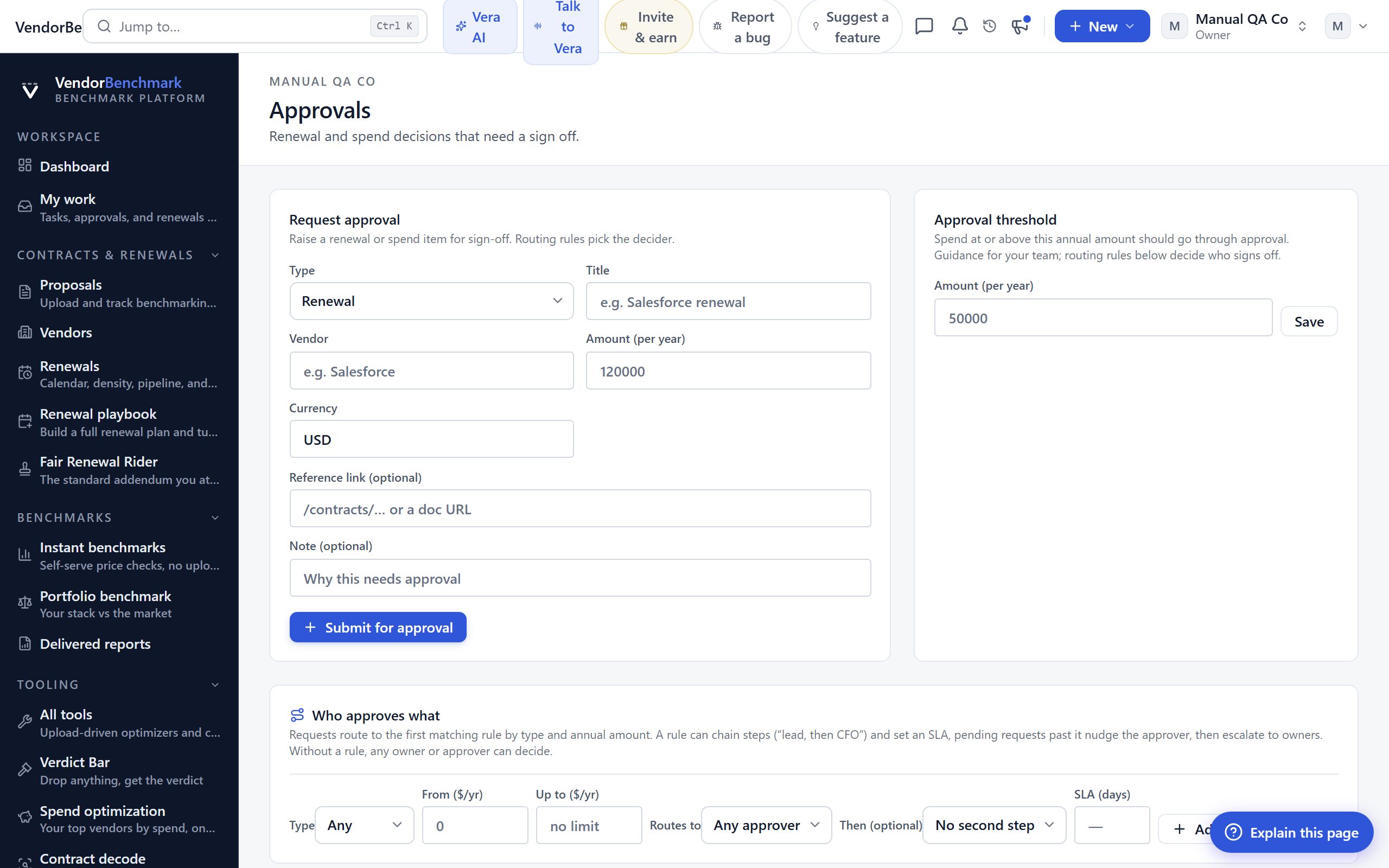
Sign-offs your team routes through the platform, for example a negotiation mandate waiting for a budget owner.
On the screen
- Pending list — what is waiting on you versus what you have sent to others.
How to use it
- Review the items waiting on you and approve or decline each one.
- Track anything you have sent to others in the same list until it clears.
Related: Deal approvals setup · My work
Team
Where: Team & AI › Team · /team
Who: everyone
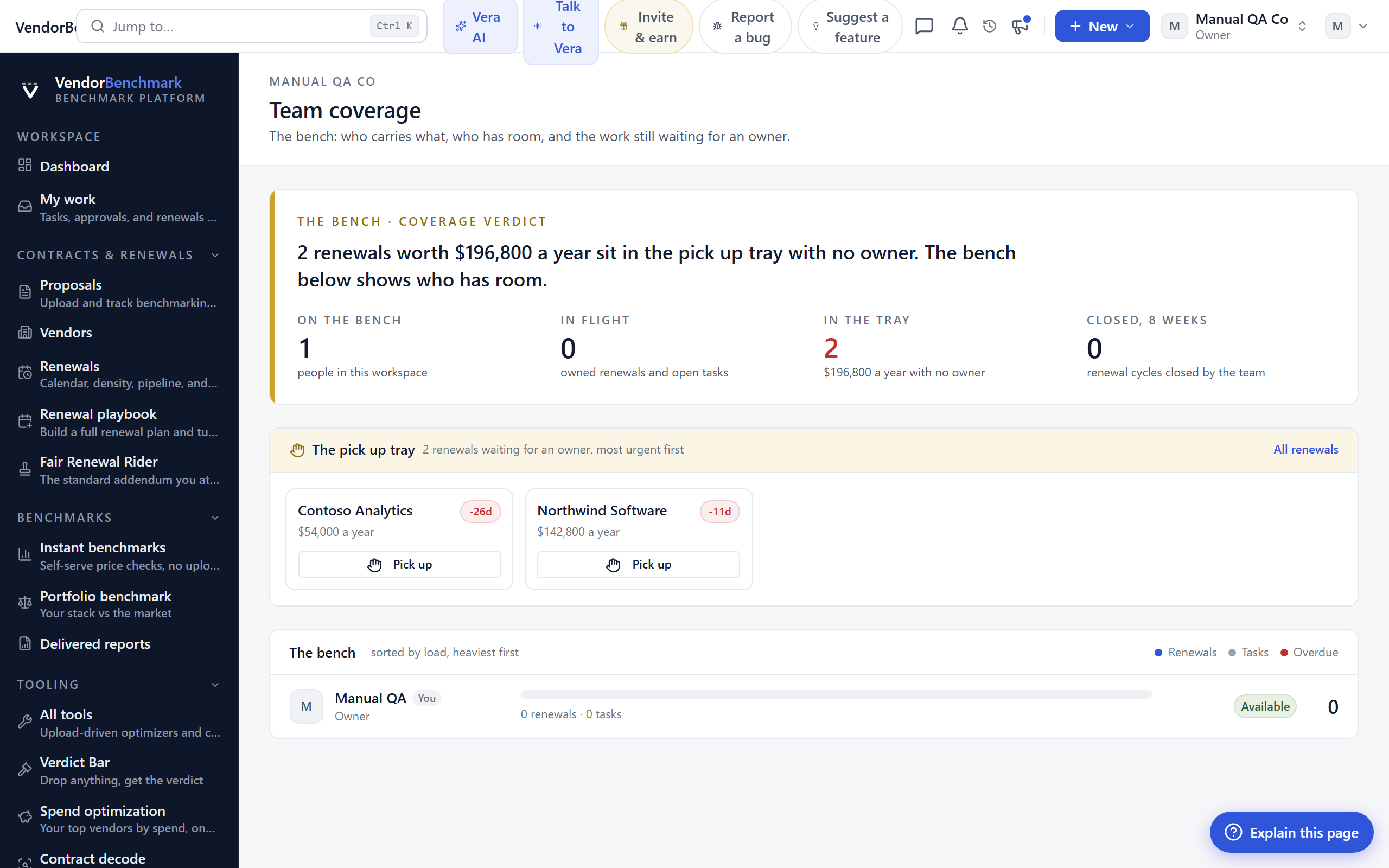
Who owns what across your organization, and more importantly what nobody owns: renewals without an owner, open tasks, and assigned findings.
On the screen
- Member rows — each teammate with the renewals, tasks, and findings on their plate.
- Unowned renewals — agreements with no renewal owner. Assign these before a notice window gets missed.
How to use it
- Scan the unowned renewals first and assign an owner to each one.
- Use the member rows to balance who is carrying what.
Tips
- Owners can invite a teammate from here when there is more work than people to cover it.
Vera AI
Where: Team & AI › Vera AI · /ask
Who: everyone · requires an AI plan
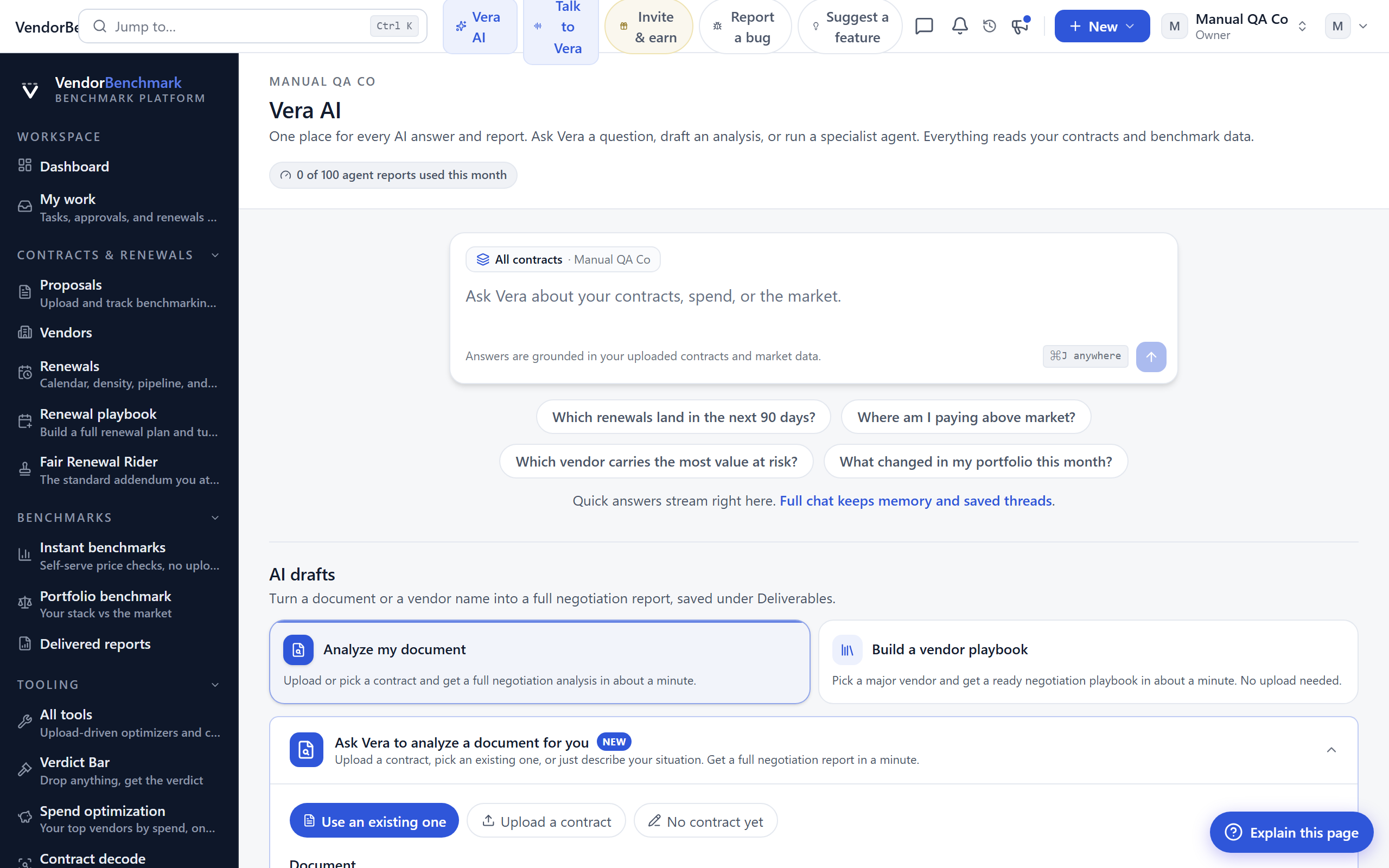
Vera is an AI analyst grounded in your actual portfolio and uploaded documents. Ask about a price, a clause, a vendor's tactics, or how the platform works.
On the screen
- Chat — answers cite whether a figure comes from your contracts or from market experience. Your conversation is saved and private to you, and the assistant keeps a long-term memory of durable facts about you (reviewable and deletable under Assistant memory).
- Playbook agents — purpose-built agents that turn a proposal into a deliverable, for example an executive brief or negotiation talking points.
How to use it
- Ask about any vendor, price, or clause in plain language.
- Run a playbook agent on a proposal to generate a brief or talking points.
- Open Vera anywhere in the app with Ctrl/⌘ J, so you never have to leave the page you are on.
Tips
- Vera answers only from your organization's own contracts and our market data, and every figure is tagged with its source so you can tell a stored number from a market estimate.
- Vera's long-term memory is fully reviewable and deletable under Settings › Assistant memory.
Related: Assistant memory · Deliverables · Workflow agents
Workflow agents
Where: Team & AI › Workflow agents · /workflows
Who: everyone
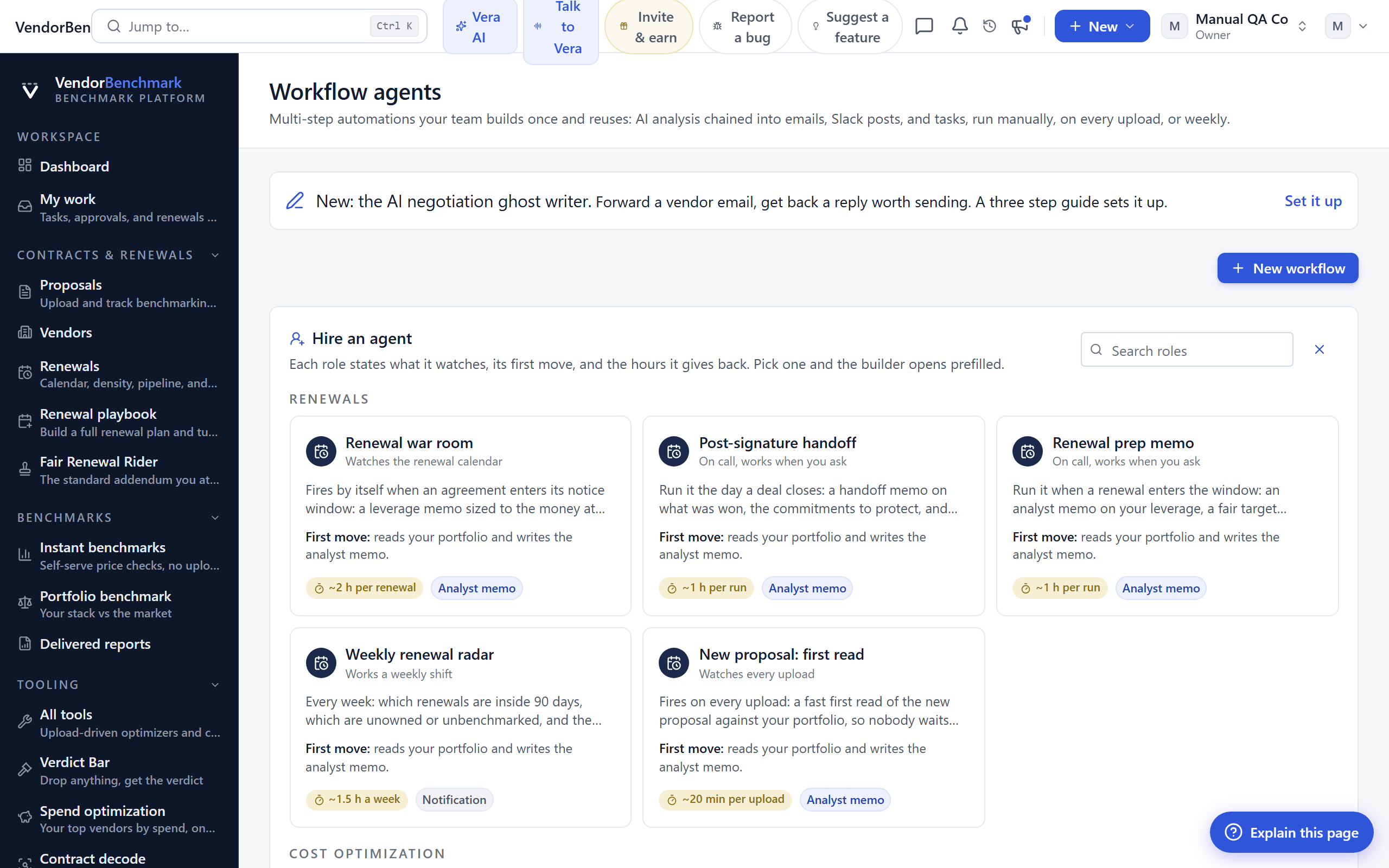
Multi-step automations your team builds without code: chain an AI analysis into an email, a Slack post, or a task, then run the chain manually, on every proposal upload, or weekly.
On the screen
- Builder — pick a trigger, then stack steps in order. Use
{{vendor}}and{{title}}in any field to pull in details from whatever set the run off. - Recent runs — every run keeps a per-step record; open one to read the AI memo it produced.
How to use it
- Build a workflow with an AI analysis step.
- Run it now and open the run record to read what it produced.
- Set a workflow to fire on every proposal upload when you want it to run itself.
Related: Vera AI · Proposals & upload
Deliverables
Where: Team & AI › Deliverables · /studio
Who: everyone · requires an AI plan
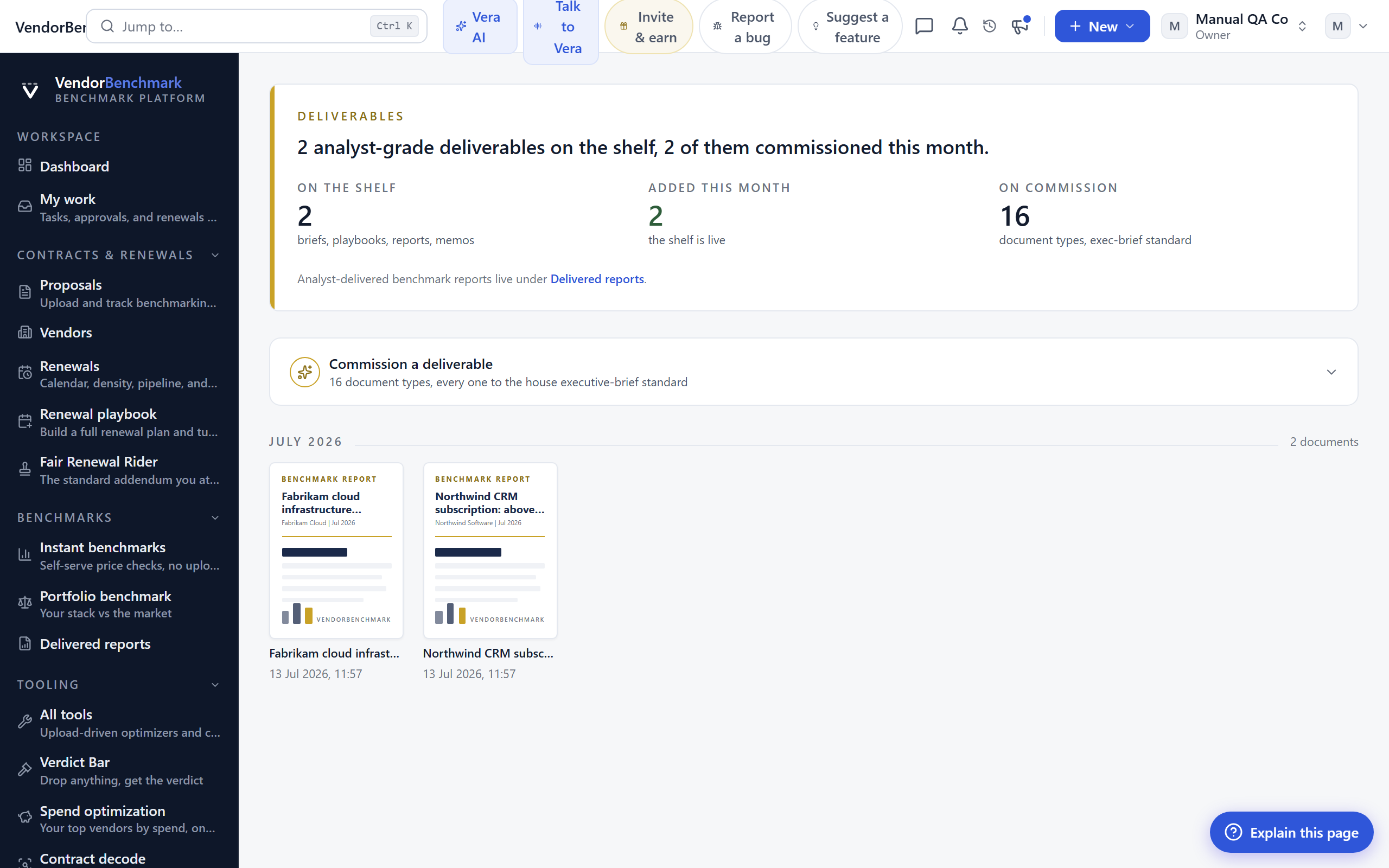
Every AI-generated brief, report, and memo in one place, rendered in the white-paper format you can export and share.
On the screen
- Deliverable cards — each document with its vendor, type, and date. Open one to read, export, or regenerate it.
How to use it
- Open a deliverable to read it in full.
- Export it, or regenerate it when the underlying data has moved on.
- Create a new one from Vera AI by running a playbook agent.
Related: Vera AI
Advisory
Where: Team & AI › Advisory · /advisory
Who: everyone
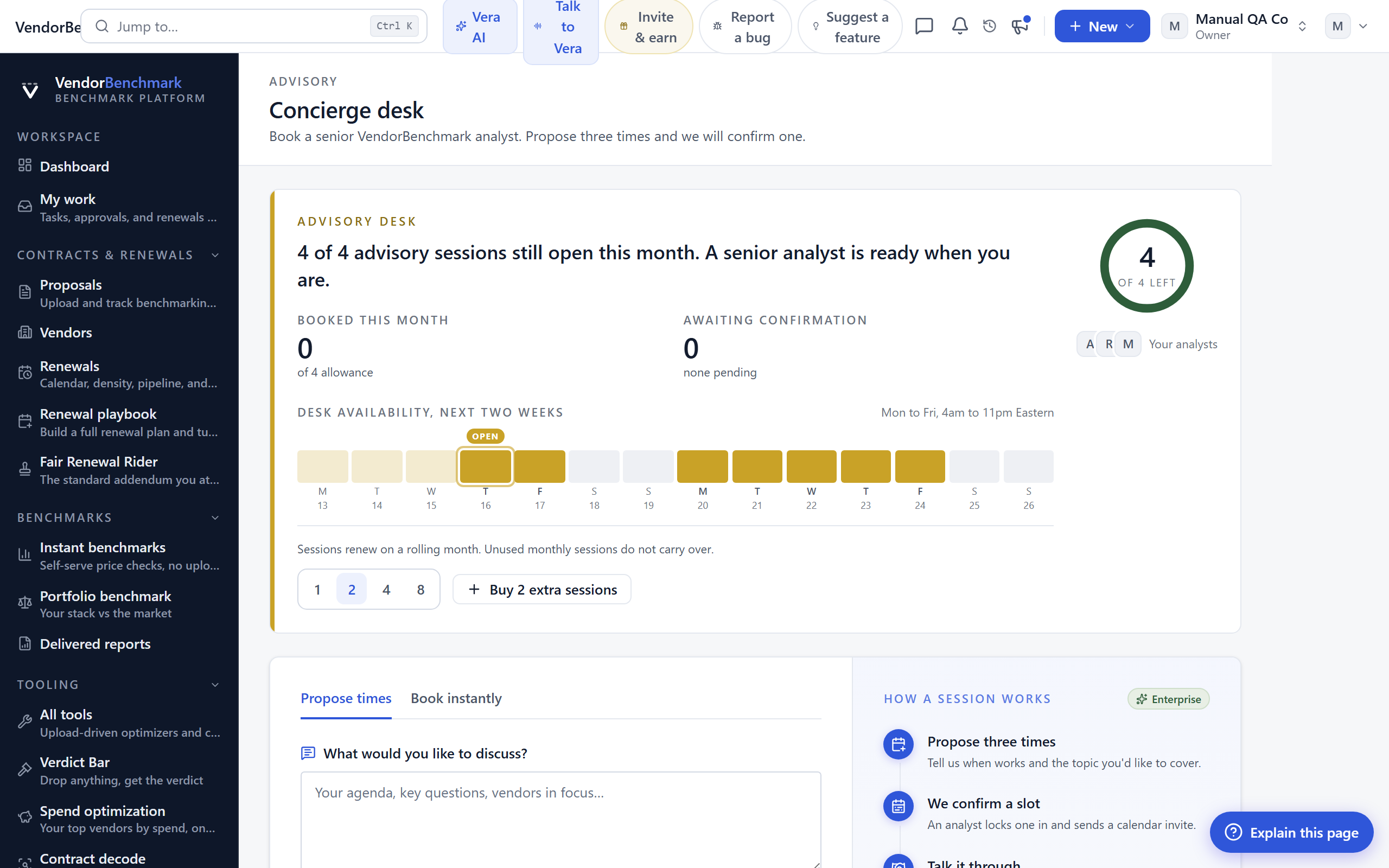
Book time with a buyer-side analyst: a human expert who has negotiated with your vendor before, for the moments a report is not enough.
On the screen
- Booking form — pick the topic and a time; the analyst comes prepared having read your relevant contracts.
How to use it
- Book a session, choosing the topic and a time that works.
- If it can wait, message the team instead and they will pick it up in Chat.
Related: Chat · Expert Bench
Saved
Where: Team & AI › Saved · /saved
Who: everyone
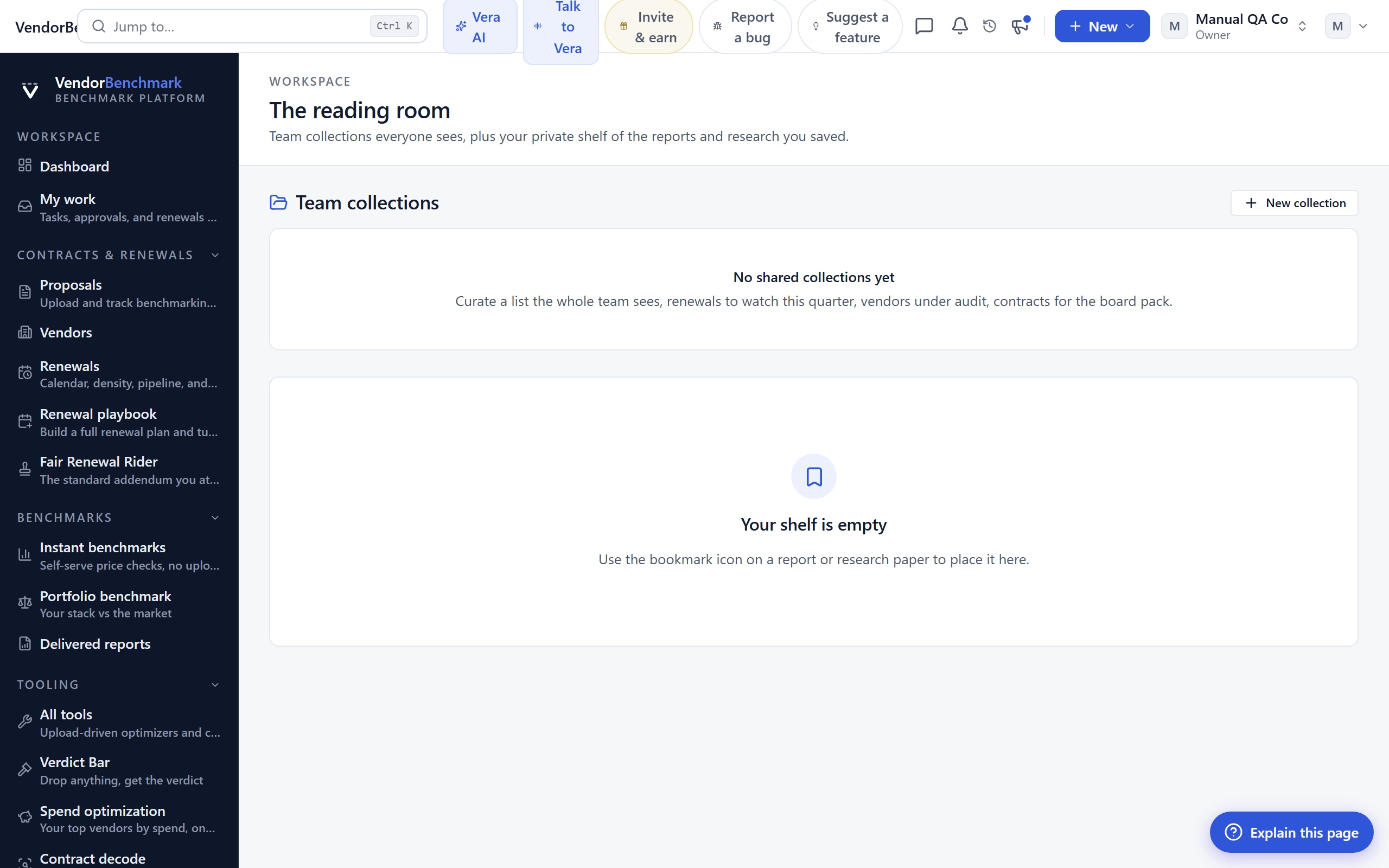
Reports and research you bookmarked with the bookmark icon, kept in one list so you can find them again.
On the screen
- Saved items — everything you bookmarked, newest first.
How to use it
- Open a saved report or paper straight from the list.
- Add to the list by clicking the bookmark icon on any report or research paper.
Related: Delivered reports · Research
Referrals
Where: Team & AI › Referrals · /referrals
Who: everyone
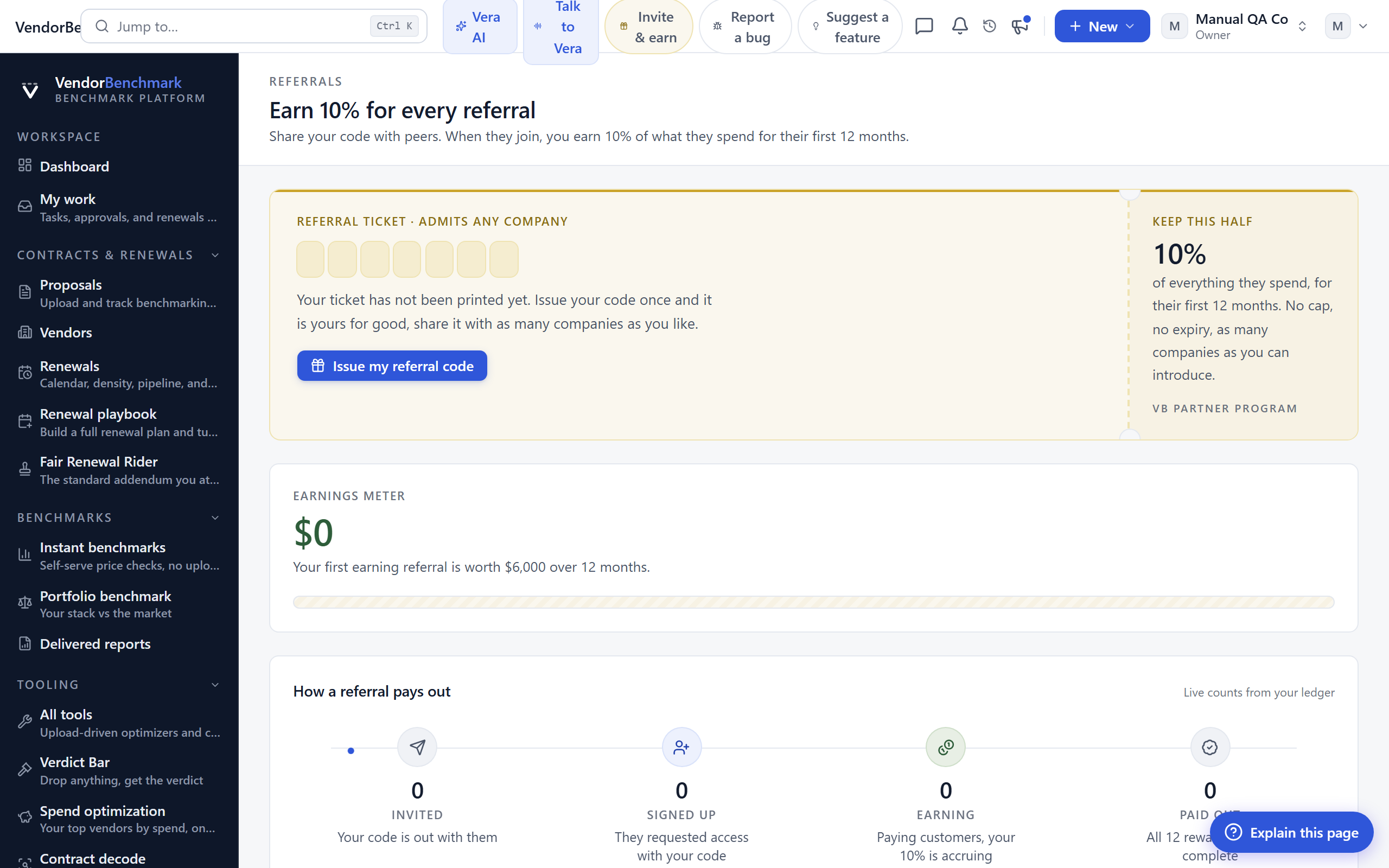
Your personal referral code. When a company you refer becomes a paying customer, you earn ten percent of their spend for their first twelve months. We email you when a referral signs up and again when they subscribe.
On the screen
- Your code and link — share these; signups through them are credited to you automatically.
- Referral status — who signed up, who is now paying, and what you have earned.
- Payout terms — payouts clear thirty days after we receive the customer's payment, and we contact you for your payout details once a referral starts earning.
How to use it
- Copy your referral link and share it with a company that would benefit.
- Watch the referral status list to see who signed up and what you have earned.
- Watch your inbox: we email you the moment a referral signs up, and again when they become a paying subscriber, with what the referral is worth and how the payout works.
Chat
Where: top bar (chat icon) · /chat
Who: everyone
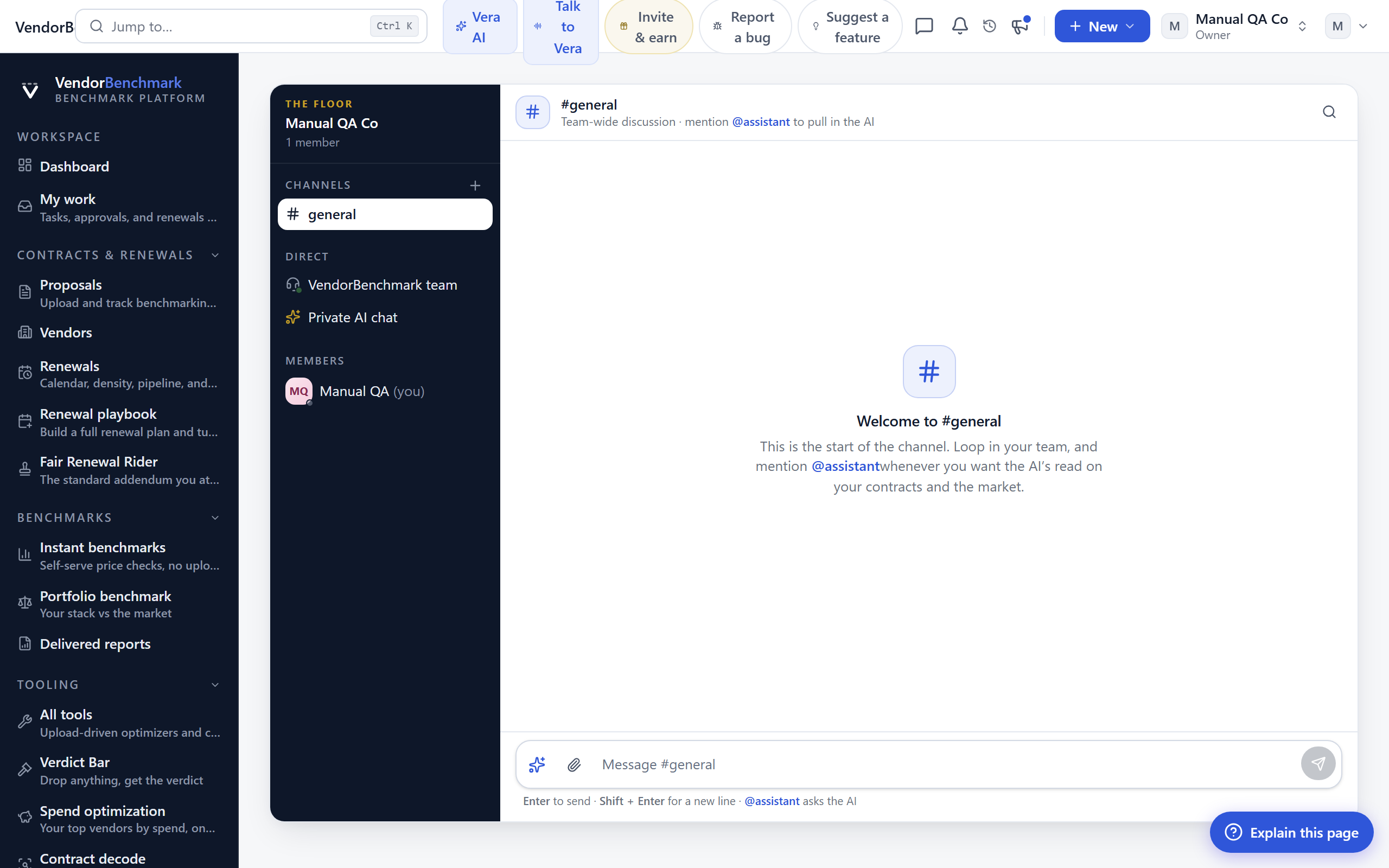
Your team's real-time chat: channels for the whole organization, a private support line to our analyst team, and the AI assistant on call in any channel.
On the screen
- Channels — team-wide rooms; #general is always there, and anyone can add more.
- VendorBenchmark team — the private support thread; only you and our team see it.
- @assistant — mention the assistant in any channel to get an AI answer grounded in your portfolio, visible to the whole team.
How to use it
- Message your team in a channel, or start a new one for a specific deal.
- Ask the AI with @assistant when you want an answer the whole channel can see.
- Message the VendorBenchmark team thread to reach our analysts directly.
Notifications
Where: top bar (bell) · /notifications
Who: everyone
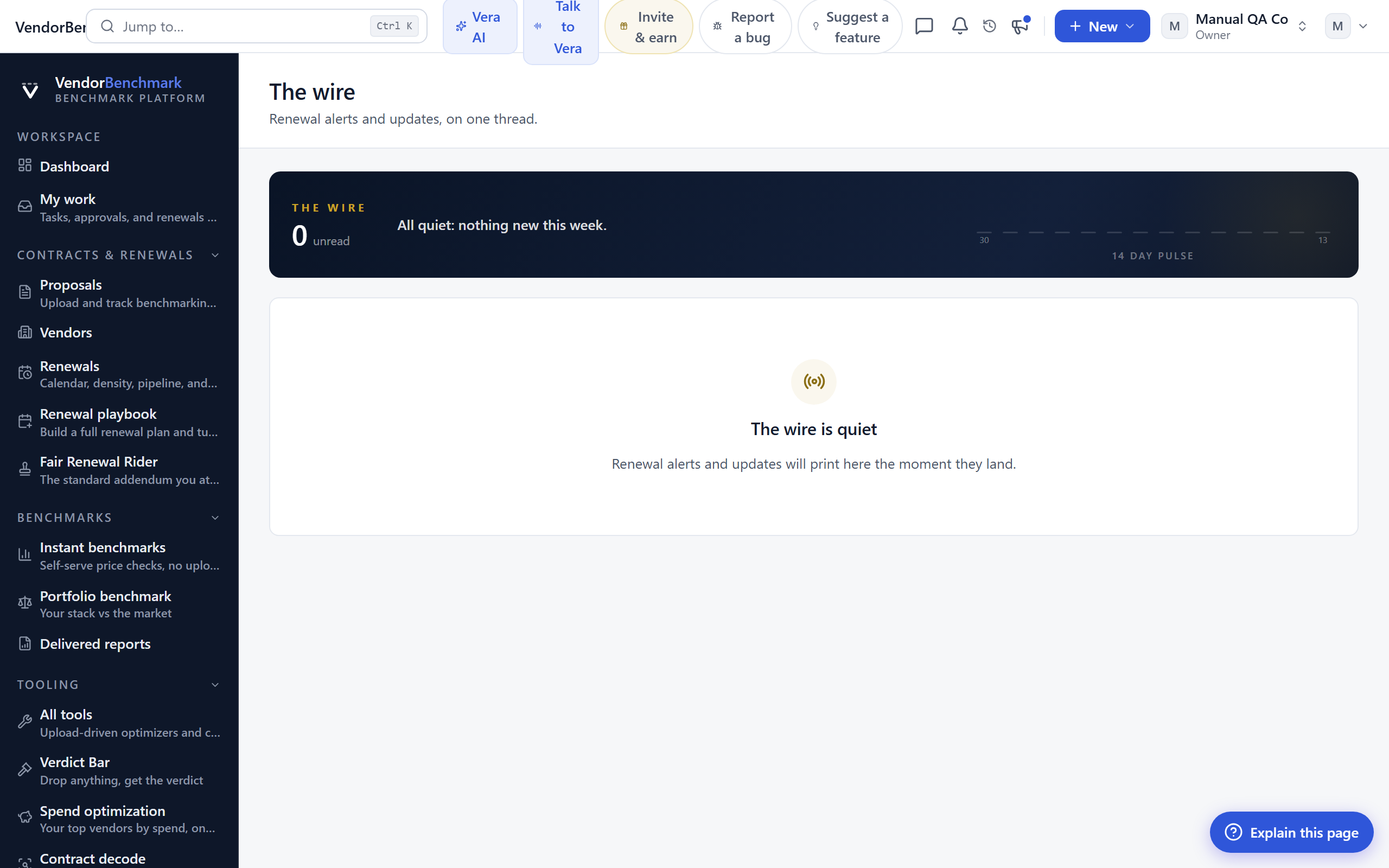
Everything that happened while you were away: delivered reports, notice windows opening, replies, and mentions.
On the screen
- Unread markers — new items are highlighted; opening one takes you to the record it is about.
How to use it
- Scan the highlighted unread items.
- Click through to the record behind any notification to act on it.
Related: My work