01 · Contracts & renewals
This is the paper-trail heart of the platform: where you upload vendor quotes for expert benchmarking, keep your signed agreements, and watch every expiry, notice deadline, and price-list change so none of them catches you out. It is also where you work a live deal to a close, from setting a mandate through to signature. If a screen touches a contract, a vendor, or a renewal date, it lives in this chapter.
Proposals
Where: Contracts & renewals › Proposals · /contracts
Who: everyone
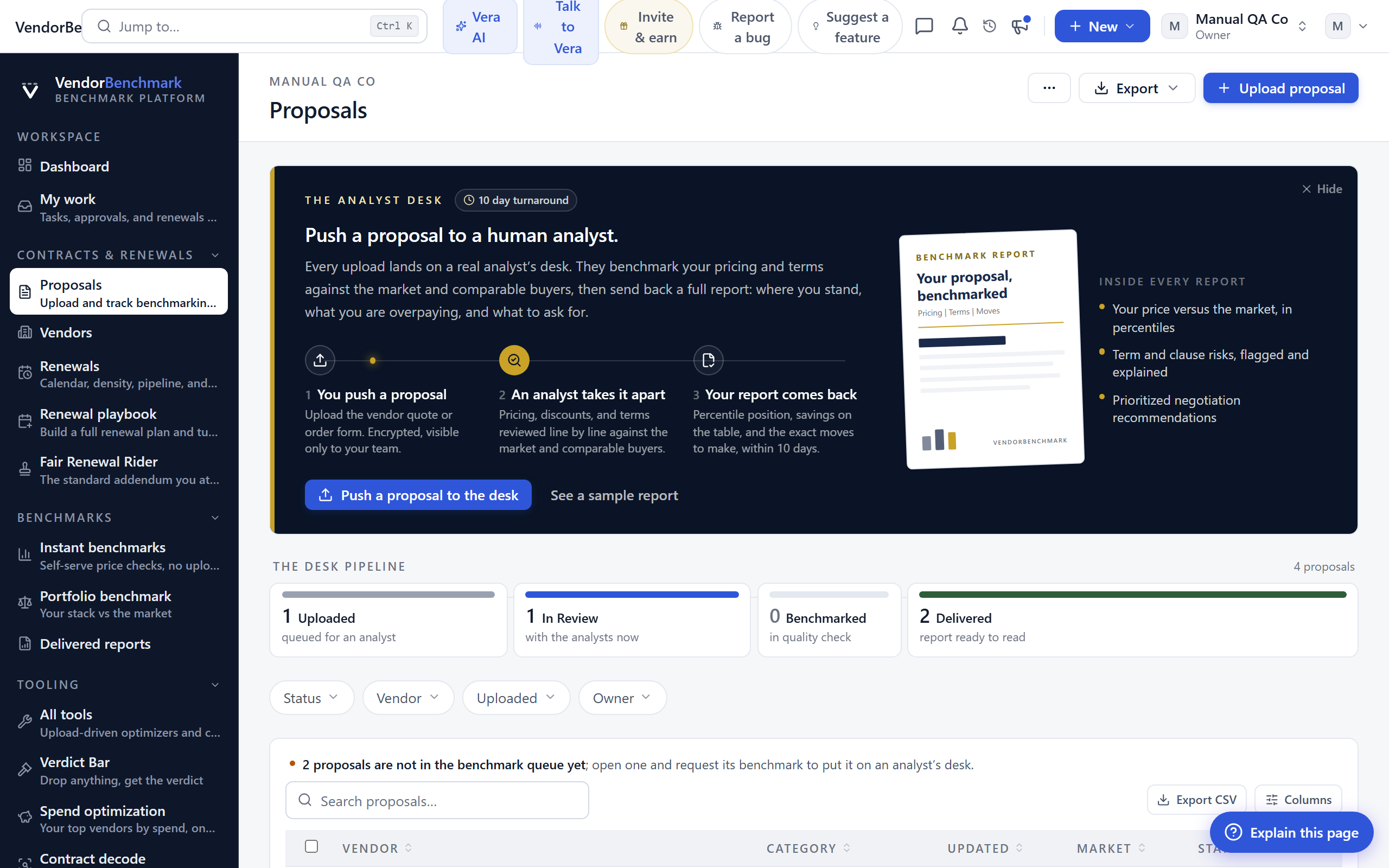
Vendor quotes and contracts you have submitted for benchmarking. Each one moves along a path: Uploaded, In review, Benchmarked, then Delivered when your report is ready.
On the screen
- Status pills — where each proposal sits in the review pipeline. You are emailed when a report is delivered.
- Proposal page — open a row to see its status path, the files you attached, and, once delivered, the benchmark report.
- AI review — on a proposal page you can run an AI redline scan of the vendor PDF that flags risky clauses with quotes from the document.
How to use it
- Upload a proposal: vendor, contract type, your question, and the files (PDF or DOCX).
- Open a proposal to track its status.
- Read the report once it is delivered.
Related: Upload a proposal · Delivered reports
Upload a proposal
Where: Contracts & renewals › Proposals › New · /contracts/new
Who: everyone
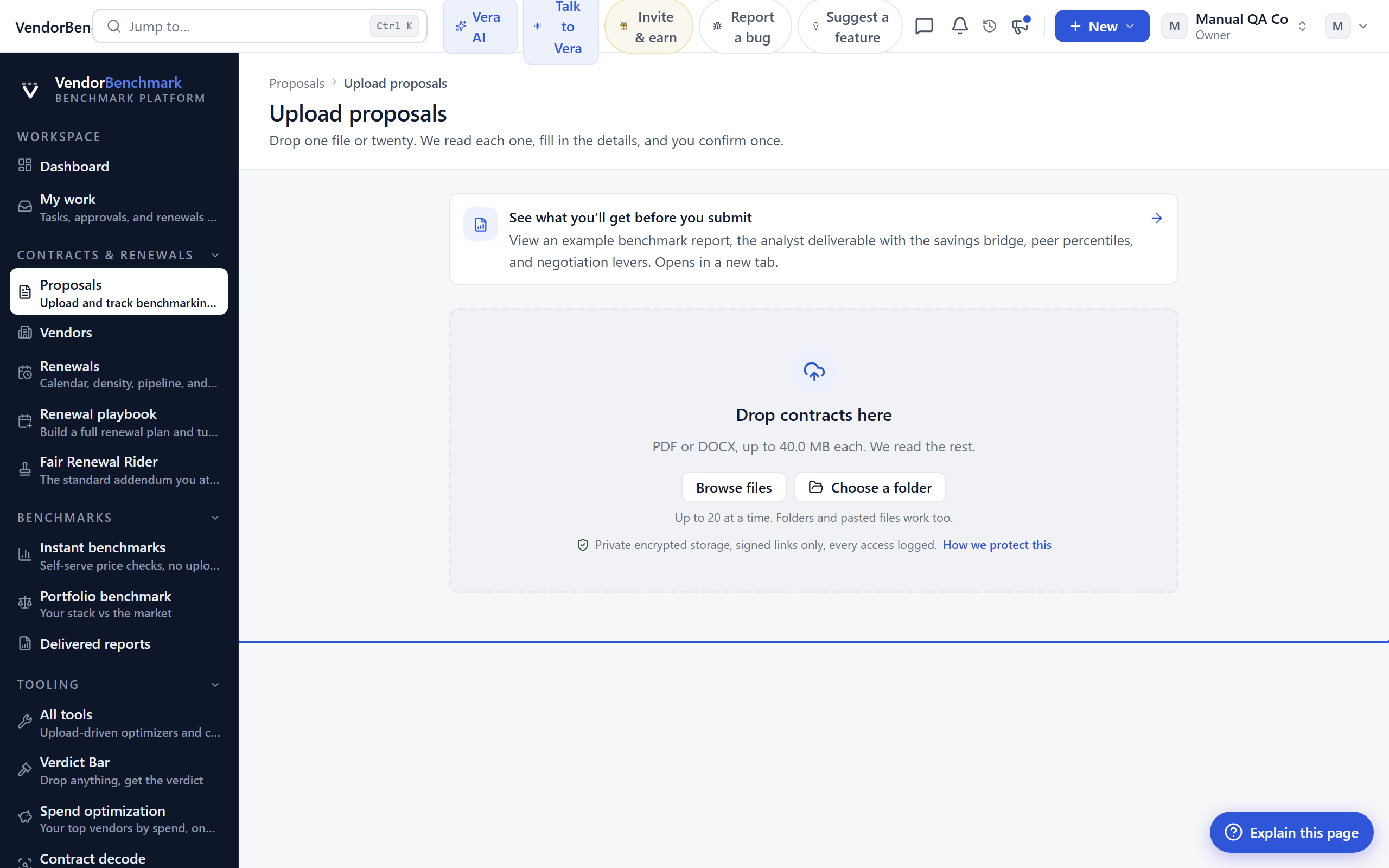
A short wizard that sends a vendor quote or contract to our analysts for benchmarking. You will be emailed when the report is ready.
On the screen
- Vendor and type — pick the vendor and what kind of agreement this is, so it reaches the right analyst.
- Your question — optional but helpful: tell us what you want to know, for example whether the renewal uplift is fair.
- Files — drag in PDF or DOCX files. They are stored privately and only visible to your organization and our analysts.
How to use it
- Choose the vendor and contract type.
- Add your question so the analyst knows what you want answered.
- Drag in the vendor PDF or DOCX and submit for review. Our team benchmarks it against the market and delivers a report.
- Track progress afterwards on the Proposals list.
Tips
- Files are limited to PDF and DOCX and capped at 25 MB each. Very large files upload straight from your browser to storage.
Related: Proposals
Compare
Where: Contracts & renewals › Compare · /contracts/compare
Who: everyone
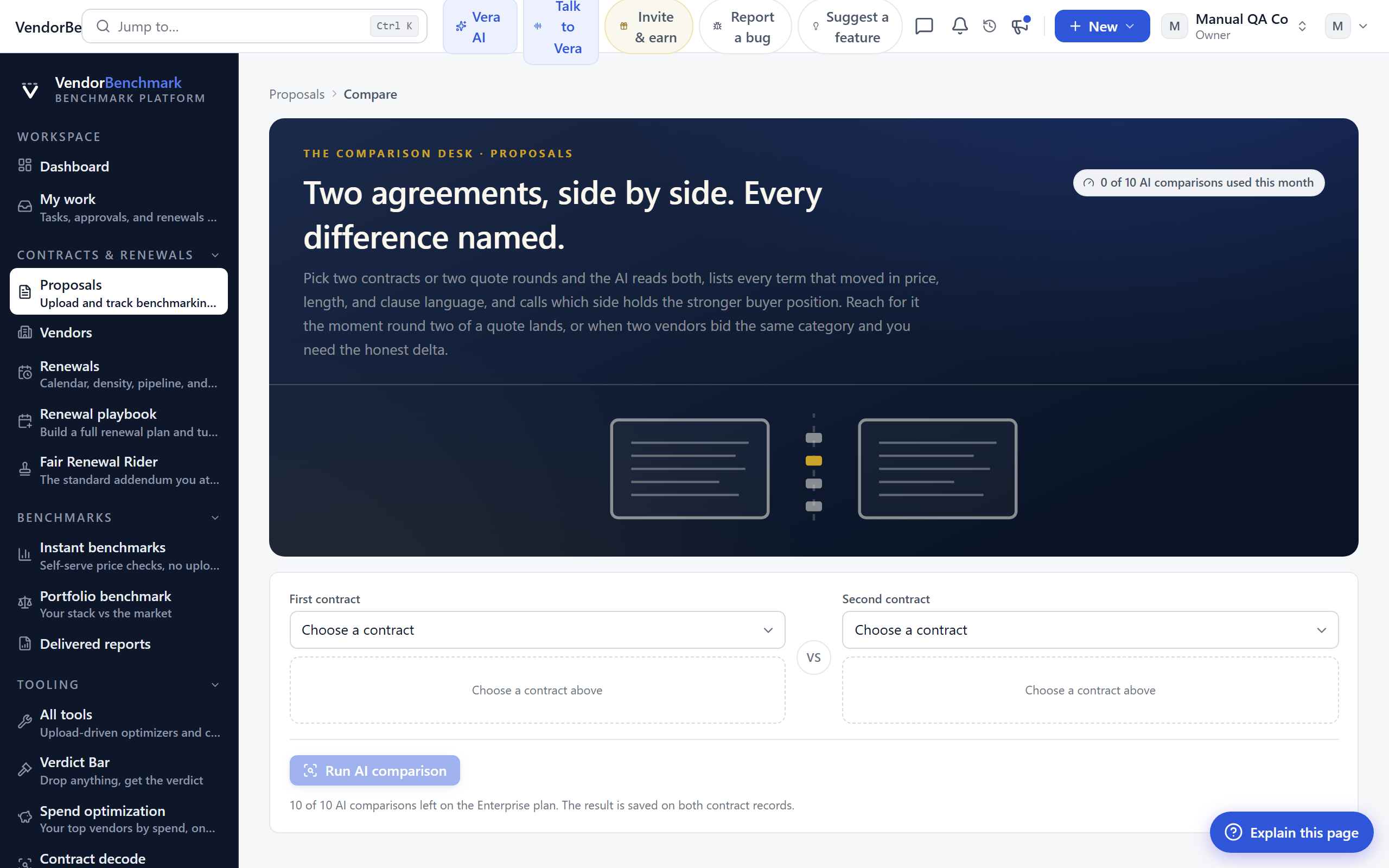
Side-by-side document comparison with an AI difference scan: two proposals or versions next to each other with the changes called out.
On the screen
- Document panes — the two documents side by side.
- Difference scan — the AI's read of what changed and what it means commercially.
How to use it
- Pick two documents and run the scan.
- Save the scan into the customer workspace to keep the read on file.
Tips
- Use this to check a renewal quote against last year's paper, or a redlined draft against the version you sent. For a year-over-year read on the same vendor, see the Time machine tool.
Vendors
Where: Contracts & renewals › Vendors · /vendors
Who: everyone
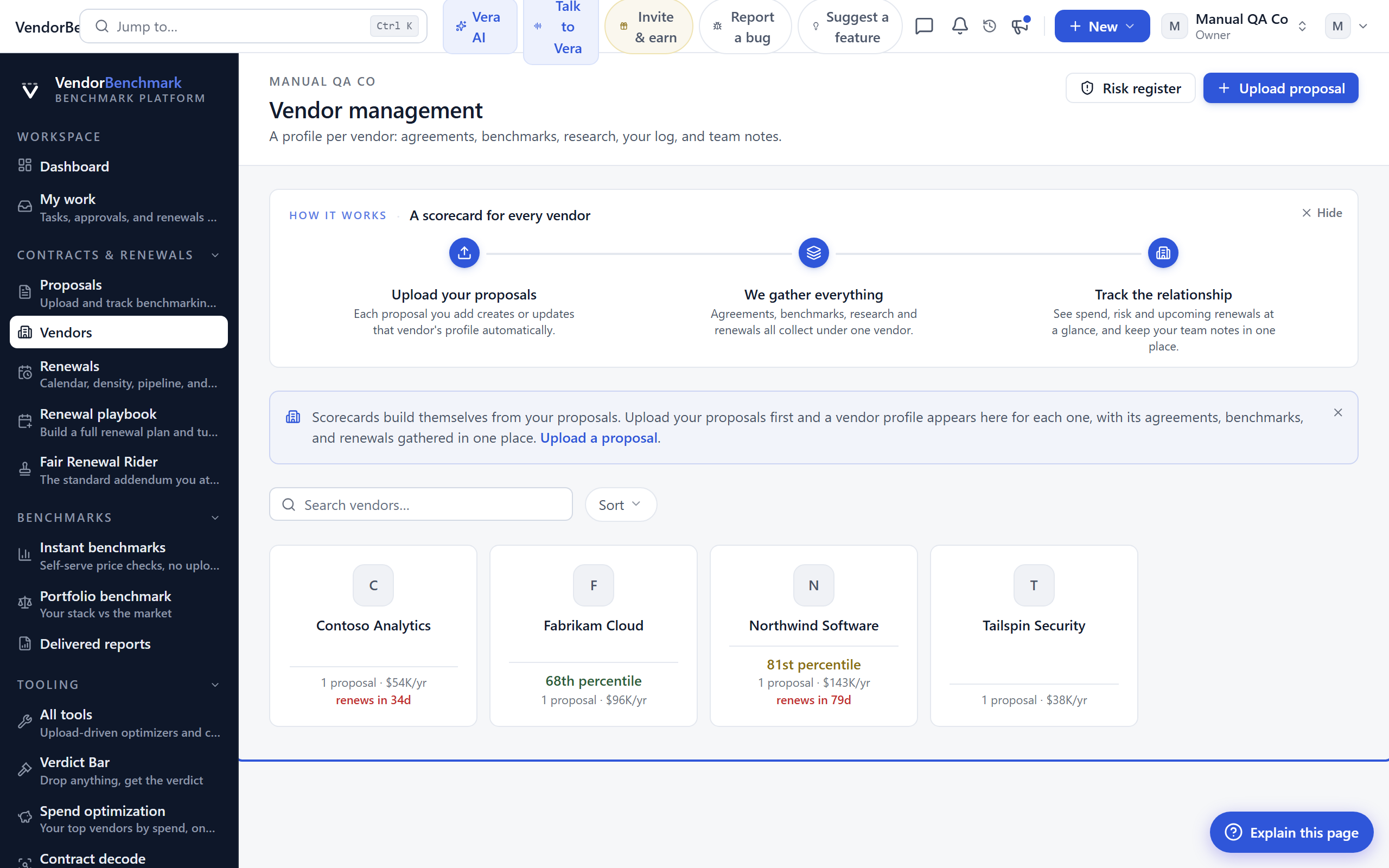
Every vendor across your proposals and agreements, one page per vendor, so you can see your whole relationship in one place.
On the screen
- Vendor rows — spend, agreements, proposals, and renewal dates rolled up per vendor.
- Vendor page — open a vendor for its contracts, benchmarks, market intel, and notes.
How to use it
- Open a vendor to see everything you have with them.
- Run an instant benchmark for a vendor from here.
Terms watch
Where: Contracts & renewals › Terms watch · /vendors/watch
Who: everyone
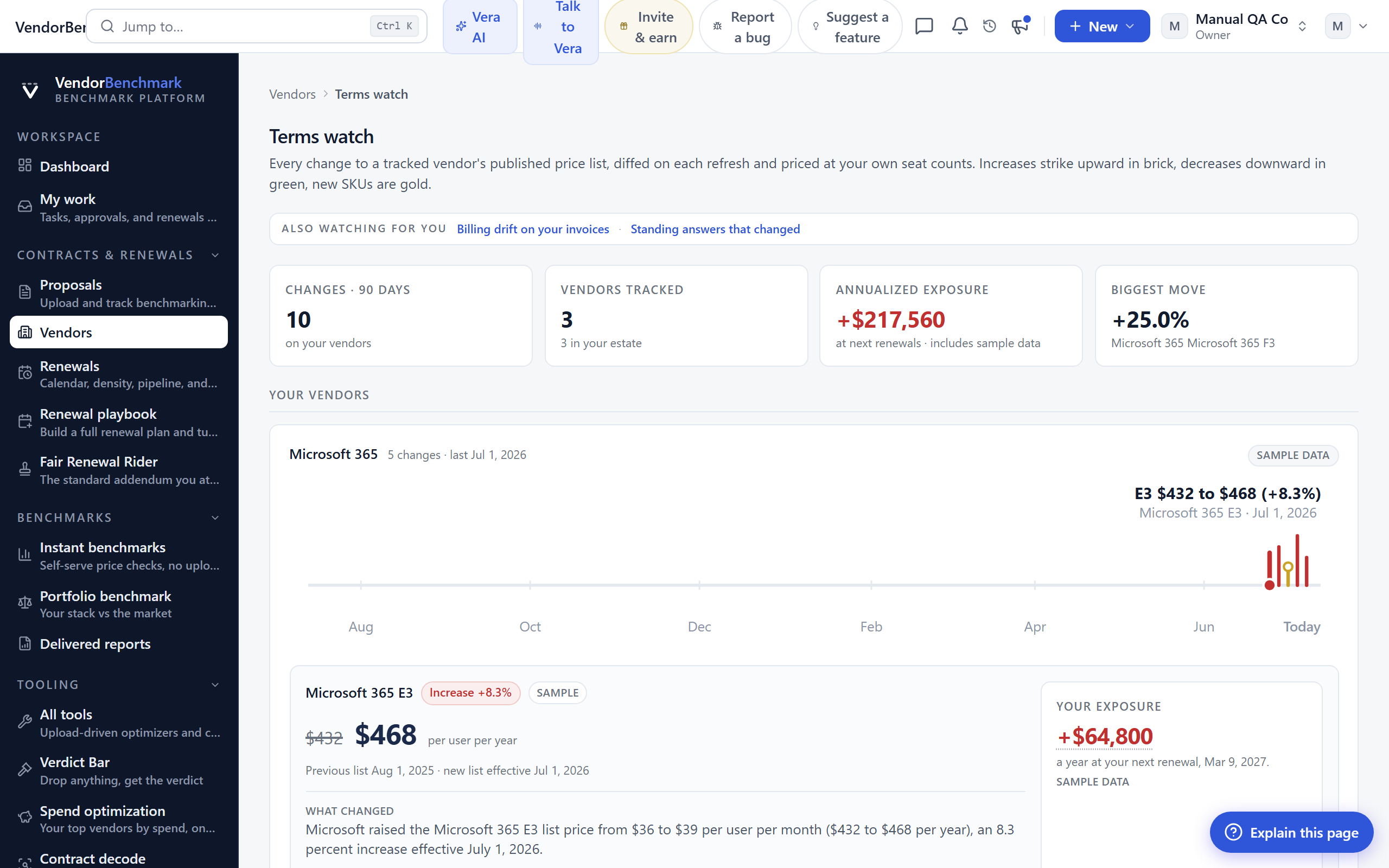
Every change to a tracked vendor's published price list, diffed on each refresh and priced at your own seat counts. This is the vendor side of the watch: what a vendor moved, and what that move would cost you at renewal. Every change is kept, so you can read a vendor's full price history any time.
On the screen
- Email me when price lists change — a switch at the top left turns on the price-change digest; nothing is sent until you turn it on, and every email carries a one-click unsubscribe that turns off only this email. Below it, follow the vendors you care about, or leave none selected to hear about every tracked change.
- Browse the price-change archive by vendor — a link into the per-vendor archive (see below).
- Vitals row — changes on your vendors in the last 90 days, vendors tracked, your annualized exposure at your next renewals, and the single biggest move in the window.
- Your vendors — a seismograph strip per vendor you hold: increases strike upward in brick, decreases downward in green, new SKUs in gold.
- Market watch — tracked vendors outside your estate. Changes here are context, not exposure, because nothing below touches a contract you hold.
- Also watching for you — cross-links to Billing watch and to standing answers that changed.
How to use it
- Read your vendors first: any strip with a recent brick strike is a price rise heading for a renewal you hold.
- Use the switch to have price-list changes emailed to you, and follow the vendors you want to hear about.
- Open a change to see the old and new price, the delta, and what it costs at your seat counts.
- Follow the cross-link to Billing watch to see whether your invoices already reflect a move.
Related: Archive by vendor · Billing watch · Weekly report
Terms watch archive by vendor
Where: Terms watch › Browse the price-change archive by vendor · /vendors/watch/archive
Who: everyone
Every published price-list change Terms Watch has ever detected, kept and re-sorted by vendor. The index lists every vendor whose price list has moved, with how many changes it has, a breakdown of increases, cuts, new SKUs, and retirements, and when it last moved. Open a vendor to read its full history, newest first: each change shows the old and new price, the delta, and the grounded analyst note (what changed, why it likely changed, and the one action to take before renewal).
How to use it
- From Terms watch, follow Browse the price-change archive by vendor.
- Scan the index (most-changed vendors first) or find the vendor you are about to renew.
- Open the vendor to read its full price history and the note attached to each change.
Weekly report
Where: Contracts & renewals › Weekly report · /vendors/weekly
Who: everyone
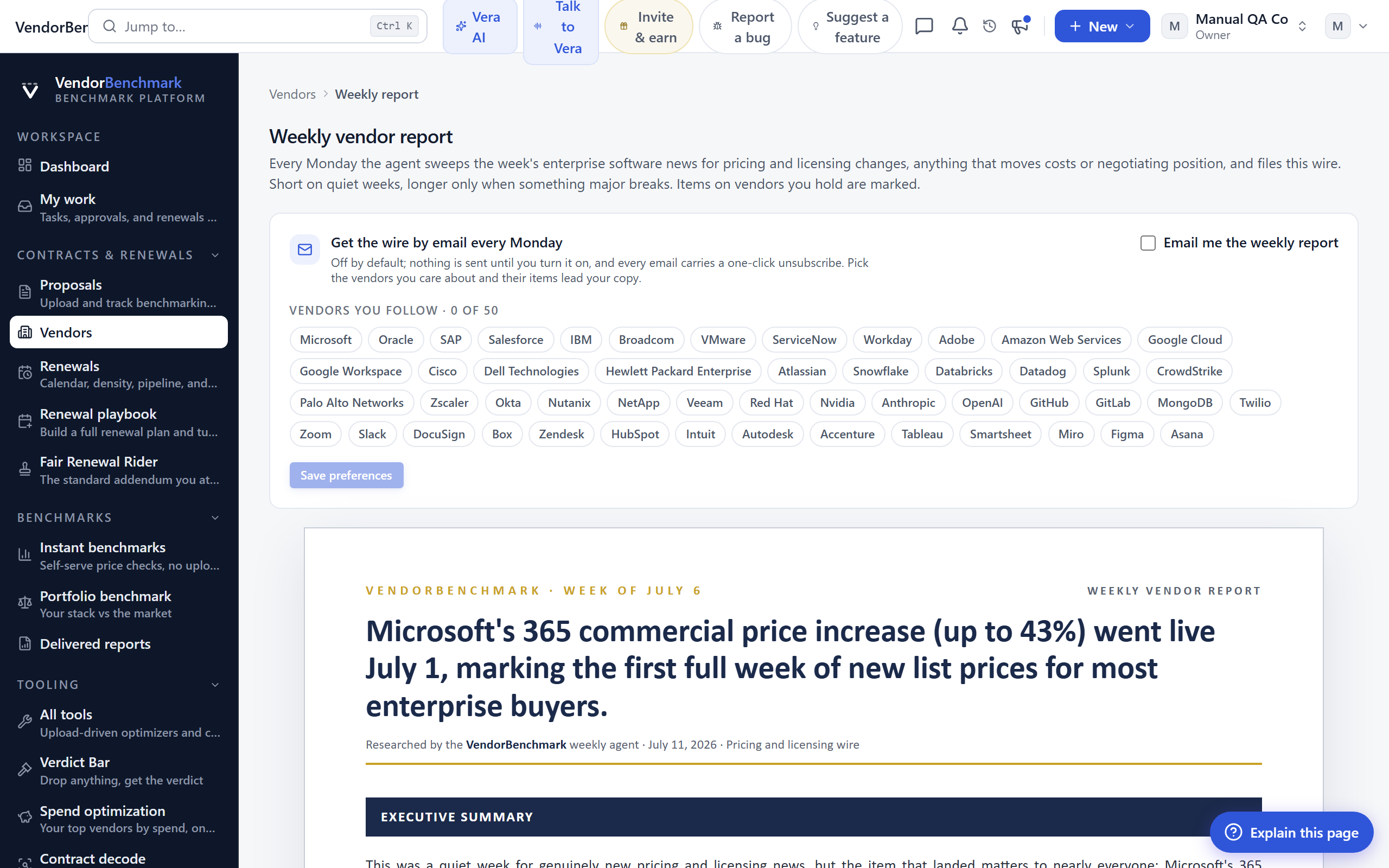
Every Monday the agent sweeps the week's enterprise software news for pricing and licensing changes, anything that moves costs or negotiating position, and files this wire. It is short on quiet weeks and longer only when something major breaks; items on vendors you hold are marked.
The page opens with a plain-language rundown of what each Monday update covers: price and discount moves, licensing and packaging changes, support, audit and end-of-life shifts, and the M&A or earnings news that changes your leverage, each with a read on what to do about it.
On the screen
- What each week covers — a short panel at the top listing the kinds of change the agent files each week.
- The wire — the week's report as an executive brief. Items touching a vendor you hold carry an "in your estate" eyebrow.
- Subscribe card — a switch at the top left turns on the Monday email; nothing is sent until you turn it on, and every email carries a one-click unsubscribe that turns off only this email. Below it, pick the vendors you care about so their items lead your copy.
- Past weeks — the archive strip below the brief; a gold dot marks a week where something major broke.
- Browse the full archive by vendor — a link into the per-vendor archive (see below).
How to use it
- Read the latest wire, starting with the items marked as in your estate.
- Use the switch in the subscribe card to have it emailed to you each Monday.
- Open a past week from the archive strip to catch up, or open the archive by vendor to read one vendor's full history.
Related: Archive by vendor · Terms watch
Weekly report archive by vendor
Where: Weekly report › Browse the full archive by vendor · /vendors/weekly/archive
Who: everyone
Every weekly update the agent has ever filed, kept and re-sorted by vendor so nothing drops off. The index lists every vendor the agent has covered, with how many updates it has and when it was last mentioned; a gold dot marks a vendor with a major update on record. Open a vendor to read its full history: every price move, licensing change, and market shift on it, newest first, each linking back to the week it ran in.
How to use it
- From the weekly report, follow Browse the full archive by vendor.
- Scan the index (most-covered vendors first) or find the vendor you are about to renew.
- Open the vendor to read its timeline, and click any Week of eyebrow to jump to the full weekly brief it came from.
Billing watch
Where: Contracts & renewals › Billing watch · /spend/watch
Who: everyone
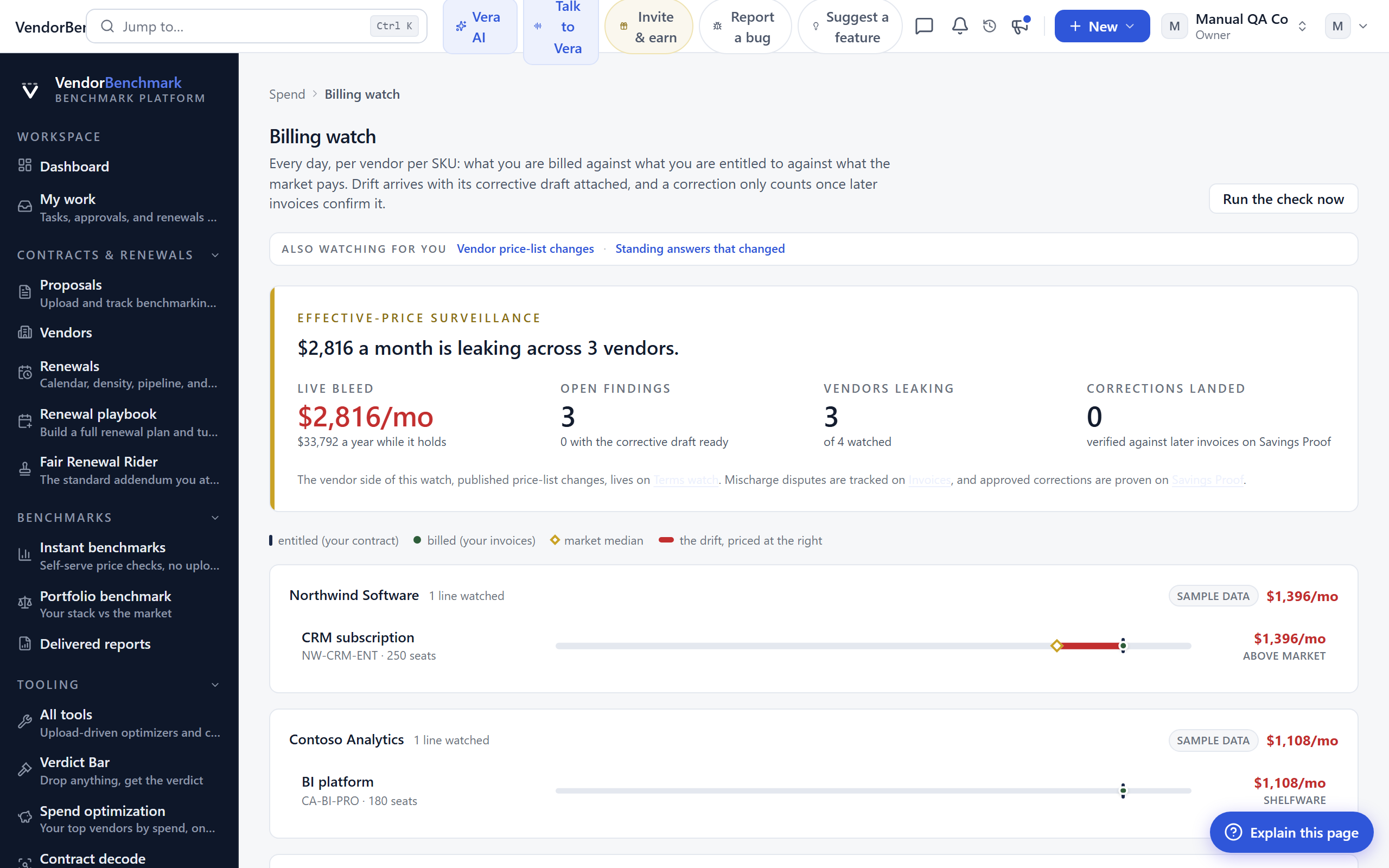
Every day, per vendor per SKU: what you are billed against what you are entitled to against what the market pays. Drift arrives with its corrective draft attached, and a correction only counts once later invoices confirm it. This is the customer side of the same seismograph as Terms watch.
On the screen
- Verdict band — the headline number: how much a month is leaking, across how many vendors, with live bleed, open findings, vendors leaking, and corrections landed.
- Leak board — a row per leaking vendor with the SKUs where billed, entitled, and market prices disagree.
- Needs confirmation — connector-reported entitlements are held out of alerting until a human confirms the contracted figures. These are marked "confirm".
- Also watching for you — cross-links to Terms watch and standing answers that changed.
How to use it
- Read the verdict band for the live monthly bleed.
- Open a leaking vendor to see the SKU-level findings and the corrective draft attached to each.
- If the board is empty, confirm entitlements from a contract or connect a license source so the daily check has something to price against.
Tips
- An approved correction is proven or disproven against later invoices on Savings proof; mischarge disputes are tracked on Invoices.
Related: Terms watch
Agreements
Where: Contracts & renewals › Agreements · /agreements
Who: everyone
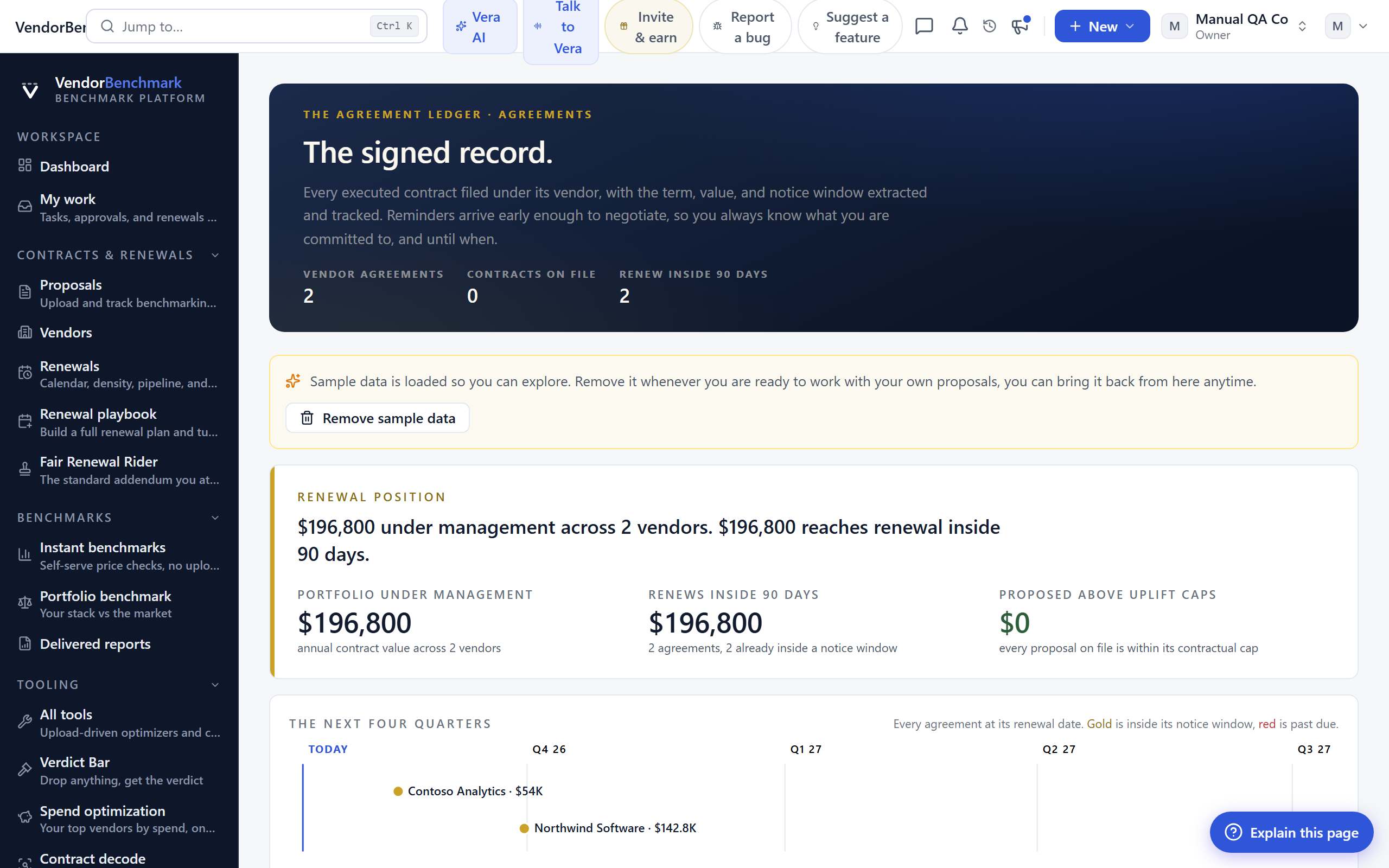
Signed contracts you are tracking for spend and renewals. Set the expiry and notice period once, and the platform watches the deadlines for you.
On the screen
- Expiry and notice window — each agreement carries an expiry date and a 30, 60, or 90 day notice period. Your team is emailed when the window opens.
- Files — keep up to five documents per vendor for safe keeping. You can track up to forty vendor agreements.
How to use it
- Add an agreement: vendor, expiry date, notice period, and the signed files.
- See them sorted by deadline on Renewals.
Related: Renewals
Renewals
Where: Contracts & renewals › Renewals · /renewals
Who: everyone
Every agreement sorted by expiry, so the next deadline is always at the top. When a notice window opens, your team is emailed automatically.
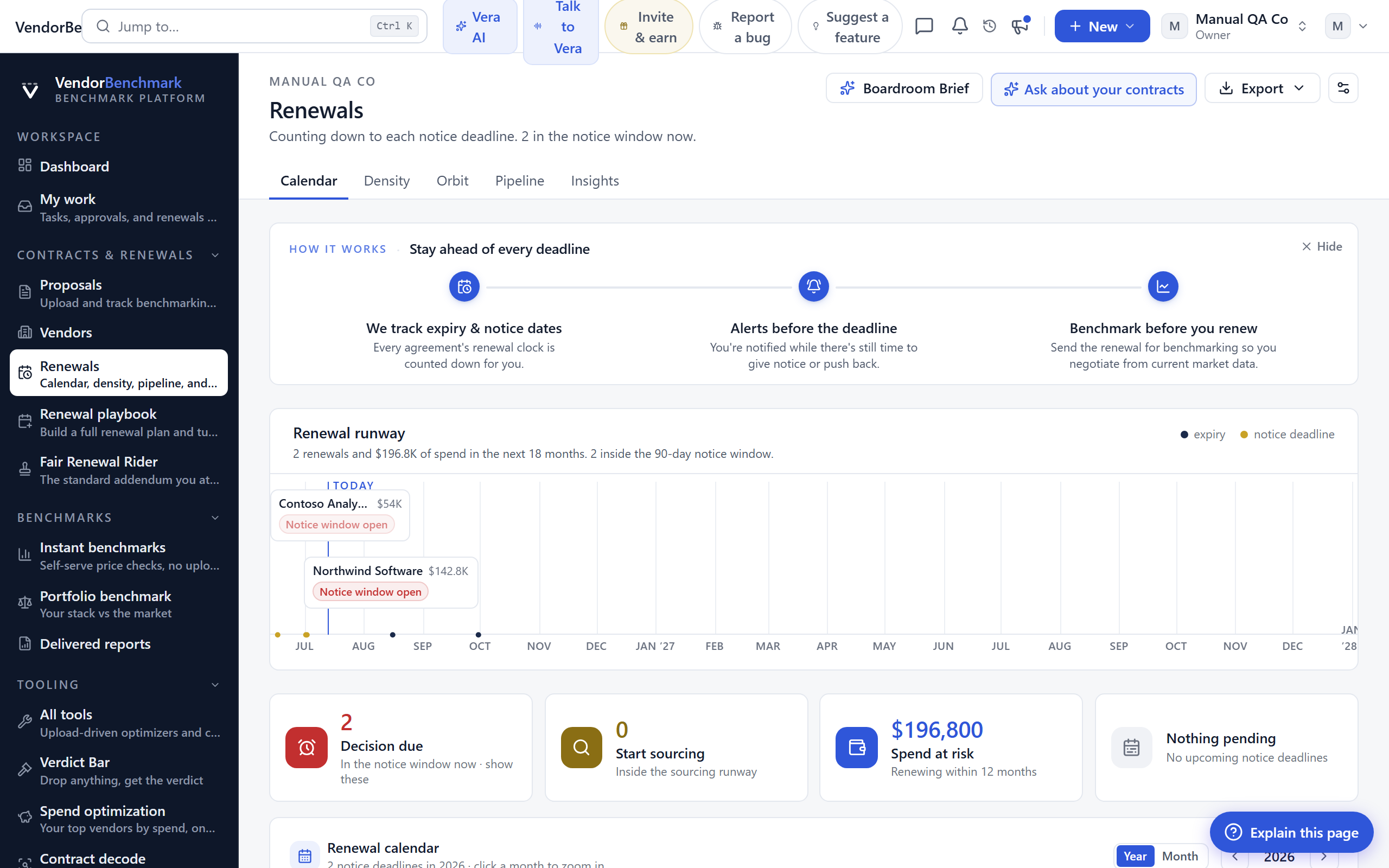
On the screen
- Notice window — the date by which you must tell the vendor you are cancelling or renegotiating. Rows show how many days of runway you have.
- Calendar and pipeline — the same renewals as a calendar and as a stage-by-stage pipeline you can work through.
How to use it
- Open a renewal to plan the negotiation.
- Turn a renewal into a tracked negotiation when you are ready to engage the vendor.
- Build the full plan with the Renewal playbook.
Related: Renewal playbook · Negotiations
Renewal playbook
Where: Contracts & renewals › Renewal playbook · /renewals/playbook
Who: everyone
Name what is renewing and the platform builds the whole plan: a work-back timeline, the questions to ask, the plays to win, and the negotiation talking points. Turn on the agent and it watches the deadline and keeps you on track.
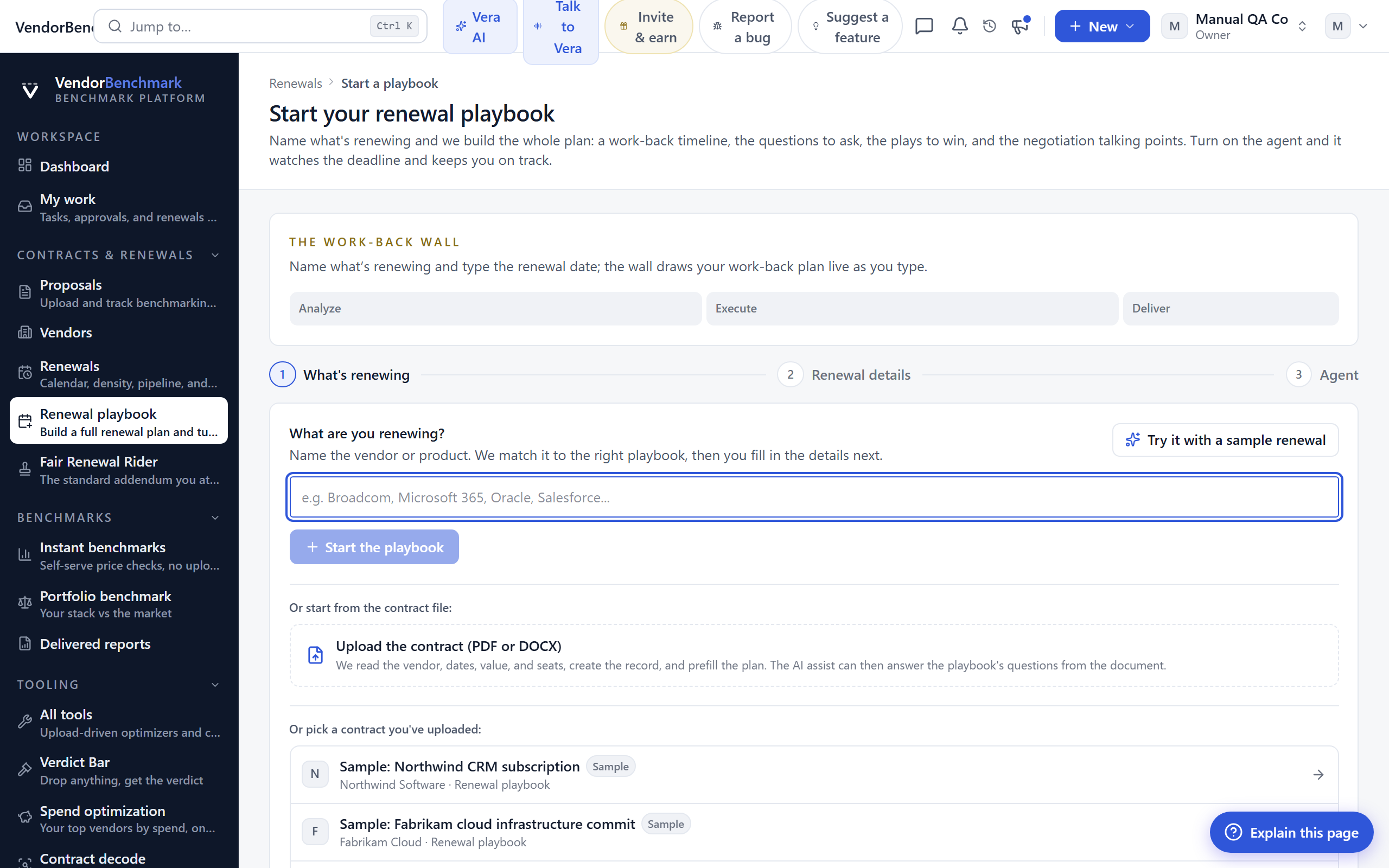
On the screen
- Wizard — pick an existing contract or just name the vendor and fill in the details. Contracts that already have a playbook offer "open" instead of starting a new one.
- Work-back timeline — the plan laid out backwards from the renewal date, so you know what to do when.
- The agent — turn it on and it tracks the deadline and prompts you at each step.
How to use it
- Pick the contract that is renewing, or name the vendor and its details.
- Let the platform build the timeline, the discovery questions, the plays, and the talking points.
- Turn on the agent if you want it to watch the deadline for you.
Tips
- The step-by-step plan and the agent draw on your AI plan. Without one you still get the plan structure and the work-back timeline.
Related: Renewals · Managed renewals
Managed renewals
Where: Contracts & renewals › Managed renewals · /renewals/managed
Who: everyone · activating the program is org owners only
Hand over the calendar: Vera runs every covered renewal under mandates you approve, and the fee is a percentage of savings verified against vendor invoices. Claimed figures never bill.
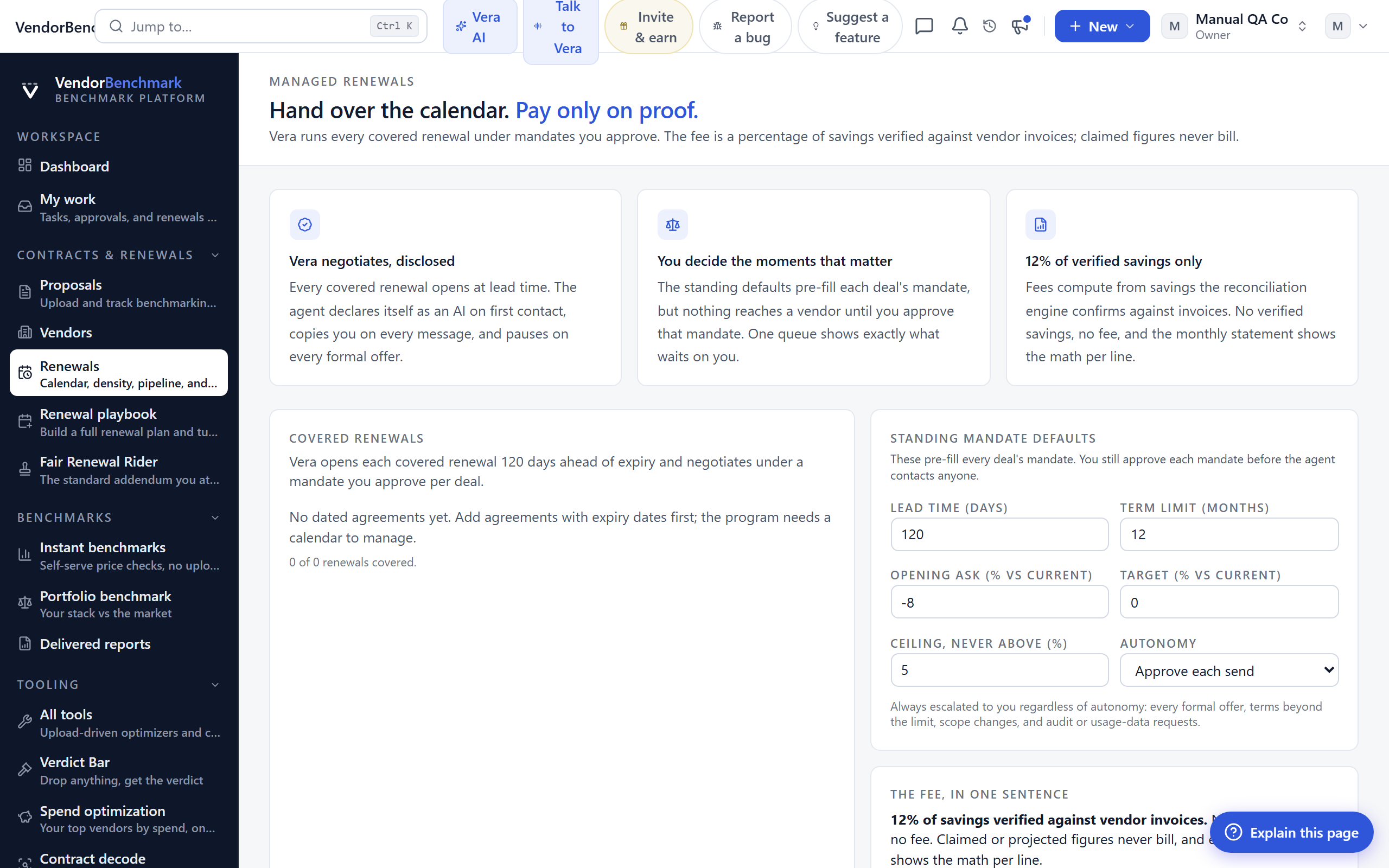
On the screen
- The offer — before you enroll: Vera negotiates and discloses itself as an AI, you decide the moments that matter, and the fee is a share of invoice-verified savings only.
- Net position — once enrolled: savings banked against fees paid, always shown net, with every figure traced to a vendor invoice.
- The covered horizon — covered renewals by state across the next fourteen months.
- Waiting on you — the escalation queue: mandate approvals, formal offers, and any decision the guardrails parked.
- The fee ledger — every fee line paired with the verified saving and the invoice that confirms it.
How to use it
- Read the offer and the fee terms.
- An owner activates the program, which signs a fee agreement and sets the standing mandate defaults.
- Approve each deal's mandate before anything reaches a vendor, and clear the "waiting on you" queue as Vera works.
Tips
- Nothing reaches a vendor until you approve that deal's mandate, even with the standing defaults in place.
Related: Renewal playbook · Savings proof
Negotiations
Where: Contracts & renewals › Negotiations · /negotiation
Who: everyone
A workspace for live deals. Each negotiation is a tracked thread from mandate to signature, so nothing agreed on a call gets lost.
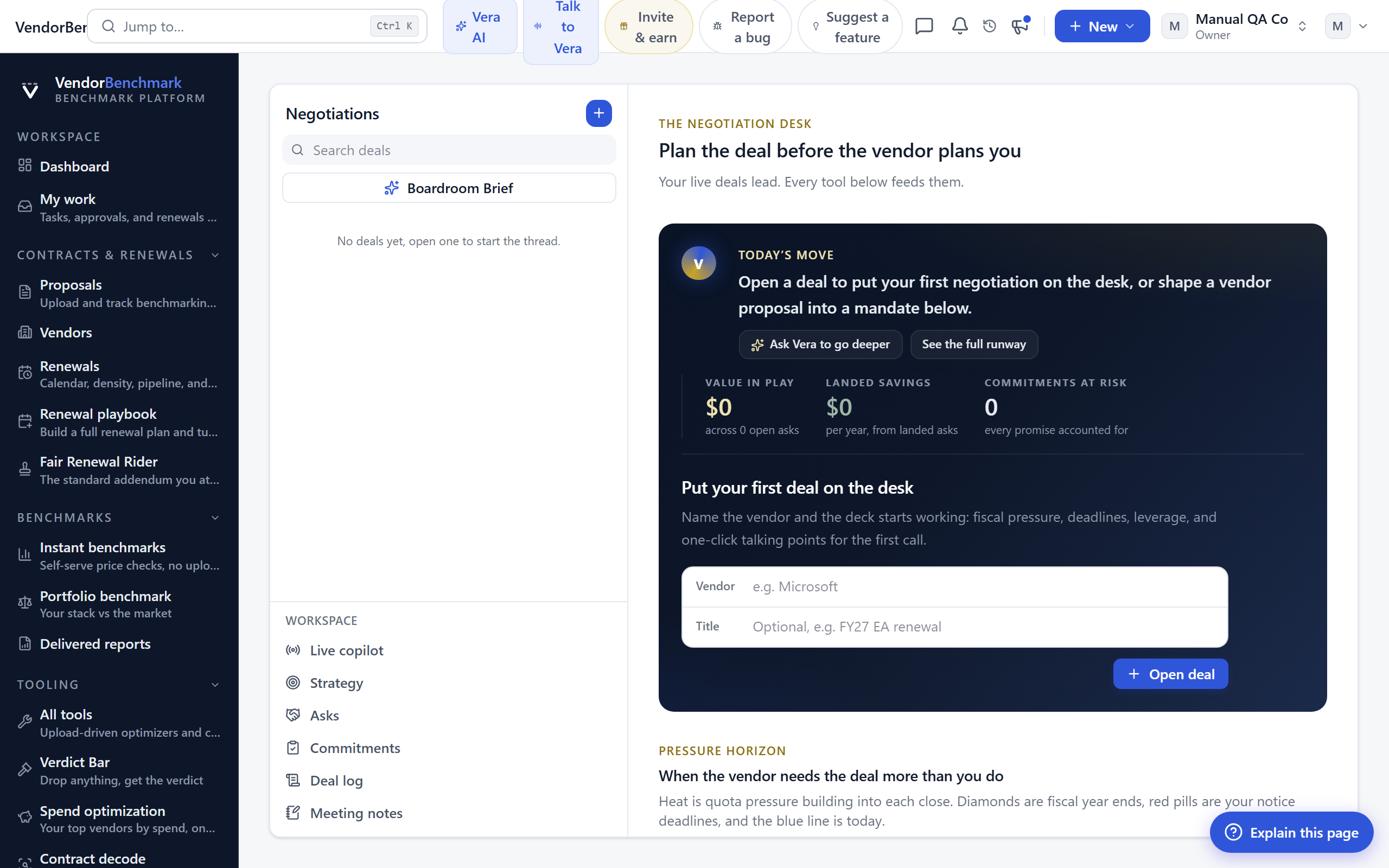
On the screen
- Mandate — your target price, walk-away point, and approvals, set before you engage the vendor.
- Tactics analysis — paste a vendor email and the AI reads the tactic being used and suggests the counter.
- Concession ledger — every give and get on both sides, with a running value.
- Commitments — what the vendor promised, captured so it makes it into the contract.
How to use it
- Start a negotiation from a renewal or an opportunity.
- Set the mandate before you engage the vendor.
- Analyze a vendor email for tactics, and log every give and get in the ledger.
- Run a post-mortem when the deal closes.
Related: Renewals
Buying blocs
Where: Contracts & renewals › Buying blocs · /blocs
Who: everyone
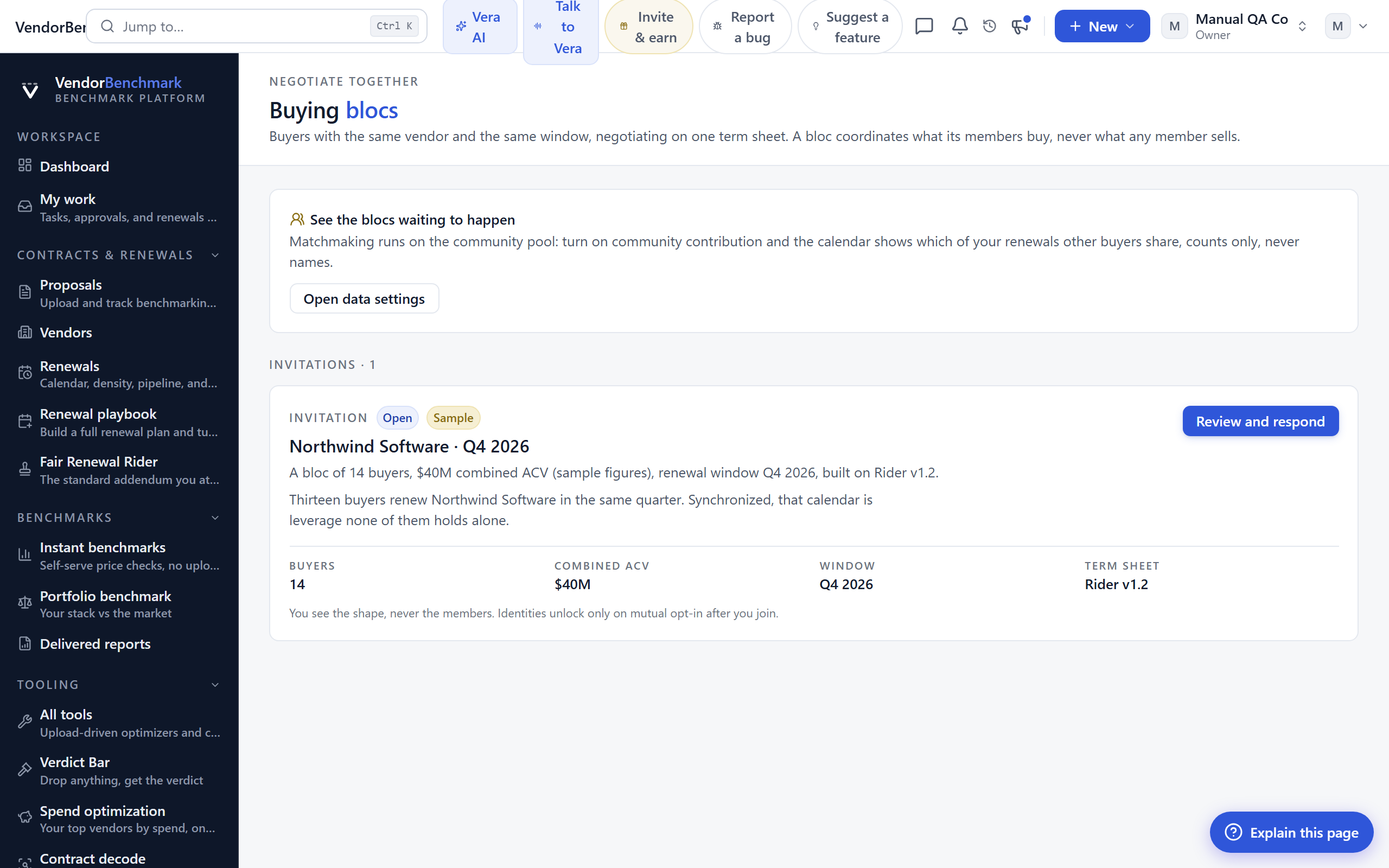
Buyers with the same vendor and the same renewal window, negotiating on one term sheet. You stay anonymous until mutual opt-in.
On the screen
- Matchmaking strip — where your renewal calendar lines up with other buyers of the same vendor.
- Invitations — a bloc you have been invited to: you see the shape (buyers, combined ACV, window, term sheet version), never the members.
- Your blocs — blocs you have joined, with a room to coordinate the shared negotiation.
How to use it
- Review the matchmaking strip and your invitations.
- Open an invitation to read the bloc's shape and thesis.
- Join a bloc to enter its room; identities unlock only on mutual opt-in after you join.
Tips
- Blocs form around vendor families where several buyers renew in the same quarter, built on a shared Fair Renewal Rider term sheet.
Related: Fair Renewal Rider · Renewals
Clause library
Where: Contracts & renewals › Clause library · /clause-library
Who: everyone · requires an AI plan
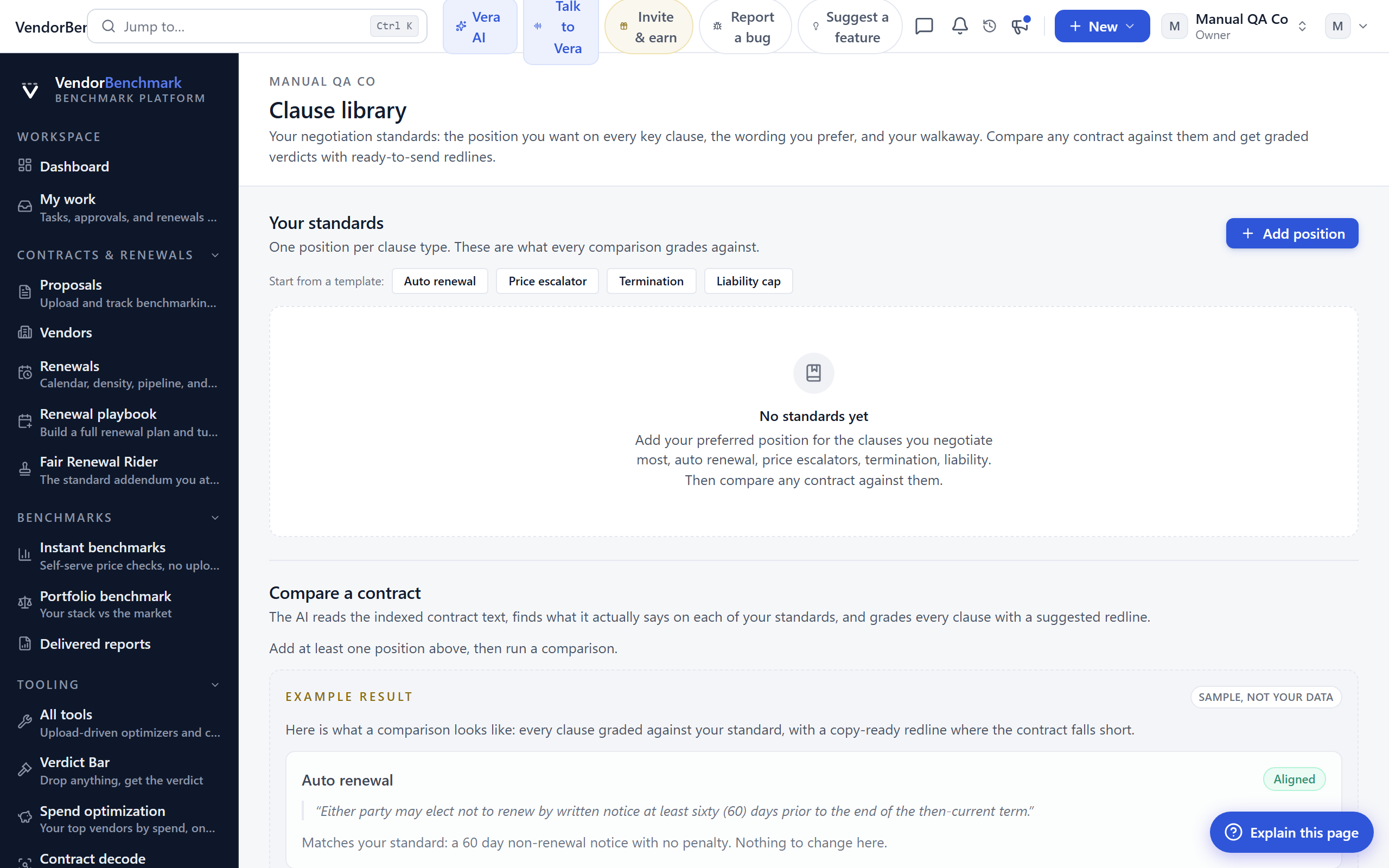
Your organization's negotiation positions per clause: the preferred position, the fallback, and the walk-away for terms like auto-renewal, uplift caps, and liability. These positions feed the AI engines, so scans and drafts argue for your standard instead of a generic one.
On the screen
- Position entries — one entry per clause type with your preferred language, fallback position, and walk-away.
- Contract comparison — pick a contract and the AI reads it against your positions, clause by clause, showing where the document meets your standard, misses it, or is silent.
How to use it
- Add or edit a position for each clause that matters to you.
- Compare a contract against your positions to see where it stands.
- See position coverage across all contracts on Coverage.
Related: Coverage · Clause positions (Settings)
Coverage
Where: Contracts & renewals › Coverage · /contracts/coverage
Who: everyone
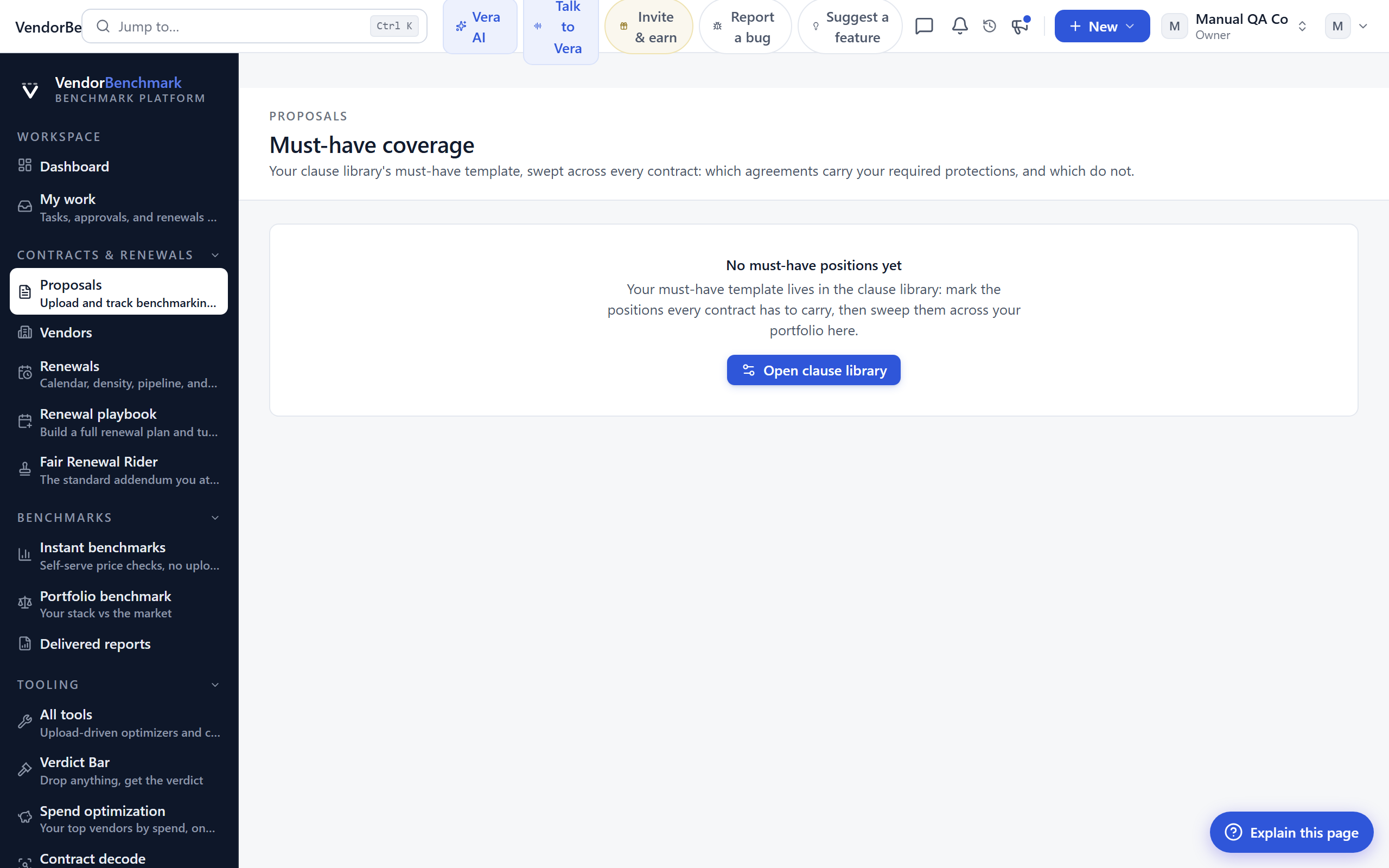
Your clause library's must-have template, swept across every contract: which agreements carry your required protections, and which do not.
On the screen
- Coverage grid — contracts against must-have positions, with a verdict pill per cell: Present, Deviates, Missing, or Unclear.
- Run coverage check — loops the scan across the portfolio until every cell has a verdict.
- Coverage report — the white-paper read of where your protections are strong and where they are missing, generated below the grid.
How to use it
- Run the coverage check to fill the grid.
- Read the grid for any red Missing cells: agreements without a protection you require.
- Generate the coverage report for the narrative summary.
Tips
- The must-have template comes from your Clause library positions, so keep those current first.
Related: Clause library
Fair Renewal Rider
Where: Contracts & renewals › Fair Renewal Rider · /rider
Who: everyone
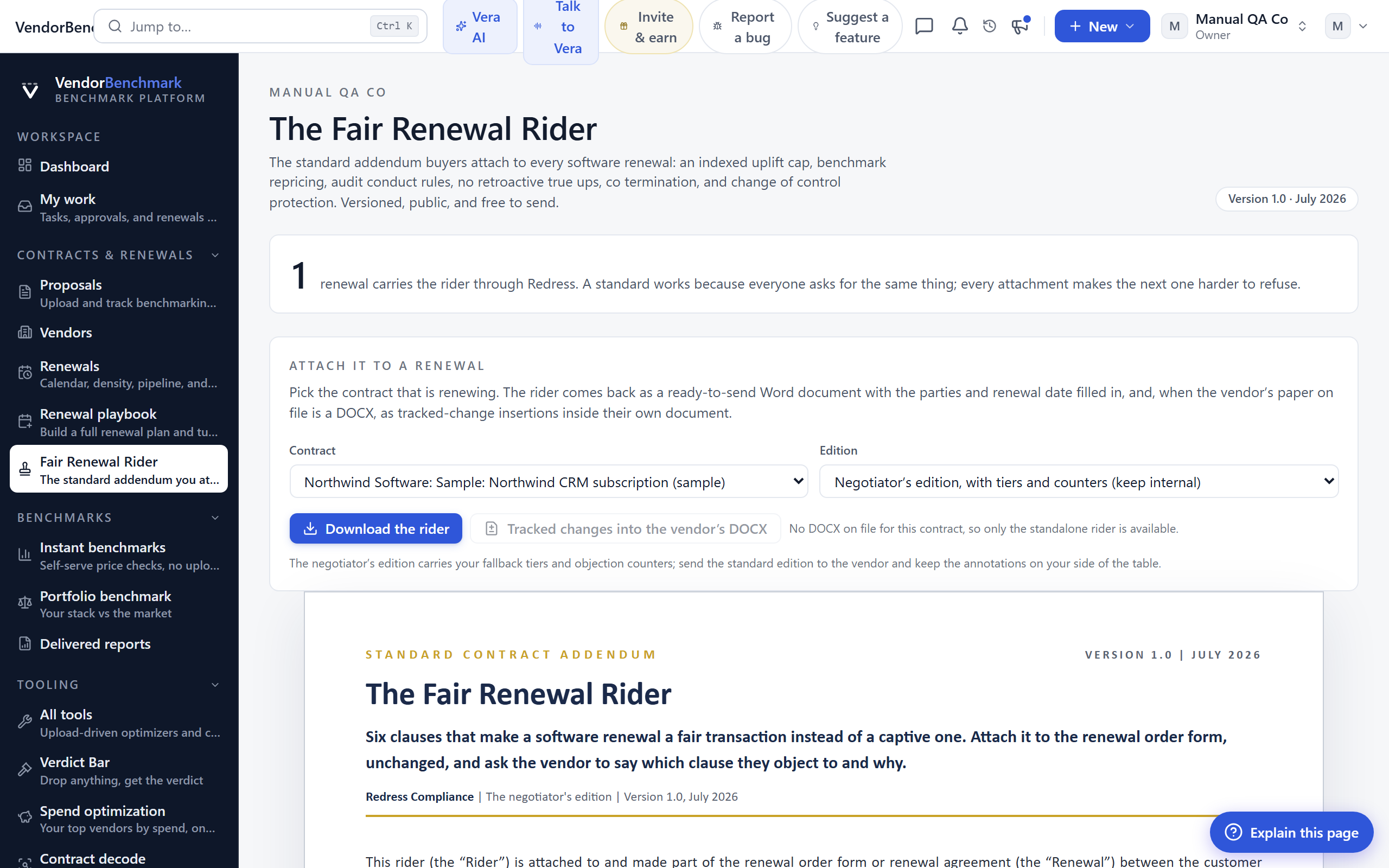
The standard addendum buyers attach to every software renewal: an indexed uplift cap, benchmark repricing, audit conduct rules, no retroactive true-ups, co-termination, and change of control protection. Versioned, public, and free to send.
On the screen
- Adoption counter — how many real renewals carry the rider through Redress. A standard works because everyone asks for the same thing.
- Generator — pick the contract that is renewing and the rider comes back as a ready-to-send Word document with the parties and renewal date filled in, or, when the vendor's paper on file is a DOCX, as tracked-change insertions inside their own document.
- Reading room — the rider itself, every clause annotated with why it is fair, the fallback tiers, and the vendor objection countered.
- Clause changelog — what changed in each version of the rider.
How to use it
- Read the rider in the reading room to understand each clause.
- Pick the renewing contract in the generator and choose the edition.
- Download the Word document or the tracked-change redline and attach it to your renewal.
Related: Renewals · Buying blocs
Vault
Where: Contracts & renewals › Vault · /vault
Who: everyone
Restricted document projects for sensitive work, for example an acquisition review. Each project is org-wide or limited to named people; documents in a restricted project stay hidden from everyone else.
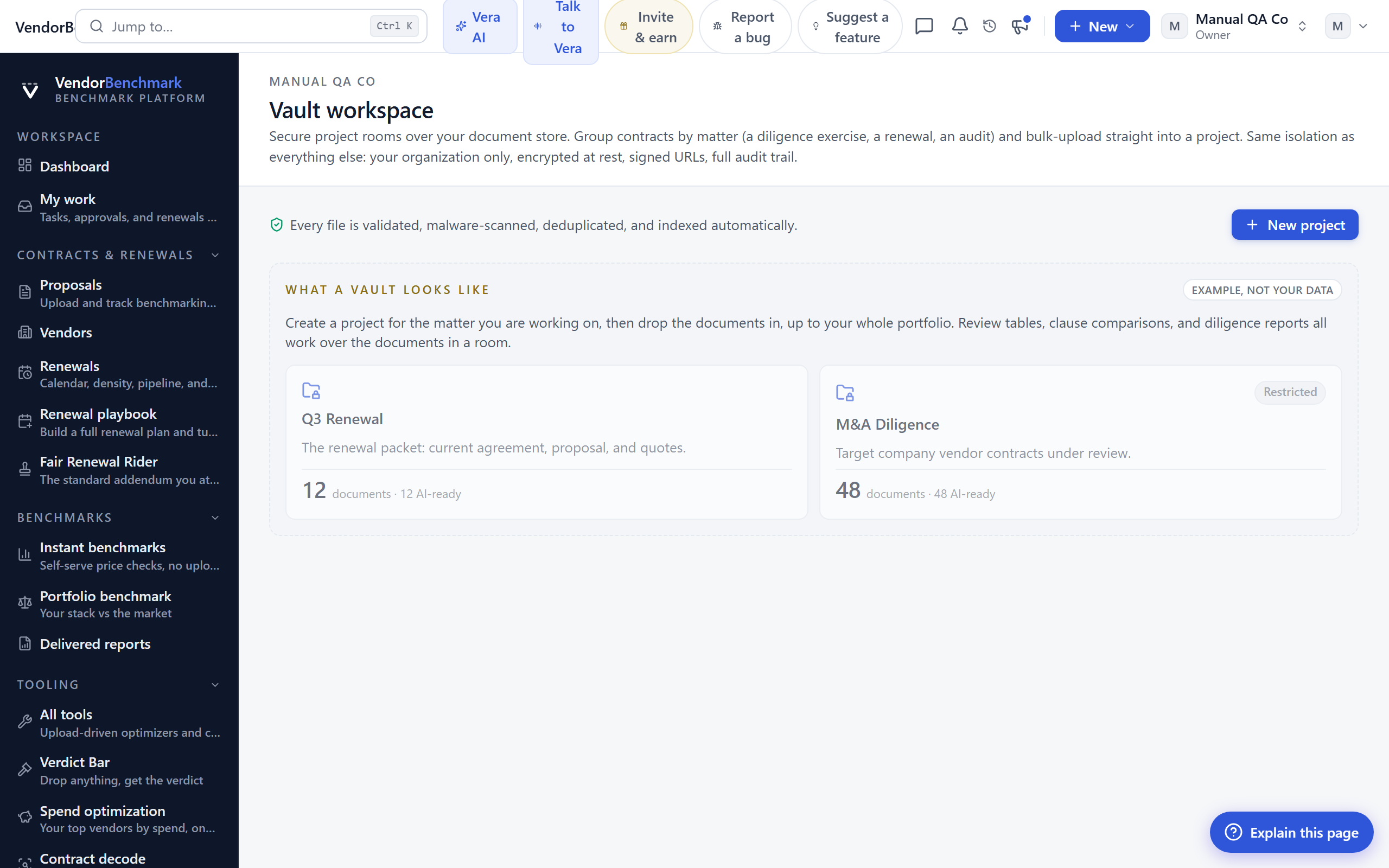
On the screen
- Project cards — each project with its access level and document count.
- Access levels — org-wide projects are visible to your whole team; restricted projects only to the members you grant.
How to use it
- Create a project and pick org-wide or restricted access.
- Add documents, in bulk if needed.
- Run diligence across a project when you want the deal-grade review.
Related: Diligence
Diligence
Where: Contracts & renewals › Diligence · /diligence
Who: everyone · requires an AI plan
End-to-end document review for a deal: every contract in scope is read for change of control, assignment, exclusivity, termination, liability, and data terms, then assembled into a risk register and an analyst report.
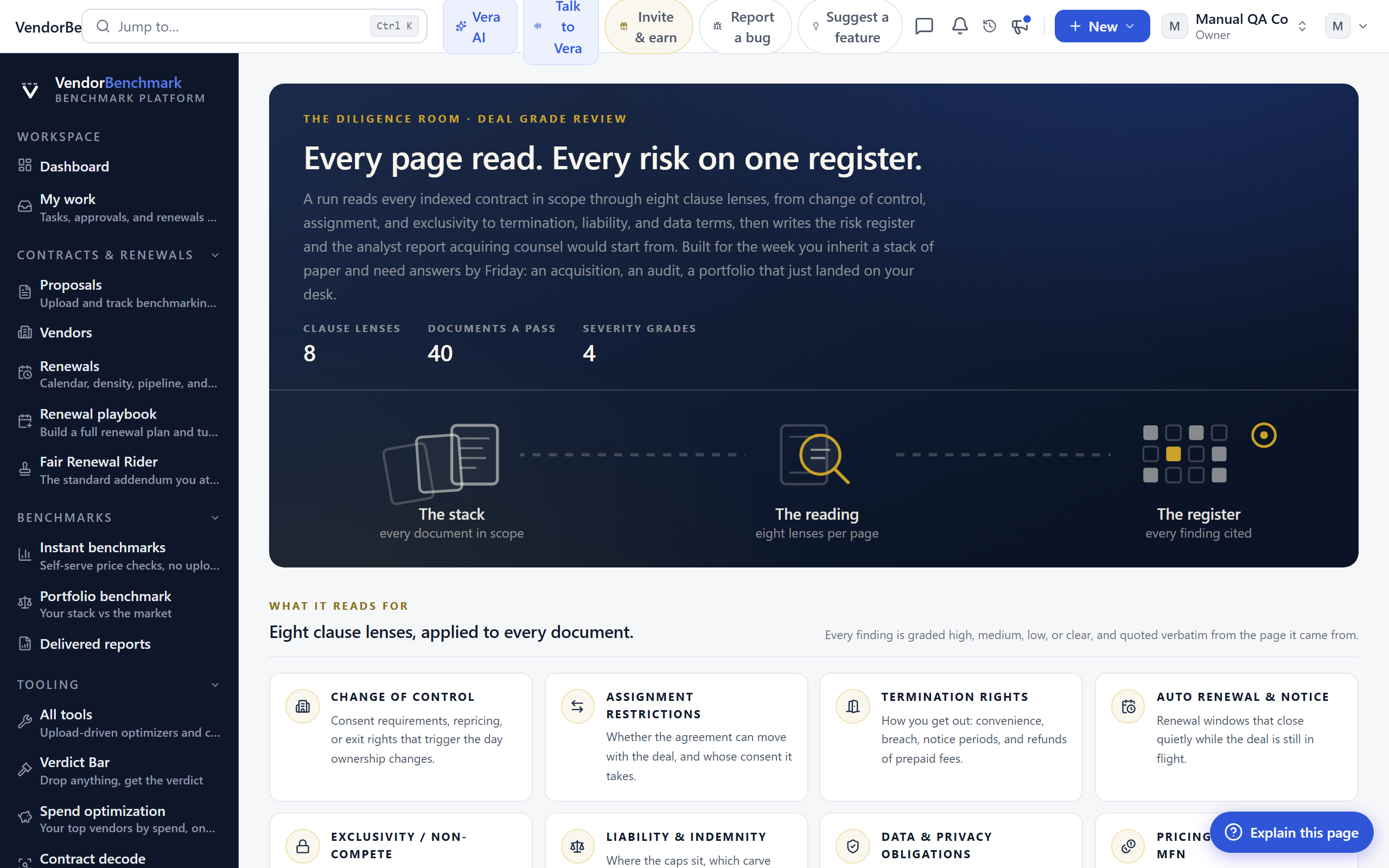
On the screen
- Scope picker — run the review across all contracts or limit it to one vault project.
- Risk register — every finding with its severity and the clause it rests on.
- Analyst report — the synthesized read: what needs consent or renegotiation before the deal, and what is clean.
How to use it
- Scope the documents into a vault project first, or run across all contracts.
- Run a diligence review.
- Work the risk register, starting with the highest-severity findings.
Related: Vault
Requests
Where: Contracts & renewals › Requests · /requests
Who: everyone
One front door for new spend. Every request is triaged by the AI against what you already own, then routed into sourcing, renewals, or approvals.
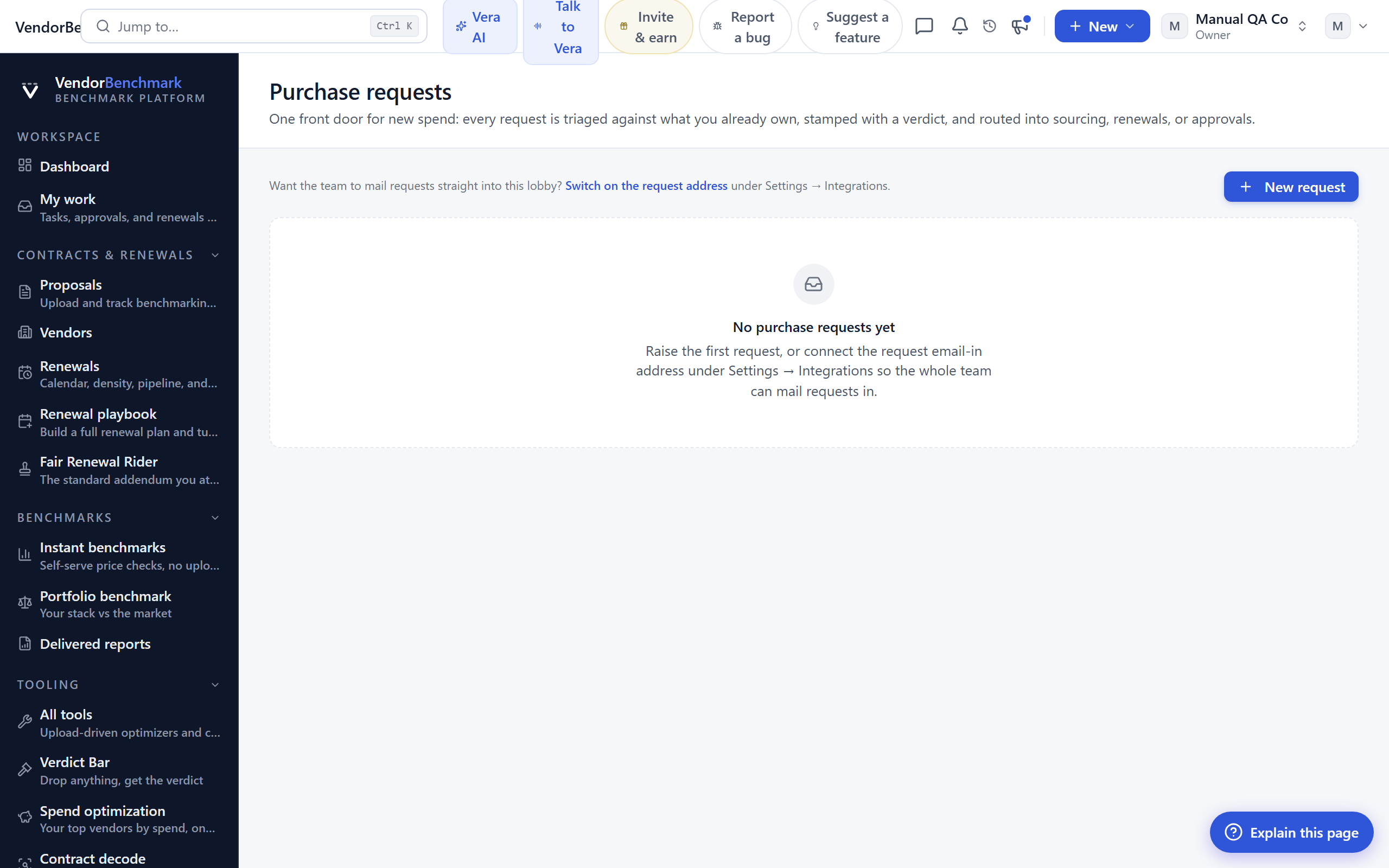
On the screen
- Triage verdicts — the AI's read on each request: net-new, a renewal of something you own, a duplicate of existing capability, or over the approval threshold.
- Routing — send a triaged request onward as a sourcing project, a renewal, or an approval.
How to use it
- Raise a request for the new spend.
- Read the triage verdict.
- Route it onward to sourcing, a renewal, or an approval.
Tips
- Owners can set up an intake address under Settings › Integrations so teammates email requests straight in.
Related: Sourcing
Sourcing
Where: Contracts & renewals › Sourcing · /sourcing
Who: everyone
Your RFP and RFI pipeline: every sourcing project with its stage, supplier count, and bid count. Open a project to run the work.
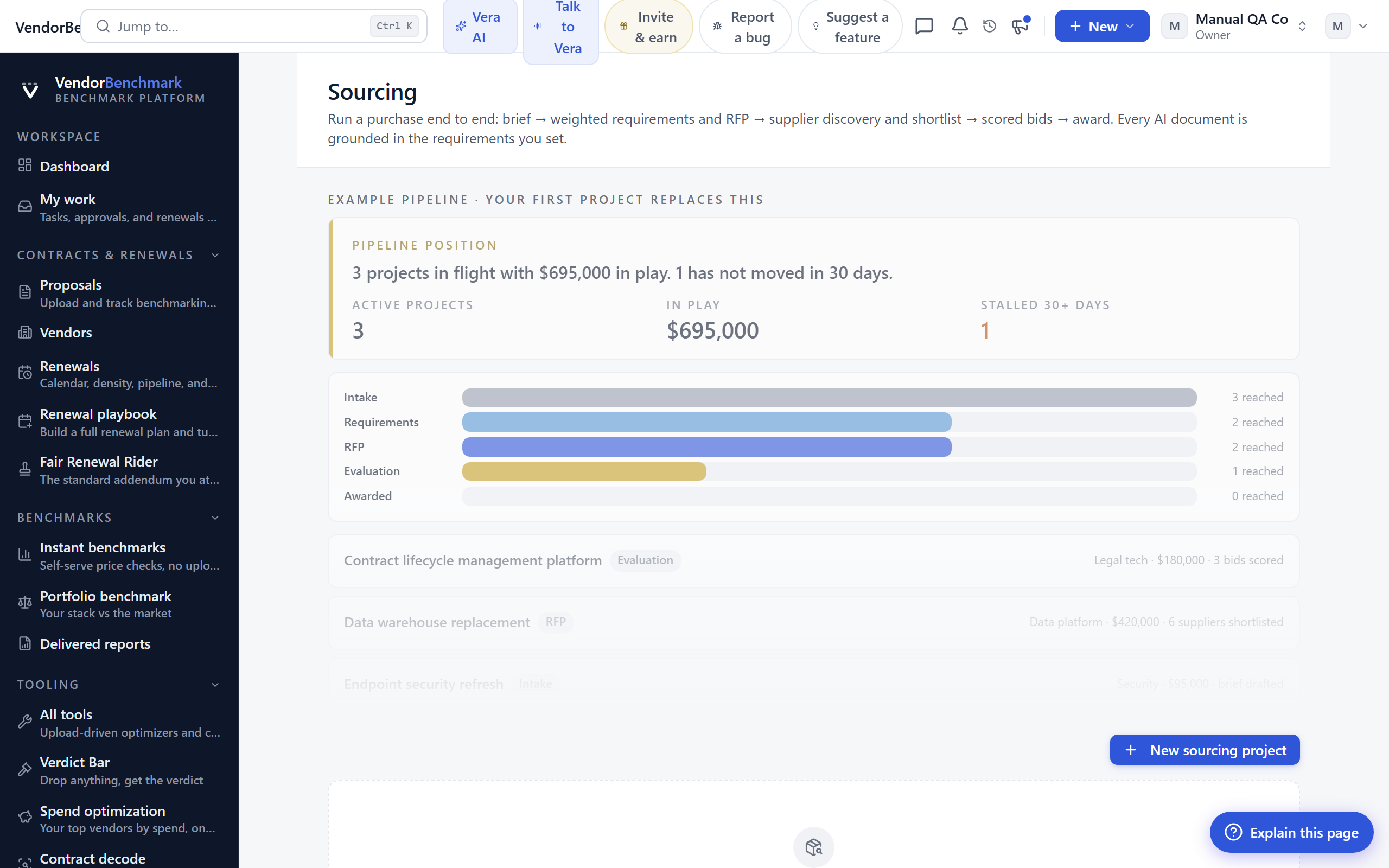
On the screen
- Pipeline list — projects by stage, with suppliers invited and bids received.
- Project page — requirements, suppliers, and bids side by side, through to the award decision.
How to use it
- Start a sourcing project.
- Or turn a purchase request into a project.
- Work the project from requirements through to the award decision.
Related: Requests