04 · Insight
The intelligence layer over everything you have uploaded. It turns your proposals, agreements, and invoices into spend and concentration analytics, ranks the savings still on the table, proves negotiated savings against the invoices that followed, reads your documents for search and grouping, and connects you to an anonymous community of other verified buyers. Where a screen leans on AI, it is marked below and needs an AI plan.
Portfolio
Where: Insight › Portfolio · /portfolio
Who: everyone
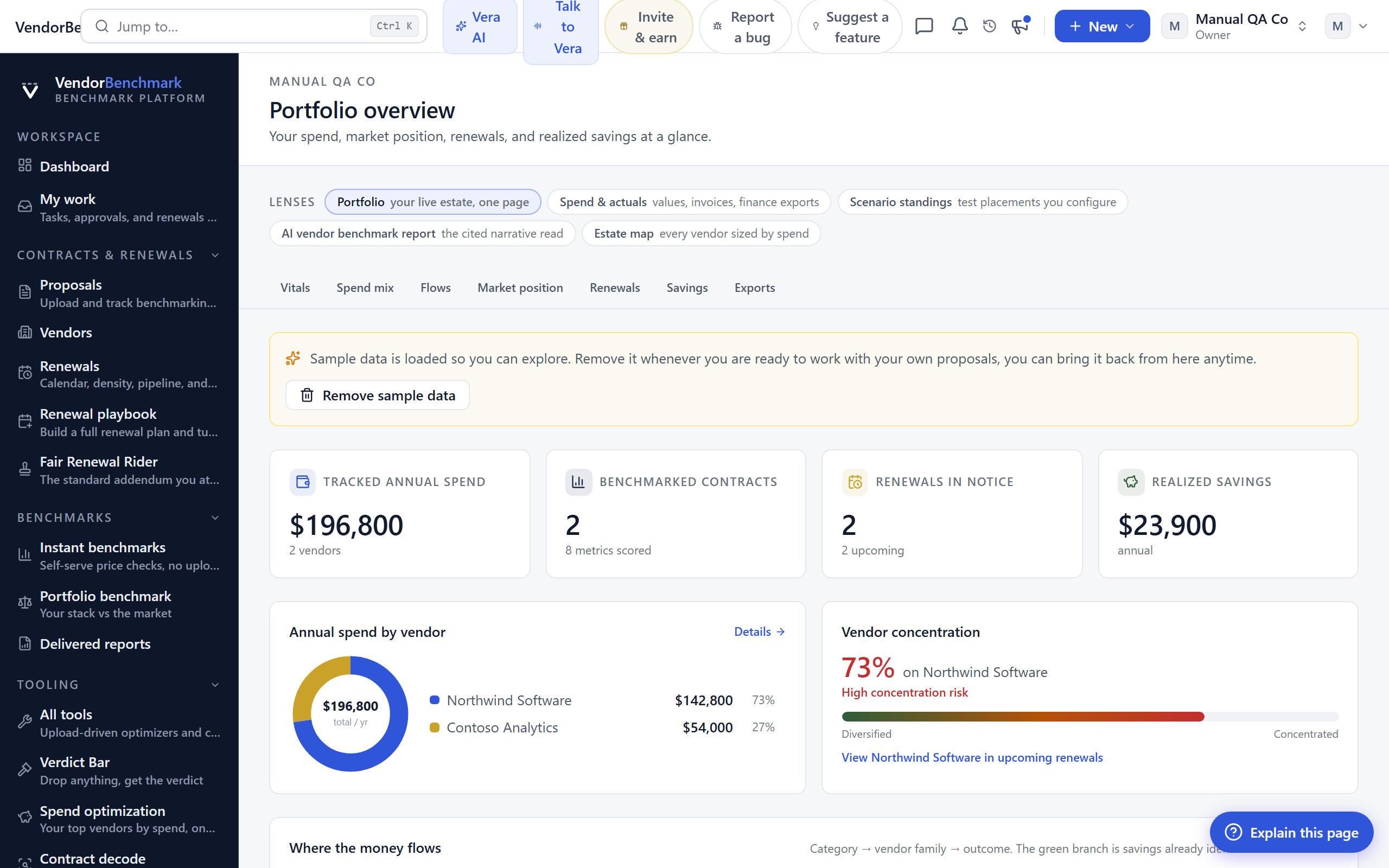
Analytics across your whole vendor portfolio, built automatically from proposals and agreements that carry an annual value.
On the screen
- Breakdown charts — spend by vendor, category, and expiry year.
- Concentration — how dependent you are on your biggest vendors.
How to use it
- Scan the breakdown charts to see where the money sits.
- Check the concentration read for over-reliance on a single vendor.
- Add annual values to agreements to enrich this view.
Tips
- The richer your annual values, the sharper every chart here. Missing values leave gaps.
Related: Spend · Opportunities · Agreements
Monthly briefing
Where: Insight › Monthly briefing · /briefing
Who: everyone · requires an AI plan
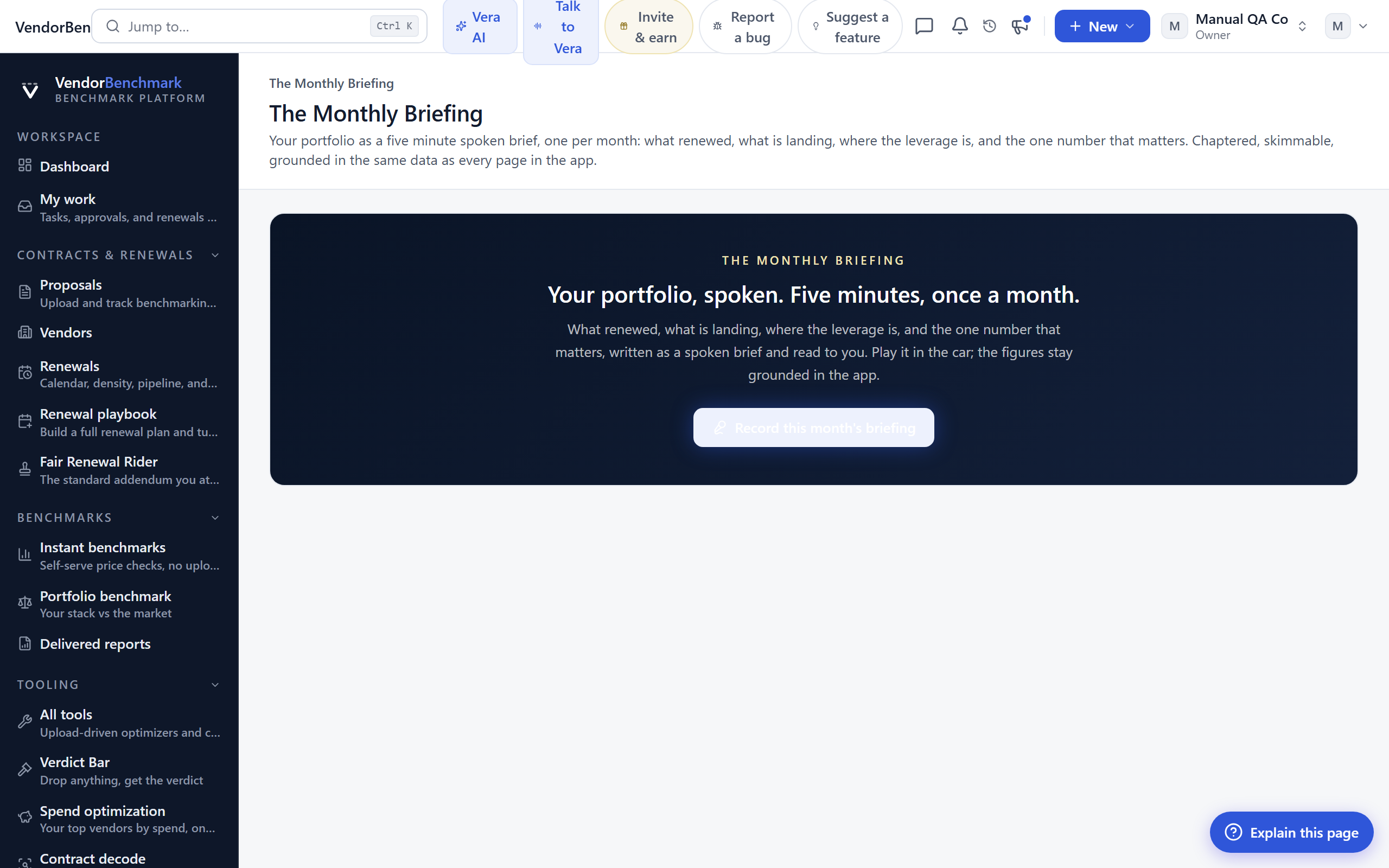
Your portfolio as a five minute spoken brief, one per month: what renewed, what is landing, where the leverage is, and the one number that matters. Chaptered, skimmable, and grounded in the same data as every page in the app.
On the screen
- Player — the current month's brief, split into chapters so you can jump to the part you want.
- Generate — builds this month's briefing from your live portfolio when one is not already waiting.
How to use it
- Open Monthly briefing and press play, or generate the current month if the player is empty.
- Skip between chapters to reach renewals, spend, or leverage directly.
Estate map
Where: Insight › Estate map · /portfolio/map
Who: everyone
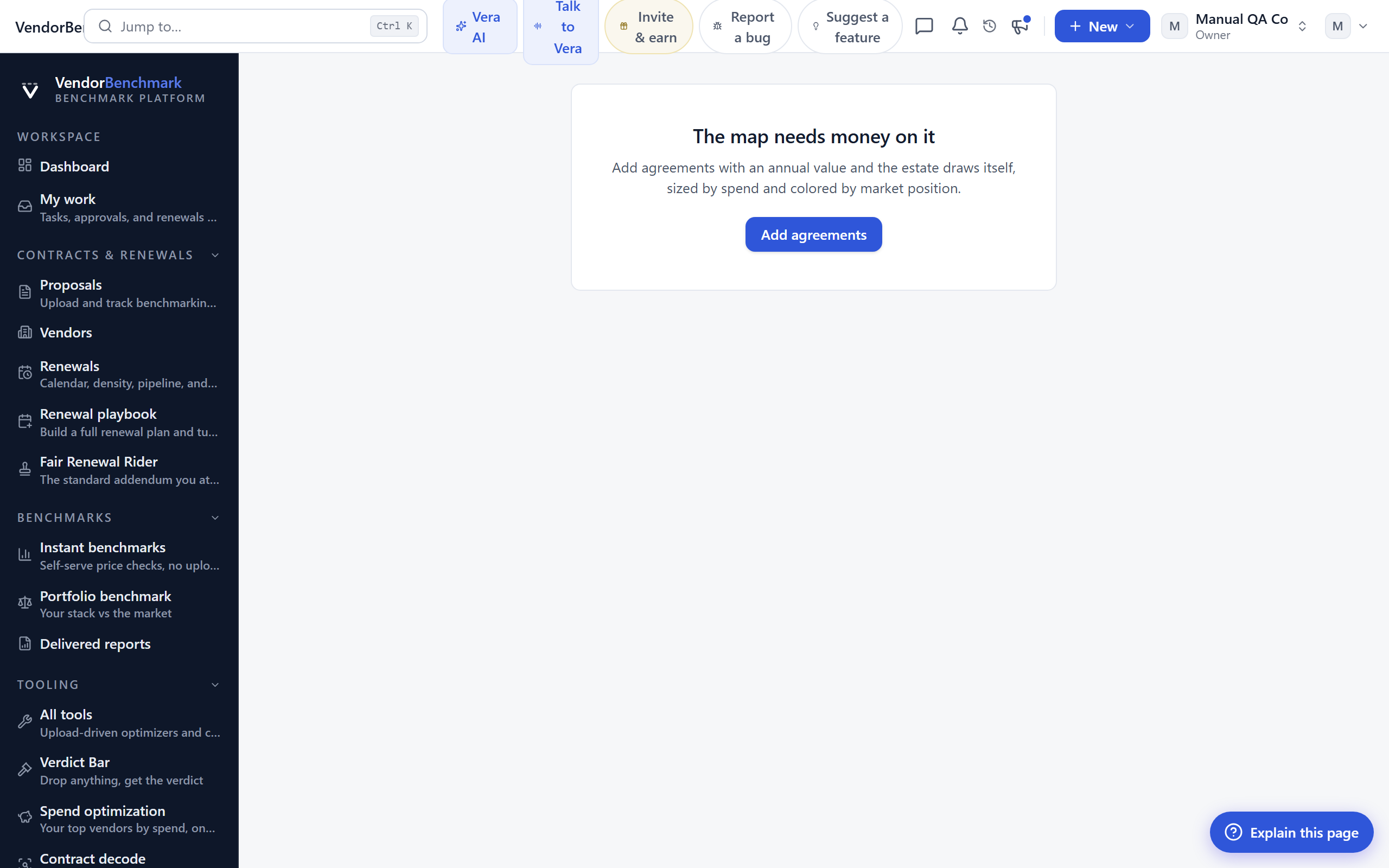
Your whole software estate on one canvas: every vendor sized by spend and colored by market position, for the quarterly leadership conversation. It runs the same deterministic portfolio scan as Portfolio, promoted to a full canvas with a matching slide export.
On the screen
- The map — one tile per vendor, area sized by annual spend, color set by benchmark position. Vendors we cannot benchmark yet read as "Not benchmarked yet".
- Totals — spend, vendor and contract counts, the share of spend that is benchmark covered, and the headroom to market across the estate.
- Off-map note — how many vendors carry no annual value and so do not appear on the canvas.
How to use it
- Read the biggest tiles first: that is where the money and the leverage are.
- Click a tile to open that vendor's page.
- Export the canvas as a slide for the board deck.
Anomalies
Where: Insight › Anomalies · /anomalies
Who: everyone
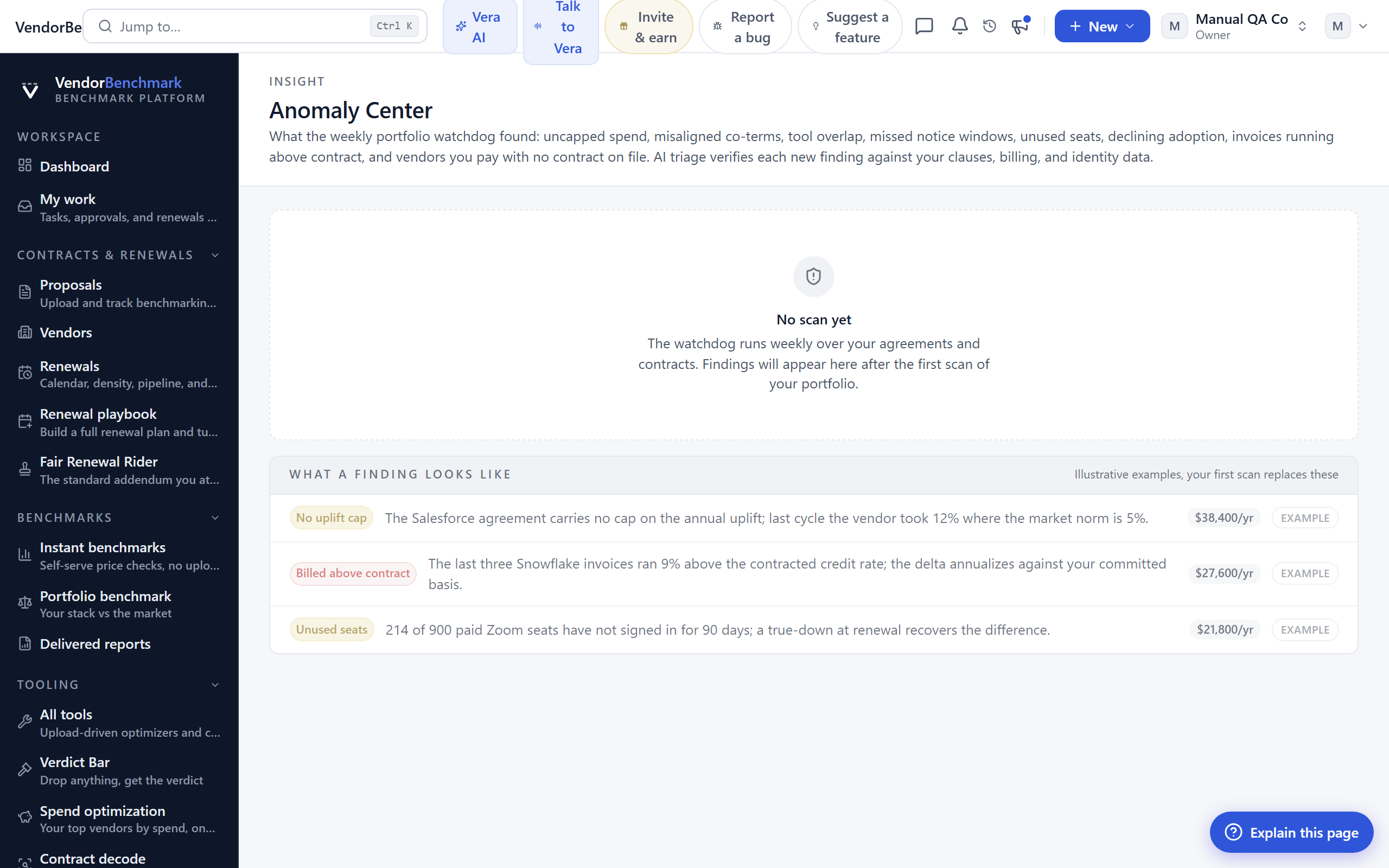
What the weekly watchdog found while scanning your portfolio: unusual uplifts, missed notice windows about to bite, duplicated spend, and other things worth a look.
On the screen
- Findings list — each anomaly with its severity and the evidence behind it.
- Triage controls — mark a finding resolved or not relevant; the watchdog will not raise it again.
How to use it
- Open a finding and check the evidence.
- Act on it, then resolve or dismiss findings you have handled.
Related: Billing watch · Invoices
Rights register
Where: Insight › Rights register · /obligations
Who: everyone · requires an AI plan
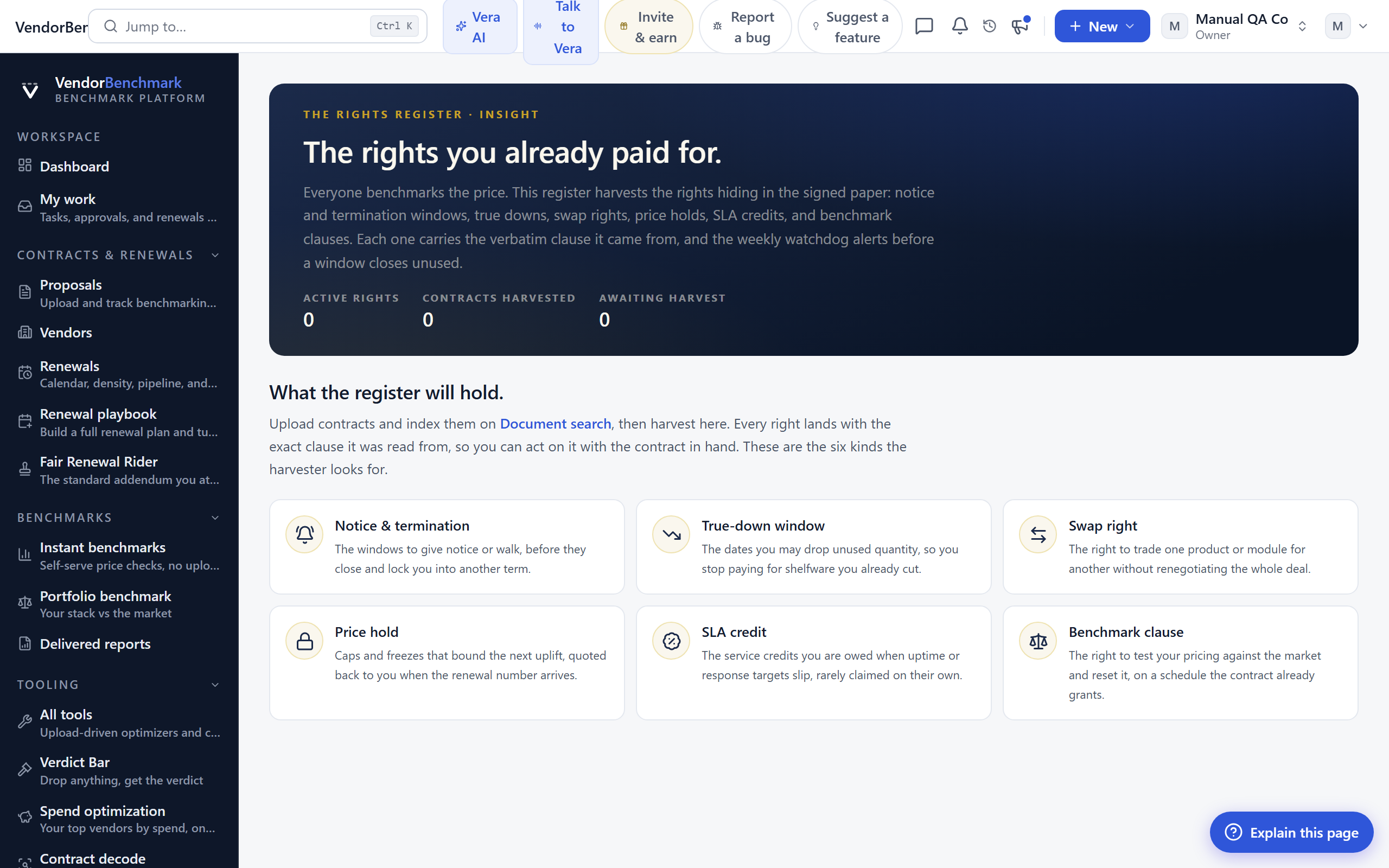
Everyone benchmarks the price; this page harvests the contract rights you already paid for. A quote-anchored pass reads each contract and records your buyer-side rights (true-downs, swap windows, price holds, SLA credits, benchmark and termination clauses) with their exercise windows, then the weekly watchdog alerts you when a right is about to expire unused.
On the screen
- Register — every harvested right, its status, and the exact clause it was read from, so you can act with the contract in hand.
- Harvest stats — active rights, contracts scanned, and how many are still pending a harvest.
- Right families — before anything is harvested, the six kinds of right the harvester looks for, plus the one step that unlocks the register.
How to use it
- Upload contracts and index them on Document search, then harvest here.
- Work the rights with a near expiry so nothing you paid for lapses unused.
Related: Document search · Clause library
Opportunities
Where: Insight › Opportunities · /opportunities
Who: everyone
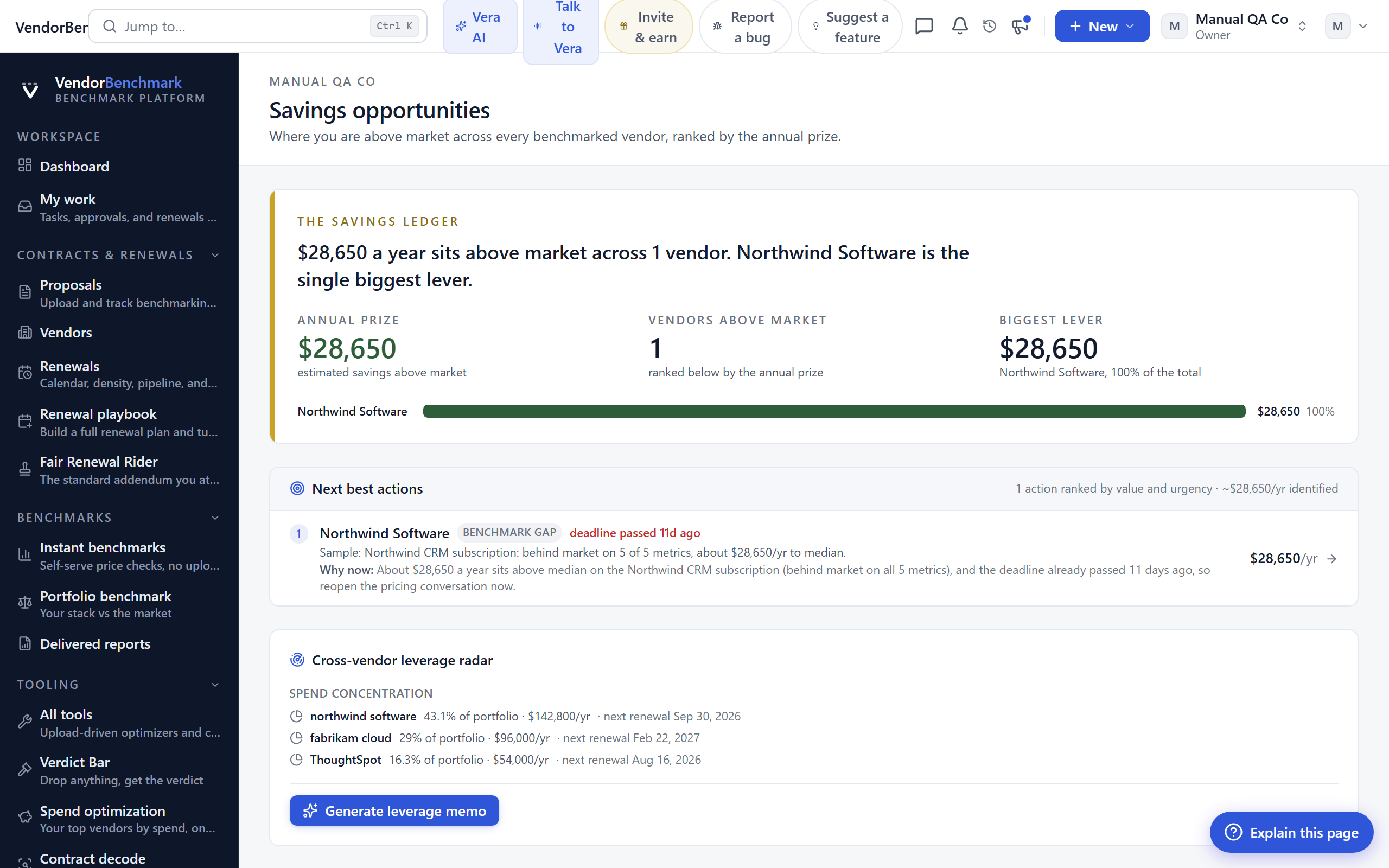
Every benchmarked vendor that is above market, ranked by the annual prize: what you would save if the deal moved to the market median.
On the screen
- Prize column — the estimated annual saving per vendor. The list is sorted so the biggest lever is on top.
How to use it
- Start at the top, where the money is.
- Turn an opportunity into a tracked negotiation.
- Book an analyst to pressure-test the plan if the deal is large.
Related: Portfolio benchmark · Negotiations
Guarantees
Where: Insight › Guarantees · /guarantees
Who: everyone
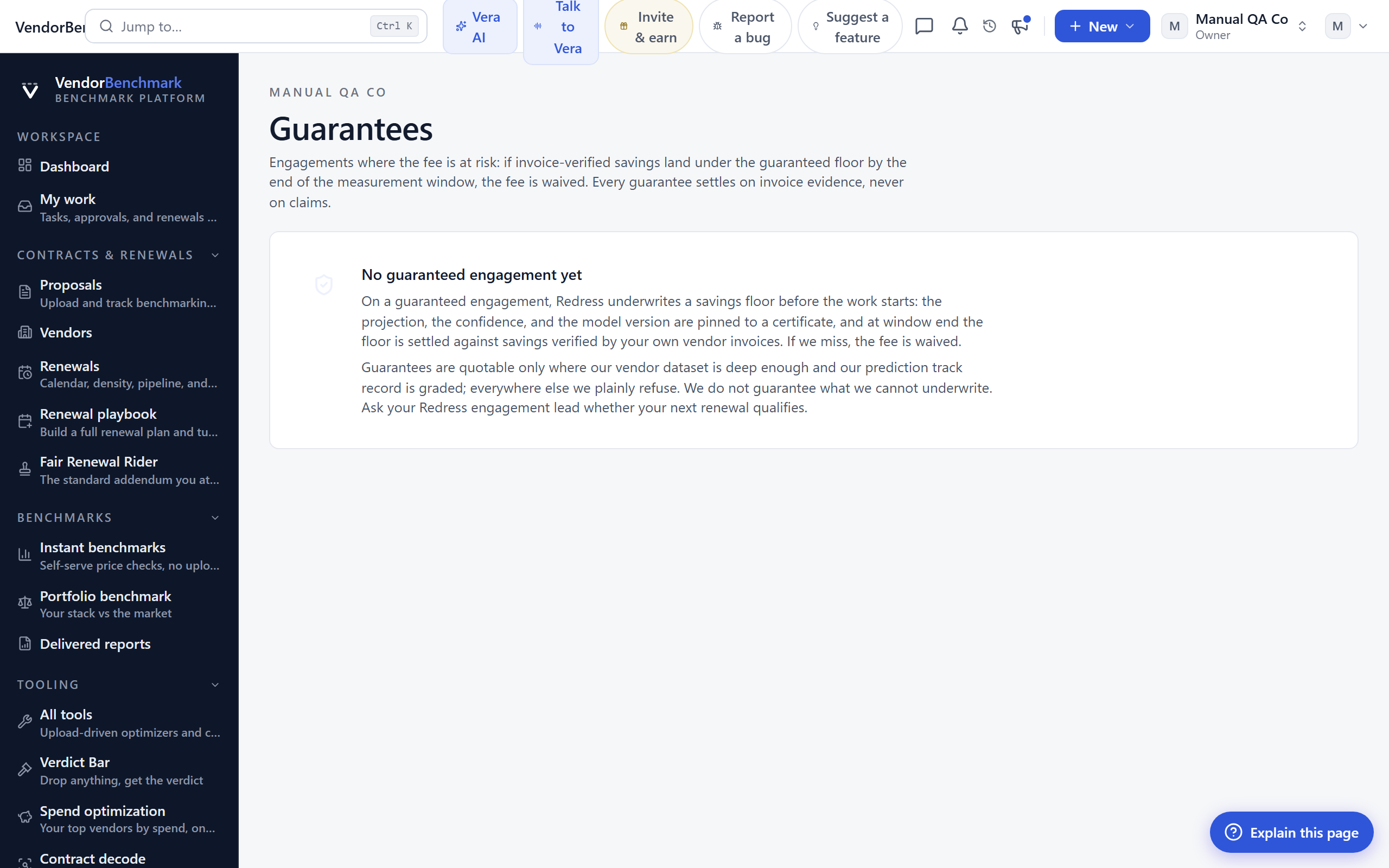
Engagements where the fee is at risk: if invoice-verified savings land under the guaranteed floor by the end of the measurement window, the fee is waived. Every guarantee settles on invoice evidence, never on claims. There is nothing to create here; guarantees are underwritten by Redress on engagement start, only where the dataset is deep enough to stand behind a floor.
On the screen
- Guarantee rows — per vendor: the guaranteed annual floor, the savings verified so far, the measurement window, and the status (Open, or Settled with the floor met or the fee waived).
- Certificate — open a guarantee for the pinned projection, confidence, model version, and settlement.
How to use it
- Track open guarantees against their window and the savings verified to date.
- Open the certificate for the full underwriting detail.
- Ask your Redress engagement lead whether your next renewal qualifies.
Related: Managed renewals · Savings proof
Expert Bench
Where: Insight › Expert Bench · /experts
Who: everyone
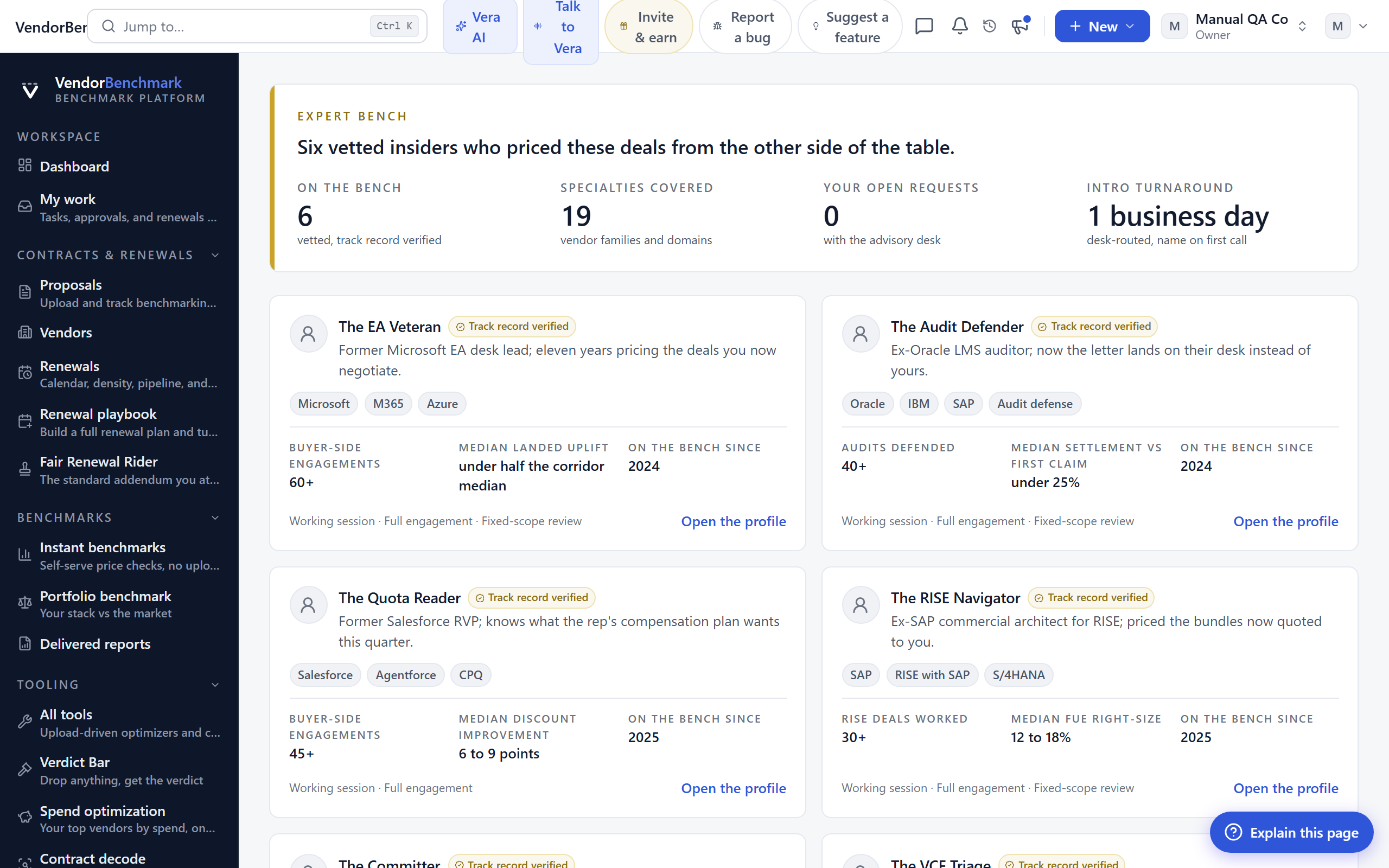
Vetted negotiators and ex-vendor insiders you can bring into a deal: former EA desk leads, LMS auditors, and commercial architects, presented by verified track record under bench codenames.
On the screen
- Track record — verified from engagement records when the expert joins, re-checked annually.
- Engagement shapes — a working session, a fixed-scope review, or a full embedded engagement.
- The intro — the advisory desk confirms the quote and you meet the expert by name on the first call.
How to use it
- Open the profile matching your biggest renewal.
- File a session request with the deal in one line.
Related: Advisory
Savings proof
Where: Insight › Savings proof · /savings
Who: everyone
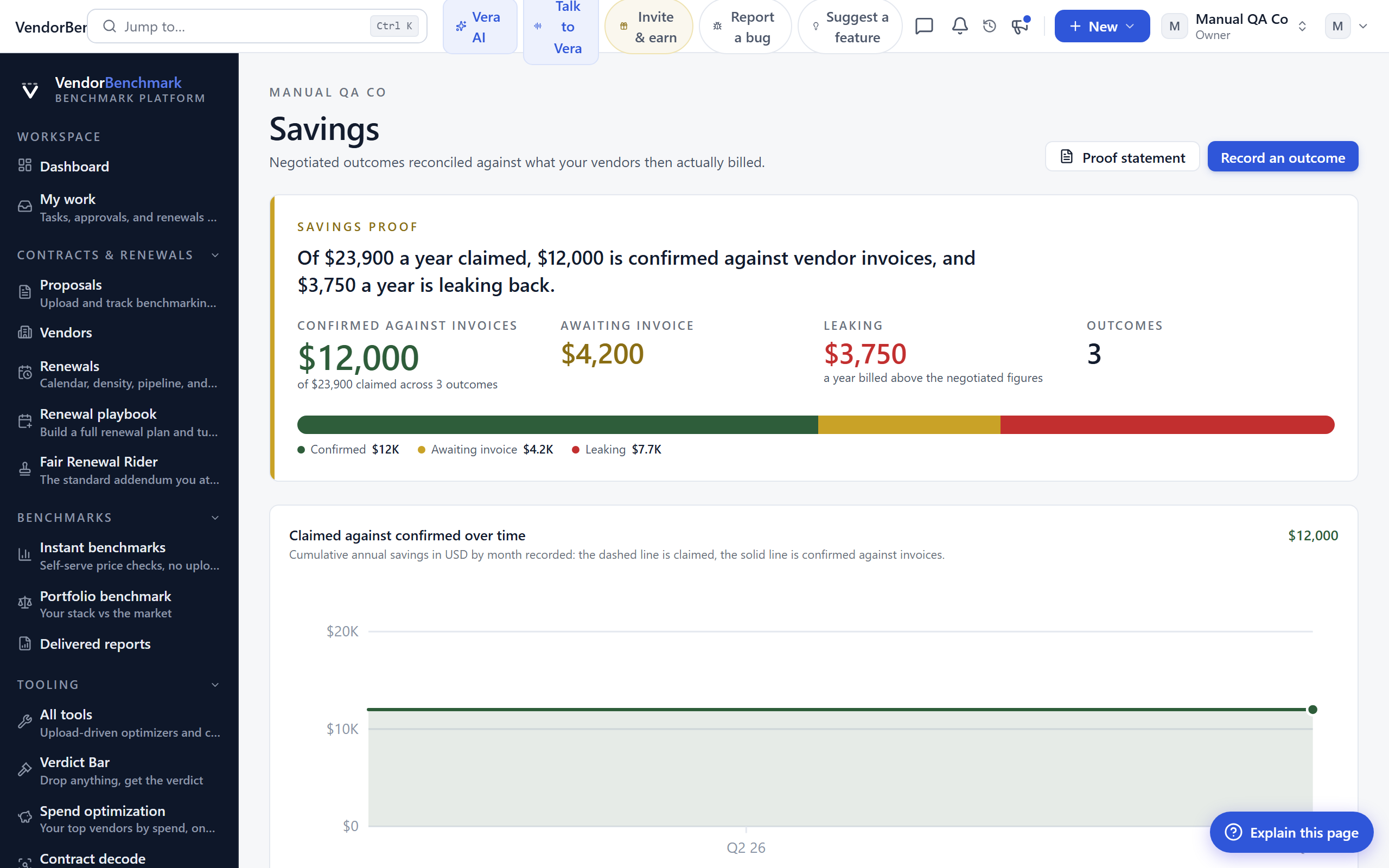
Every claimed saving proven or disproven against the invoices that followed: the ledger of what your negotiations actually returned against your benchmarked baselines.
On the screen
- Savings ledger — each outcome with the baseline, the negotiated price, the annual saving, and the term total.
- Cumulative curve — annual savings stacked by the month each outcome was recorded.
How to use it
- Record a negotiated outcome as each deal closes.
- Export the ledger as CSV for finance.
- Find the next saving to go after in Opportunities.
Related: Verified wins · Opportunities
Verified wins
Where: Insight › Verified wins · /savings/wins
Who: everyone
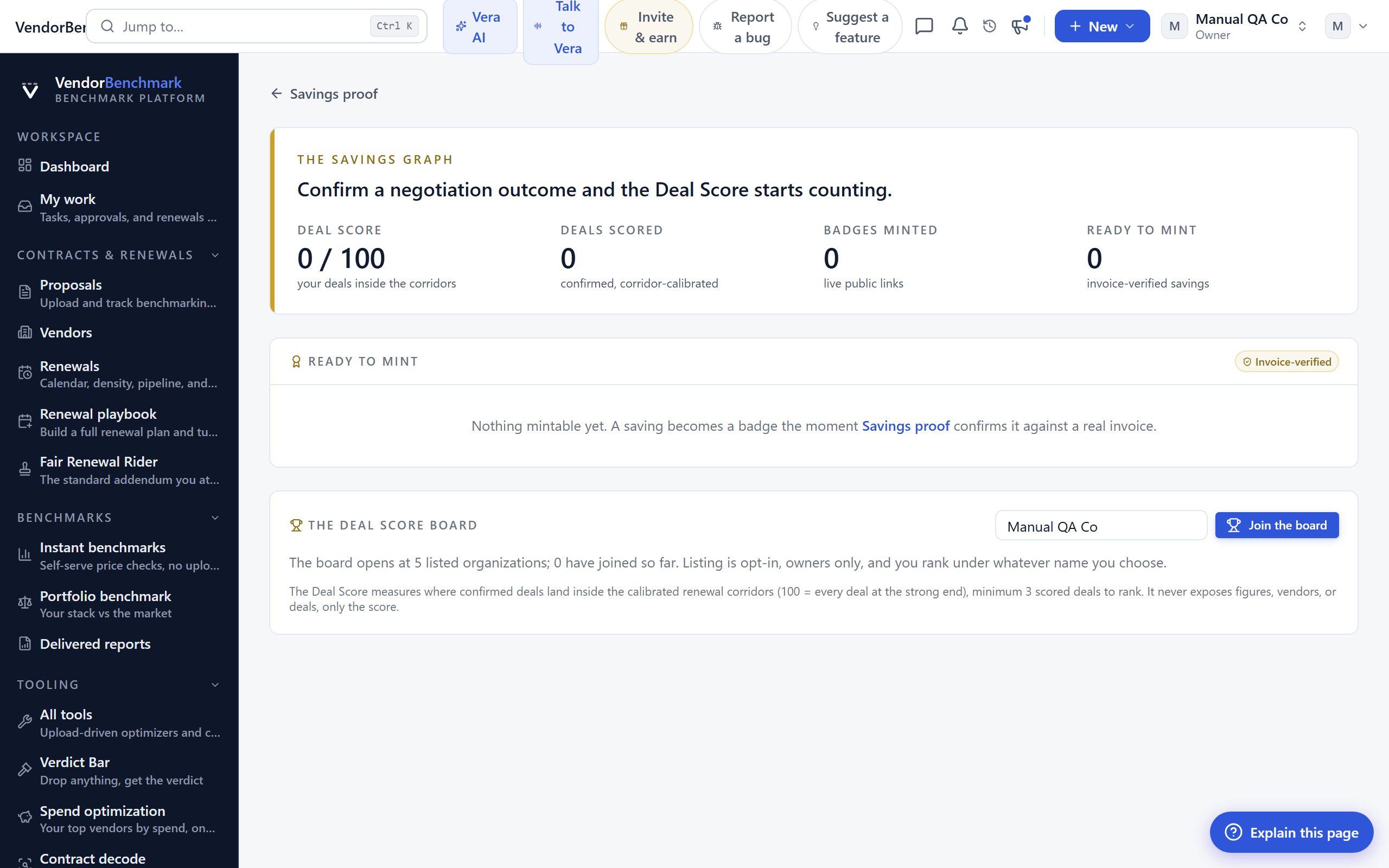
The bragging layer on top of Savings proof: mint a public, revocable badge from any invoice-verified saving, follow your Deal Score against the calibrated corridors, and (owners only) list your organization on the opt-in board.
On the screen
- Ready to mint — only savings confirmed against a real invoice appear here; claims never mint.
- Deal Score — where your confirmed deals land inside the corridors, 100 being the strong end.
- The board — opt-in, owners only, ranked under whatever name you choose; it opens at five listed orgs.
How to use it
- Mint a badge from a verified saving and copy the public link.
- Check your Deal Score against the corridors.
Related: Savings proof · Vendor scorecards
Spend
Where: Insight › Spend · /spend
Who: everyone
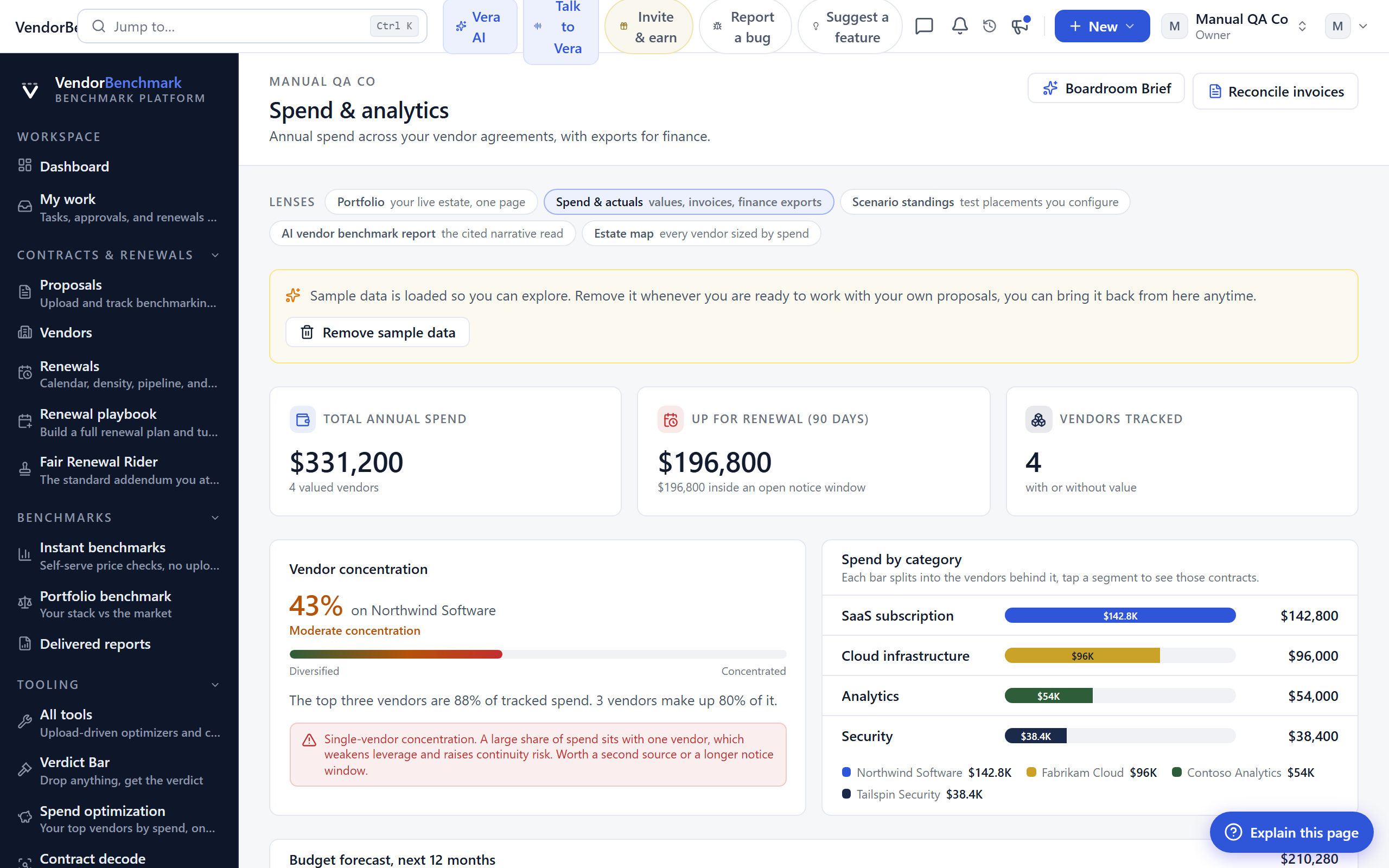
Spend analytics over time, built from the annual values on your proposals and agreements.
On the screen
- Trend charts — spend by year, vendor, and category, including what renews when.
How to use it
- Read the trend to see where spend is growing and what renews next.
- Add missing annual values on agreements to fill the picture.
Invoices
Where: Insight › Invoices · /invoices
Who: everyone
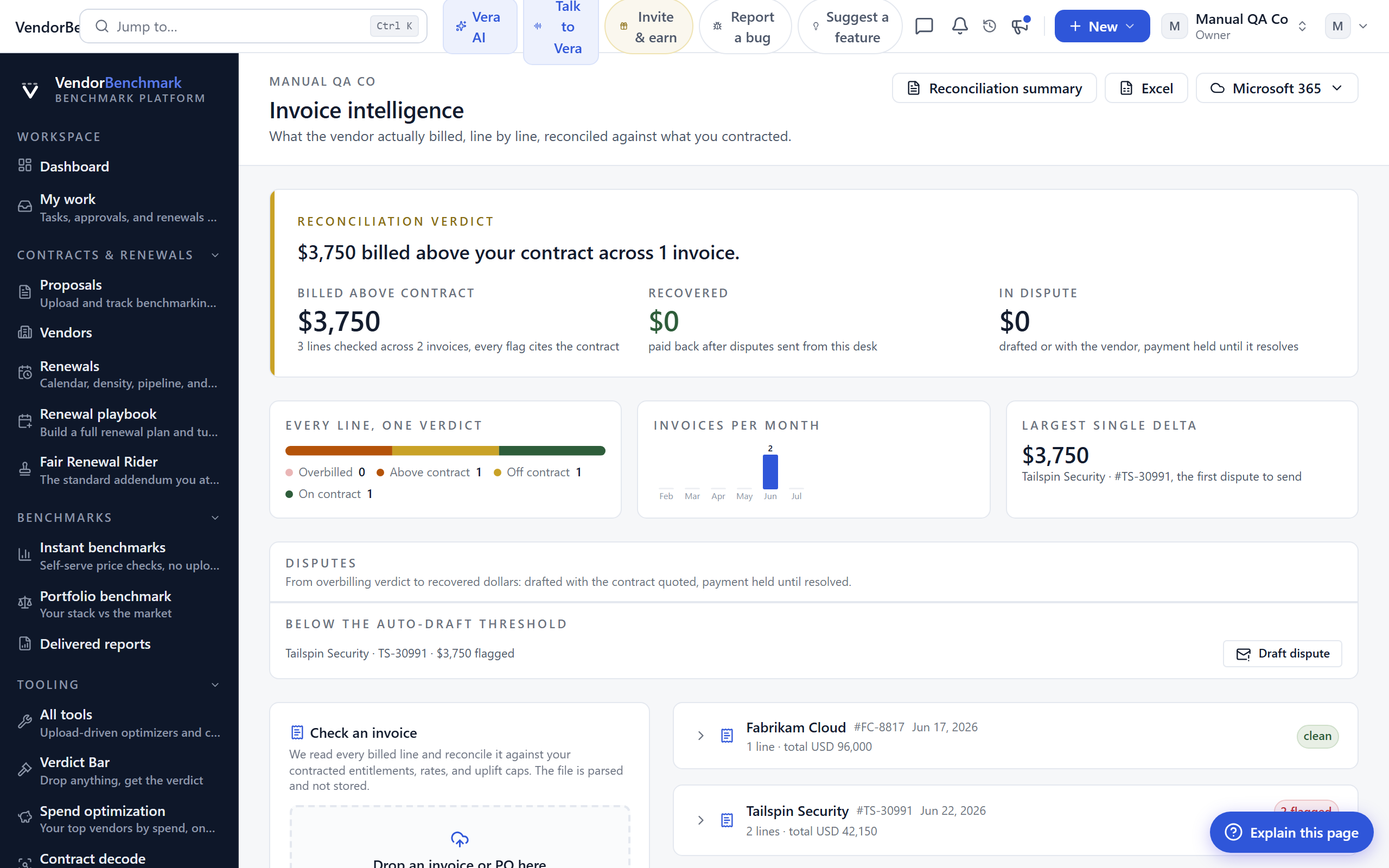
Invoice line-item intelligence: what the vendor actually billed, reconciled line by line against what you contracted. Every line gets a verdict with the dollars at stake.
On the screen
- Line verdicts — per line: ok, price above contract, billed over entitlement, off-contract item, or uplift-cap breach.
- Forward-in address — connect the invoice rail to get a private email address; invoices forwarded there are processed automatically.
How to use it
- Upload an invoice, or set up email-in so they process automatically.
- Work the lines flagged above contract or over entitlement, dollars first.
Tips
- Setting up the forward-in address is an owner action under Settings › Integrations.
Related: Billing watch · Anomalies
Strategy
Where: Insight › Strategy · /strategy
Who: everyone
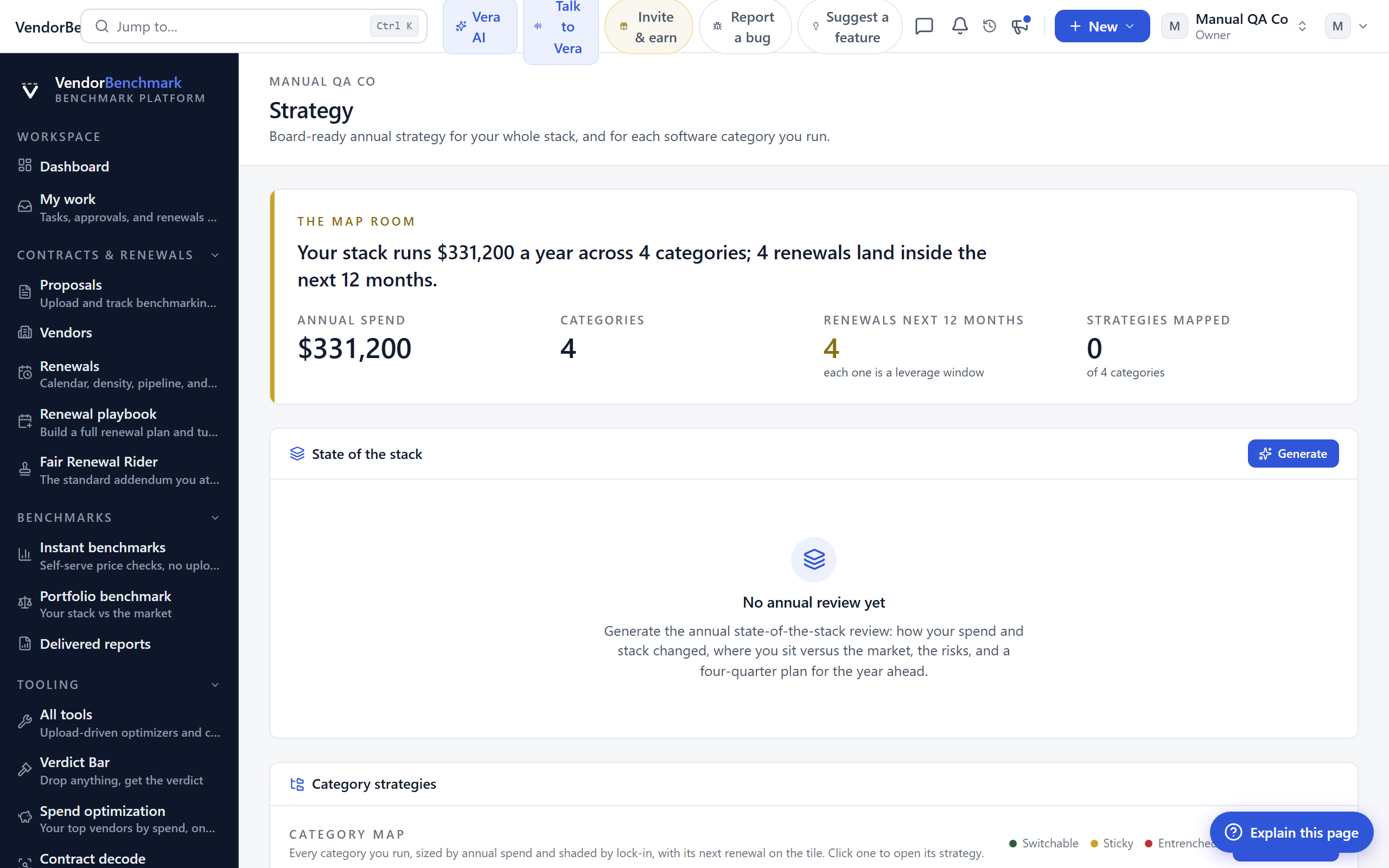
An annual, board-ready read on your software stack: category strategies, vendor posture, and the year's negotiation calendar in one document.
On the screen
- Category sections — per software category: current position, market movement, and the recommended play.
How to use it
- Generate or refresh the strategy.
- Export it for the board.
Related: Portfolio · Estate map
Vendor calendar
Where: Insight › Vendor calendar · /vendor-calendar
Who: everyone
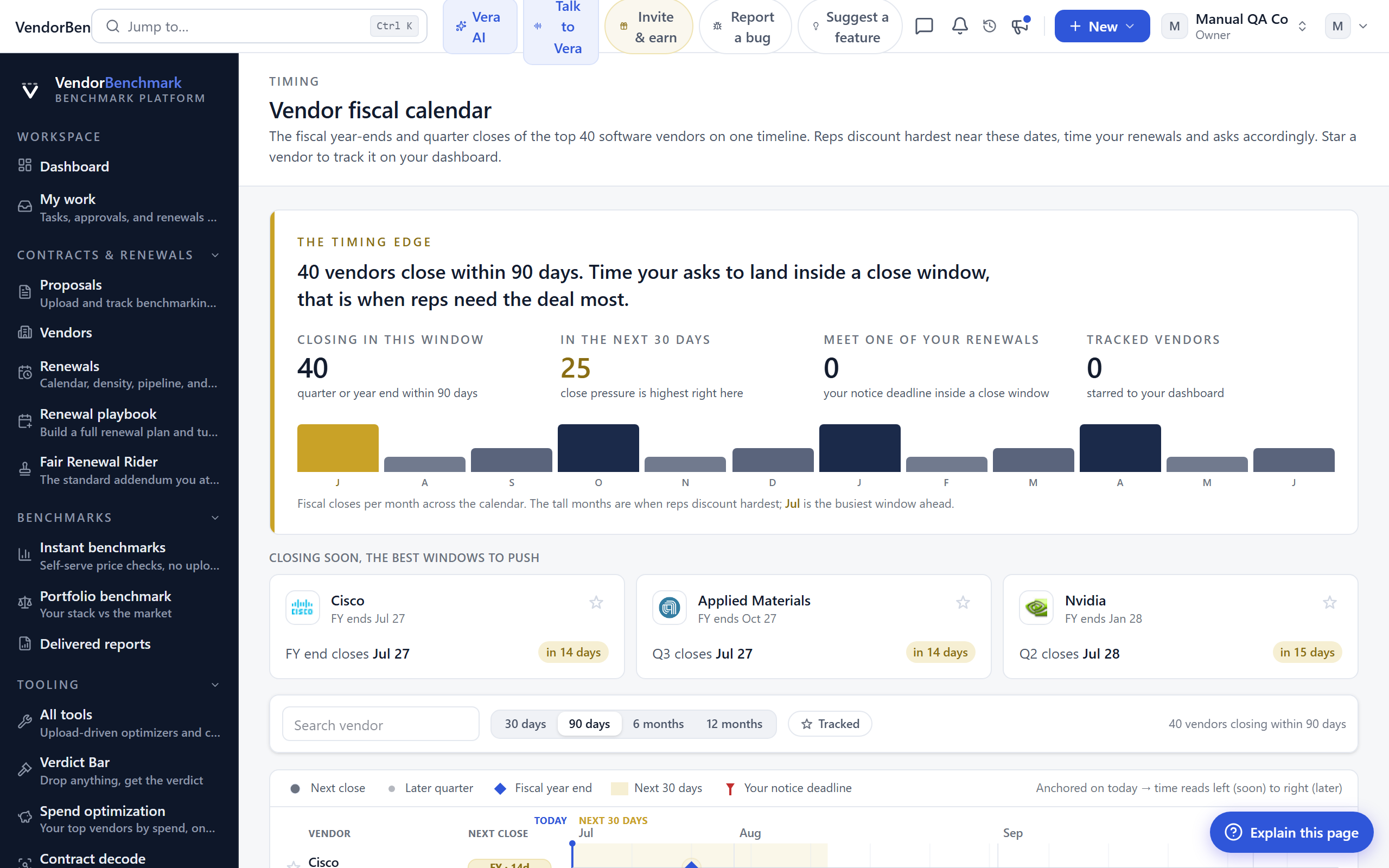
Vendor fiscal quarter and year ends. Vendors discount hardest when their quarter is closing, so this is when to time your asks.
On the screen
- Quarter markers — each vendor's fiscal calendar with quarter ends highlighted.
How to use it
- Line a renewal up against the vendor's quarter end for the deepest discount window.
Related: Renewals
Meeting packs
Where: Insight › Meeting packs · /meetings
Who: everyone · requires an AI plan
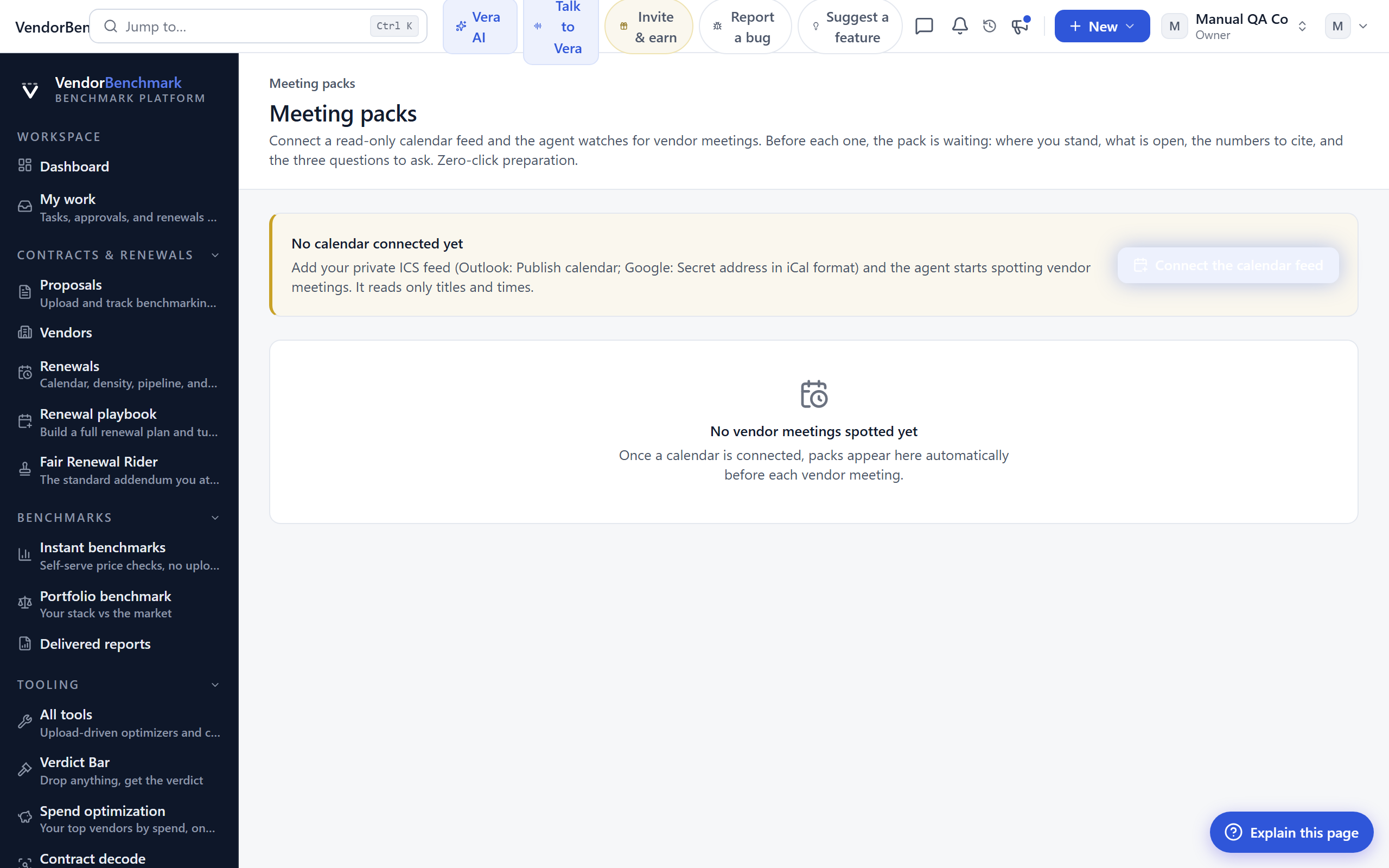
Connect a read-only calendar feed and the agent watches for vendor meetings. Before each one, a pre-call pack is waiting: where you stand, what is open, the numbers to cite, and the three questions to ask. Zero-click preparation.
On the screen
- Connect the calendar feed — add your private ICS feed (Outlook: Publish calendar; Google: Secret address in iCal format). The agent reads only titles and times.
- Pack cards — one per spotted vendor meeting, with a headline and three panels: Where we stand, Open items, and Ammunition.
- The three questions to ask — the questions to put to the vendor on the call.
How to use it
- Connect a read-only calendar feed under Settings › Integrations.
- The agent checks the calendar every 20 minutes; when a meeting title mentions a tracked vendor, the pack lands here before the call.
- Read the pack before you dial in.
Related: Vera AI · Vendor calendar
Document search
Where: Insight › Document search · /doc-search
Who: everyone
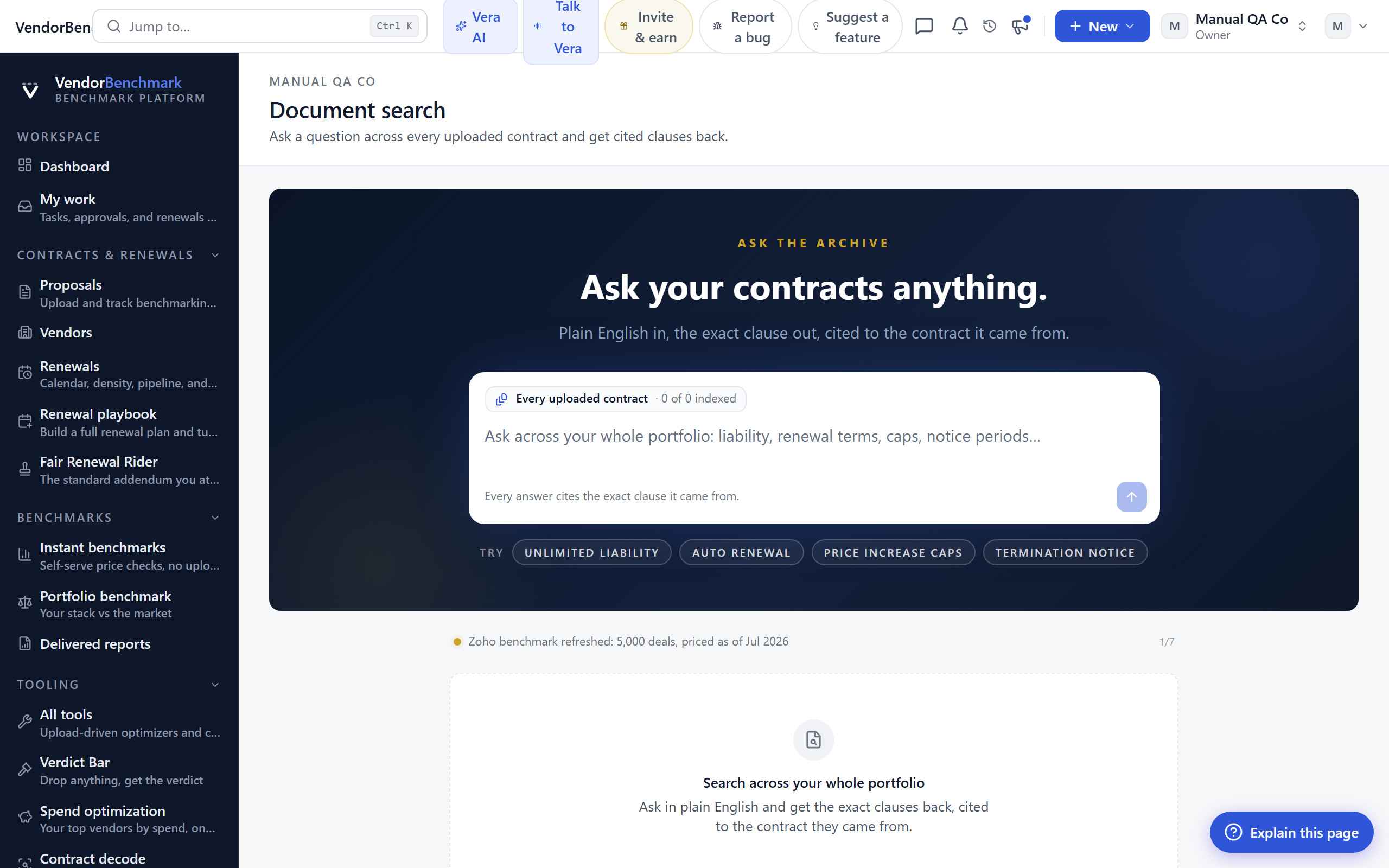
Full-text search across every contract and proposal you have uploaded, so you can find the clause instead of the file.
On the screen
- Results with context — matches show the surrounding sentence and link into the document.
How to use it
- Search for a term like auto-renewal or uplift.
- Open the matching document.
Related: Document clusters · Rights register
Document clusters
Where: Insight › Document clusters · /doc-clusters
Who: everyone
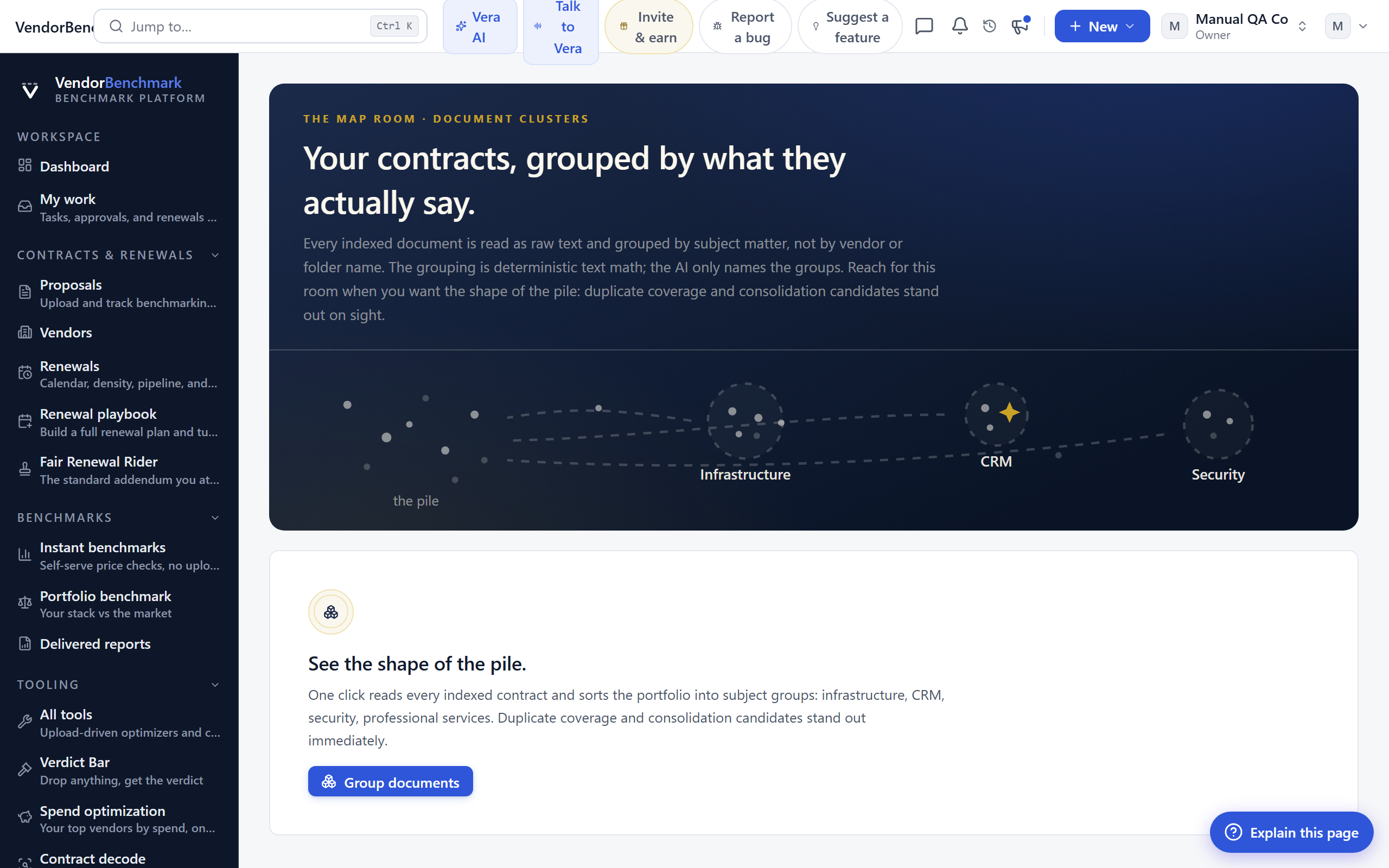
Your contracts grouped automatically by what the documents actually say, subject matter rather than folder names. The grouping is deterministic text math; the AI only names the groups.
On the screen
- Cluster cards — each group with its AI-written name and the documents inside it.
How to use it
- Run or refresh the clustering.
- Open a document from its group.
Related: Document search
Review tables
Where: Insight › Review tables · /review-tables
Who: everyone · requires an AI plan
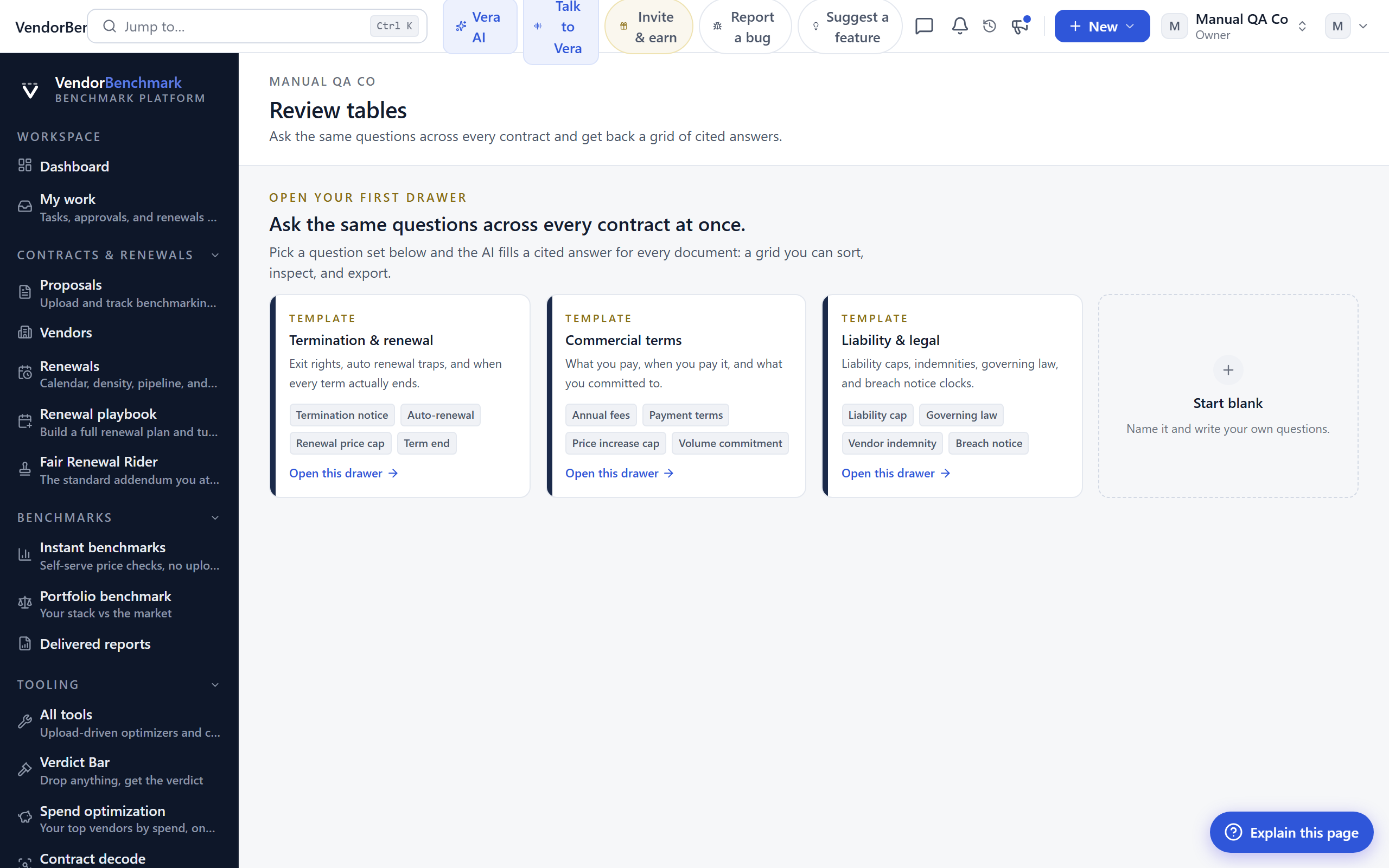
Ask the same questions across many contracts at once. Each column is one question (termination notice, renewal cap, liability cap) and the AI fills in a quote-backed answer for every document.
On the screen
- Columns — your questions. Start from a template or add your own, up to twelve.
- Fill table — extracts every missing answer, a few documents at a time, with the supporting clause behind each cell.
- Export — the whole grid as an Excel workbook, quotes included.
How to use it
- Create a table from the Termination & renewal template, or add your own columns.
- Fill the table, then click a filled cell to see the exact clause it came from.
Related: Document search · Clause library
Data health
Where: Insight › Data health · /data-health
Who: everyone
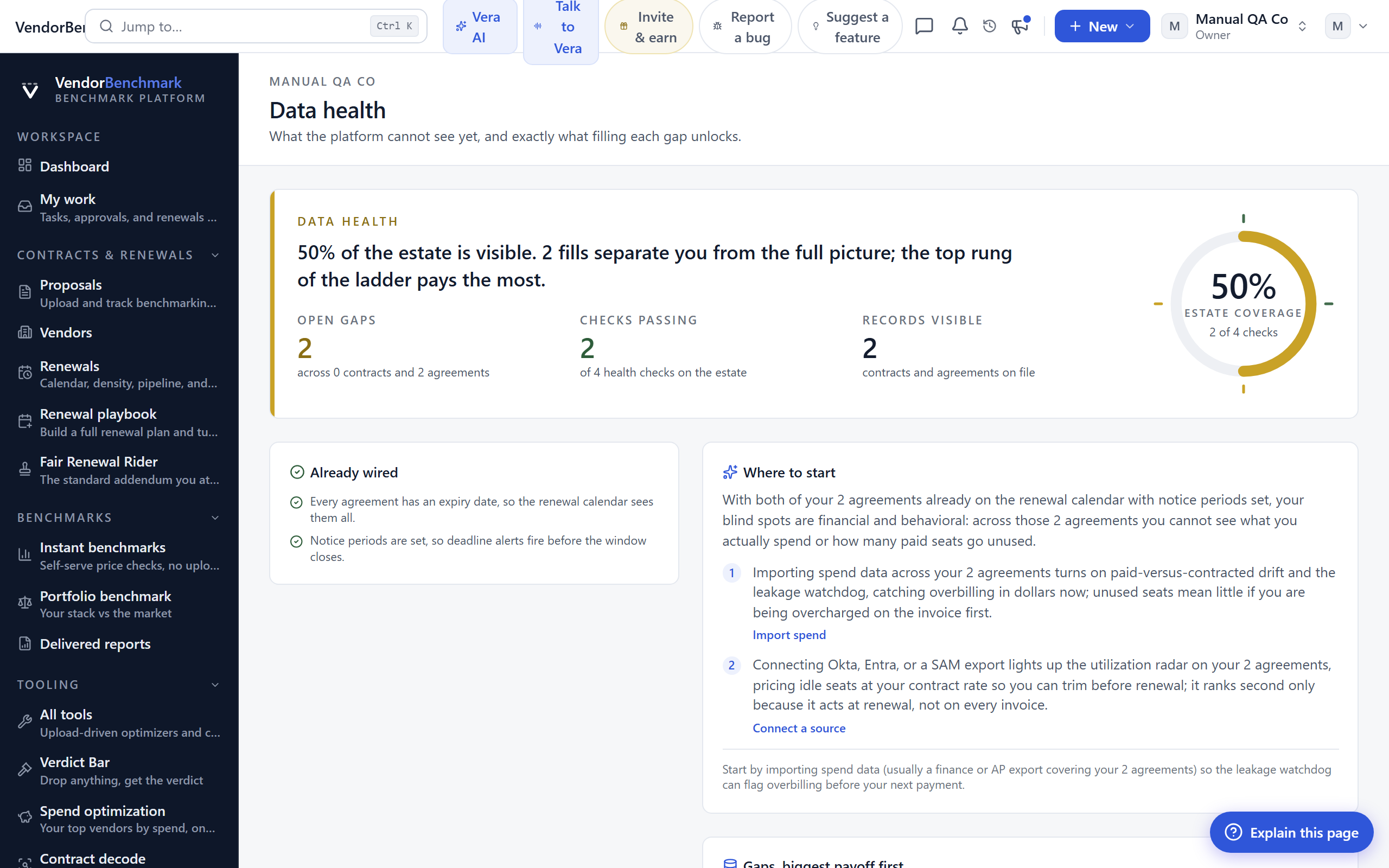
What the platform cannot see for your organization and what filling each gap unlocks. The scan runs on every load; a prioritized plan tells you which gap to close first.
On the screen
- Completeness score — the share of data checks you have covered. Each open gap names the feature it would unlock.
- Audit exposure — an estimate of your license compliance exposure, built from the entitlement data connected so far.
- AI plan — the gaps ranked by value, refreshed whenever the underlying gaps change.
How to use it
- Close the highest-value gap first.
- Connect a data source to fill the entitlement gaps (an owner action under Settings › Integrations).
Related: Integrations
Community polls
Where: Insight › Community polls · /polls
Who: everyone
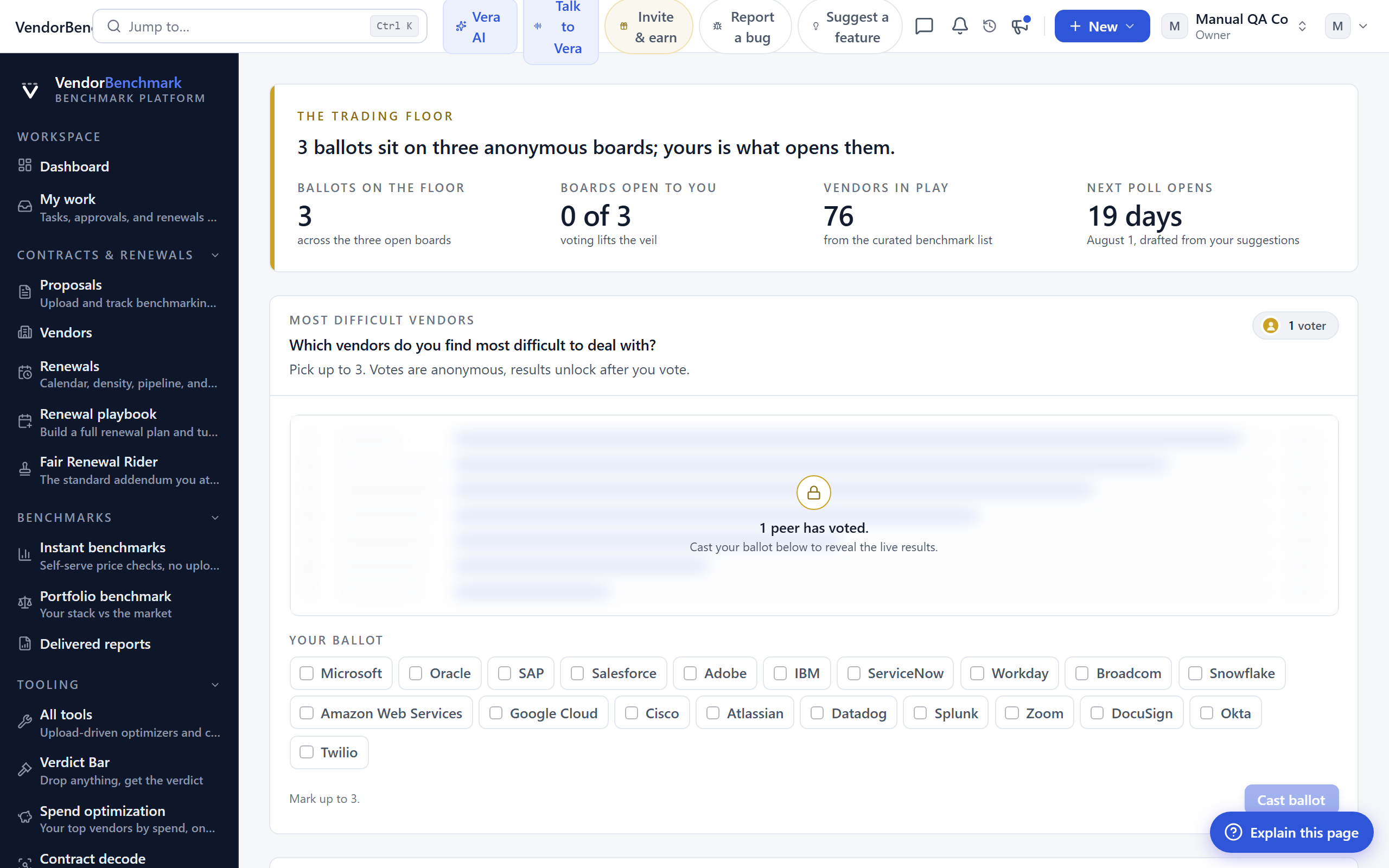
Quick polls answered by other software buyers on the platform. Vote to see how your peers answered; individual ballots stay private.
On the screen
- Results bars — unlock after you vote, so results are not biased by peeking.
How to use it
- Vote on an open poll to reveal how peers answered.
Related: Platform pulse · Buyer Network
Platform pulse
Where: Insight › Platform pulse · /pulse
Who: everyone
What other teams on the platform are using, published from real usage. Aggregate counts only; no team is ever named.
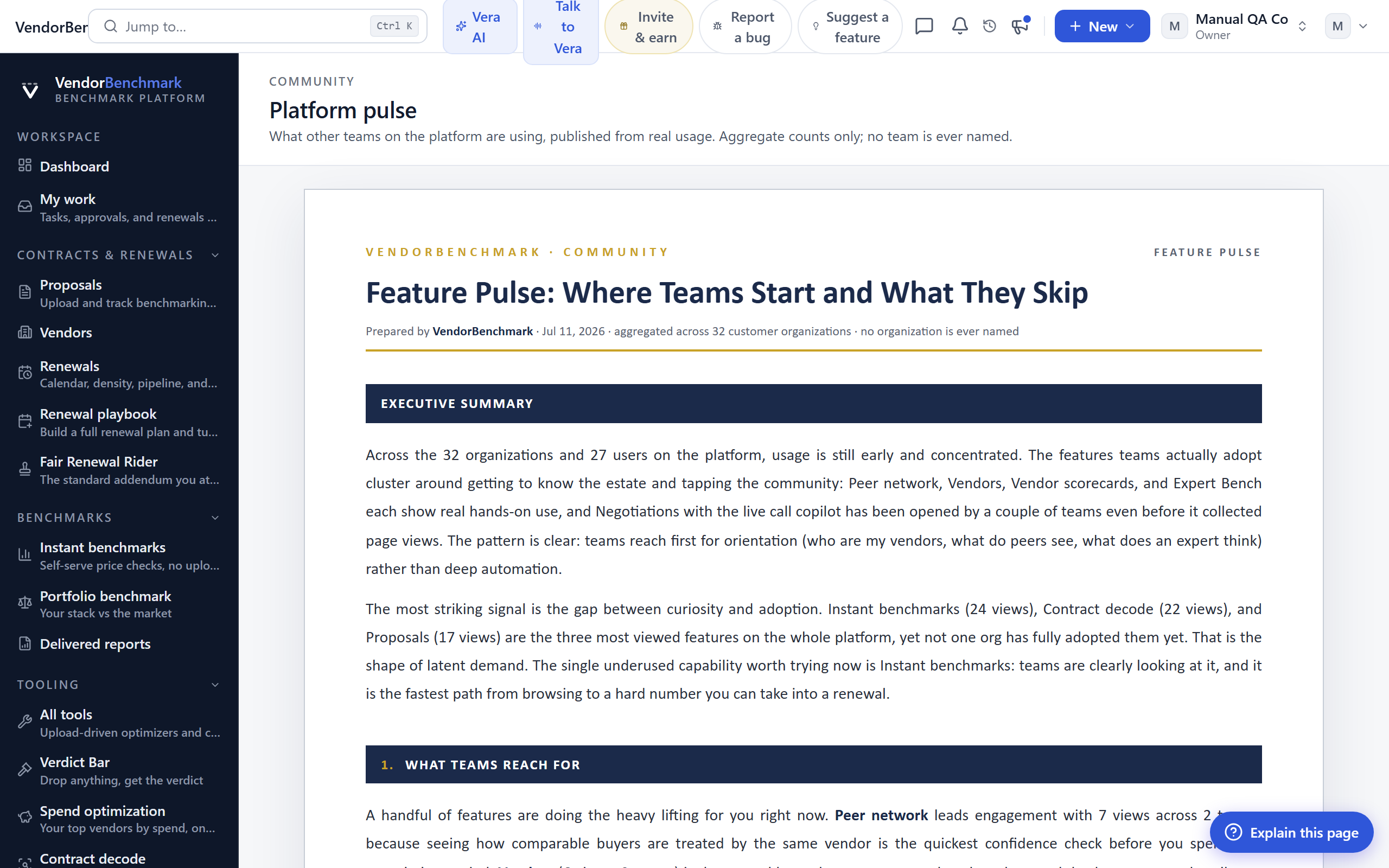
On the screen
- The pulse report — which features teams across the platform use most, drawn from real usage.
How to use it
- Read the published pulse to see what peers lean on, and try a feature you have not.
Related: Community polls
Buyer Network
Where: Insight › Buyer Network · /buyer-network
Who: everyone
Vendor-anchored discussion with other verified software buyers. Everyone posts under a stable desk handle with banded, platform-verified credential chips; nobody sees a name, an email, or a company. This is one of two rooms under the Buyer Network umbrella: a shared tab strip links these threads with the one-to-one Buyer intros.
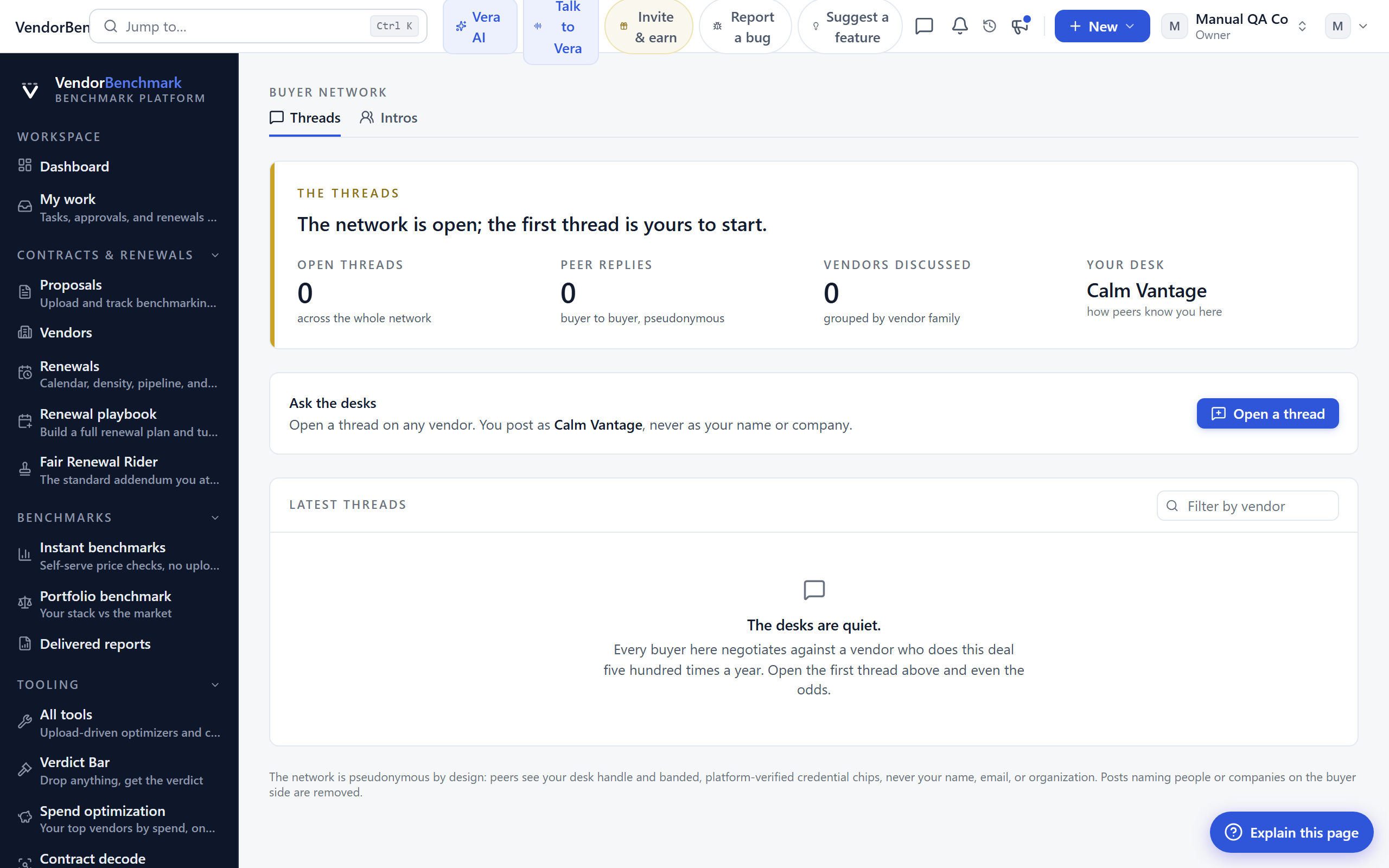
On the screen
- Your desk — the pseudonym you post as. It stays yours, so a reputation can build on it.
- Credential chips — verified buyer and estate bands computed from platform data, never self-claimed.
- The house read — the calibrated renewal corridor for the vendor under discussion, beside every thread.
How to use it
- Open a thread on a vendor you are renewing, or filter the board to one vendor.
- Switch to Buyer intros from the tab strip when you want a private one-to-one.
Related: Buyer intros · Vendor scorecards
Buyer intros
Where: Insight › Buyer intros · /network
Who: everyone
The Buyer Network's intro room: talk to another buyer who runs the same vendor, one to one. Anonymous until you both accept, with contact details shared only on a mutual yes. The shared tab strip links back to the Buyer Network threads.
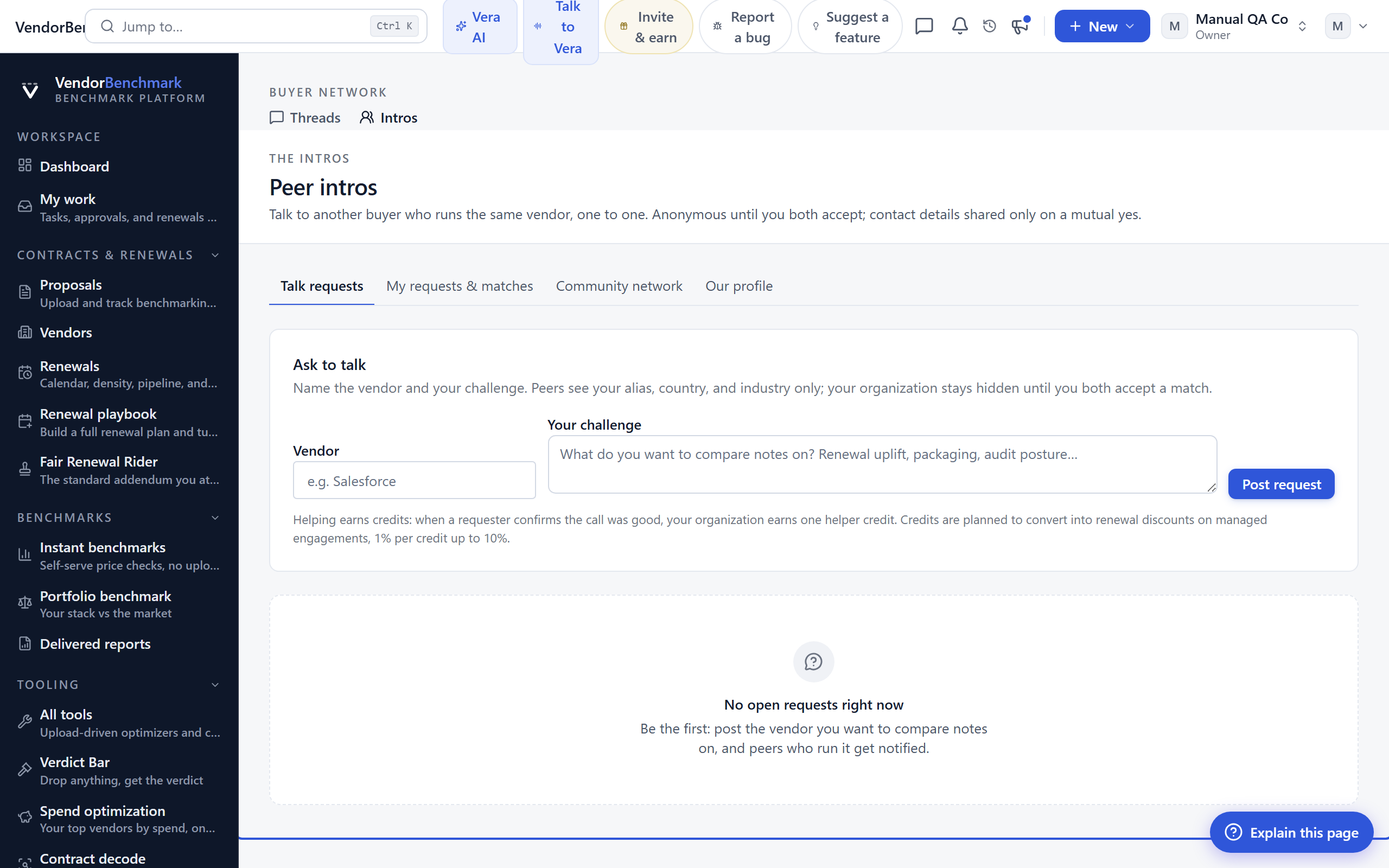
On the screen
- Open requests — who else is asking to talk, shown as alias, country, and industry only.
- Your state — the request you have posted and any matches in flight.
- Directory — other buyers you can reach out to; helping earns credits, and the directory ranks helpers first.
How to use it
- Post that you want to talk about a vendor, or volunteer on an open request.
- Mutually accept, reveal, and only then share contact details.
Related: Buyer Network